
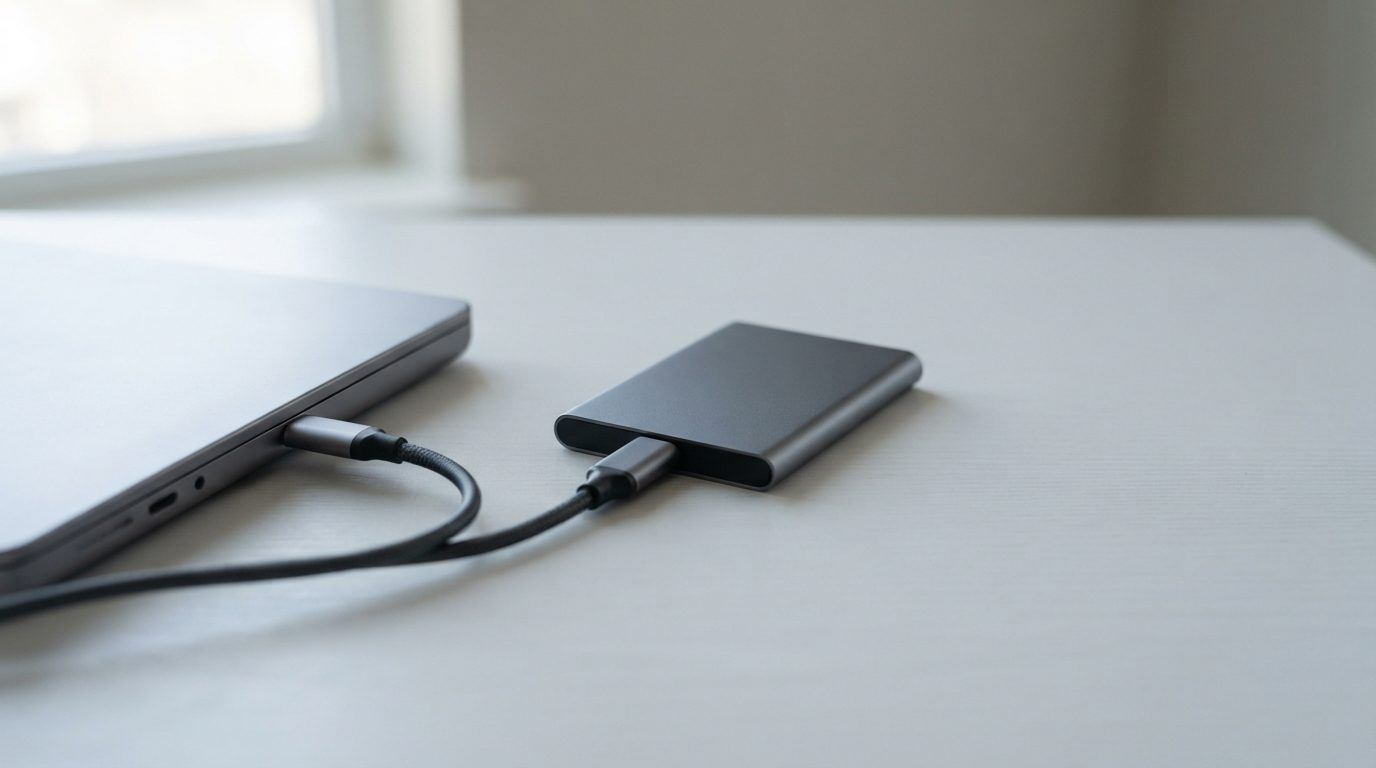
Quick answer: If your SanDisk SSD is not showing up, start with a different cable, a direct port and a second computer. Then check Disk Management (Windows) or System Information (Mac) without changing anything. If the drive is missing everywhere, shows the wrong capacity or asks to be formatted, stop using it. Never initialize or format it. Get a professional evaluation instead.
Why is my SanDisk SSD not showing up?
A SanDisk SSD that is not showing up usually has either a simple connection problem or a fault inside the drive’s electronics or firmware. The safe checks below help you work out which one it is before you do anything that could put your files at risk.
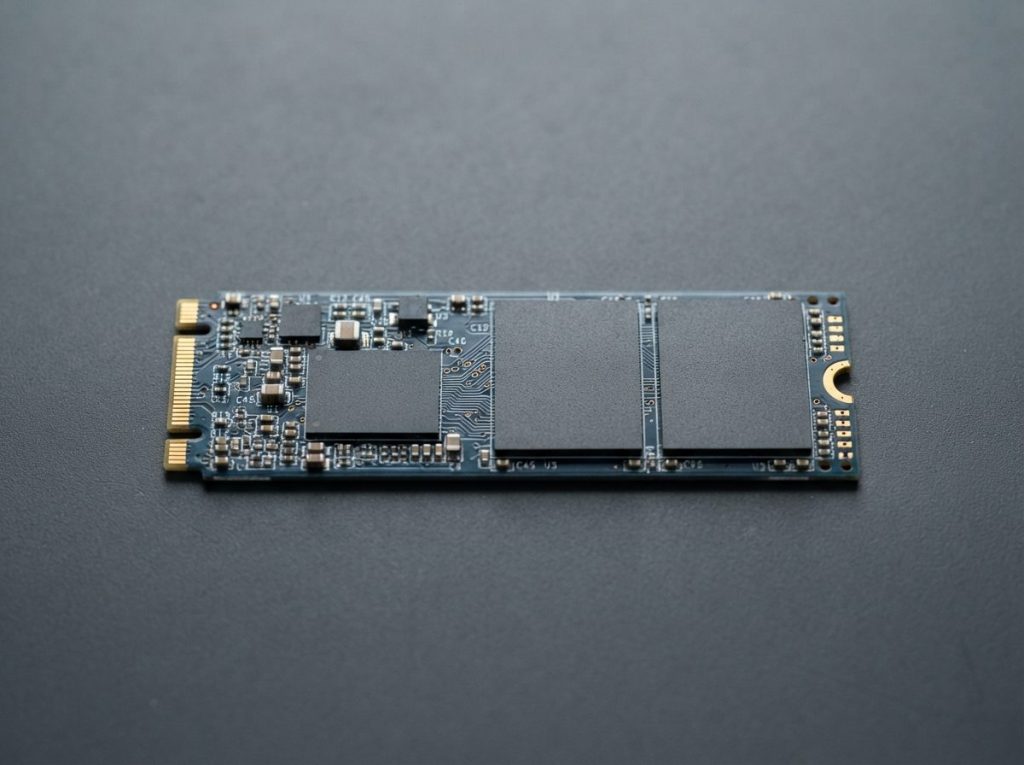
SanDisk sells both internal SSDs (2.5″ SATA and M.2 NVMe) and portable USB-C SSDs. They fail in slightly different ways. A portable SSD has an extra part, the USB bridge. This chip translates between the internal flash storage and your computer’s USB or Thunderbolt port. An internal SSD connects straight to the motherboard.
Solid-state drives have no moving parts, so they rarely give a warning like the clicking you might hear from a failing hard drive. One day the drive works. The next day it doesn’t. That sudden silence is normal for SSD failures, and it doesn’t mean your data is gone.
What safe checks can I do first?
The first checks only involve cables, ports, power and a second computer, so they cannot harm the data stored on the SSD. Work through them in order and write down what you see.
- Try another cable. Many USB-C cables are made for charging only, or only carry slow data speeds. Use the cable that came with the drive, or another good data cable.
- Use a different port. Plug straight into the computer, not into a hub, dock or monitor. On a desktop, use a port on the back, which connects directly to the motherboard.
- Remove adapters. If you use a USB-C to USB-A adapter, try without it or with a different one.
- Check power. Portable SSDs draw power from the USB port. Plug a laptop into its charger, because some laptops limit port power on battery.
- Let it cool. If the drive was very hot, unplug it and let it reach room temperature before trying again.
- Test on another computer. If possible, try a different Windows PC or Mac.
If the SSD works on the second computer, the drive itself is probably fine. The cause is more likely the first computer’s port, drivers or settings. If it fails on both computers with a known-good cable, the problem is very likely inside the SSD.
For internal SSDs in a desktop, the only safe check is to make sure the SATA data and power cables are firmly seated, or that the M.2 drive is properly secured. Do this with the computer shut down and unplugged. Then see whether the drive appears in the BIOS/UEFI setup screen.
How do I check if Windows or macOS can see the SSD?
Your operating system’s built-in tools can show whether the computer detects the SSD hardware, even when it doesn’t appear as a normal drive. Use them only to look. Don’t click any repair, initialize or erase options.
On Windows
- Disk Management: Right-click Start and choose Disk Management. Look for a disk that matches your SSD’s capacity. It may appear as “Not Initialized”, “Unallocated”, “RAW” or “Offline”.
- Device Manager: Look under “Disk drives” and “Universal Serial Bus controllers” for the SSD or a generic storage device, possibly with a yellow warning icon.
If Windows prompts you to initialize the disk, click Cancel. Initializing writes a new partition table and can make recovery harder. For more Windows-specific checks, see our guide to an external hard drive not showing up in Windows.
On a Mac
- Disk Utility: Open Applications, then Utilities, then Disk Utility. Choose View, then Show All Devices. The SSD may be listed but greyed out, which means the computer sees it but cannot mount the volume.
- System Information: Hold Option, click the Apple menu and choose System Information. Check USB or Thunderbolt for portable drives, and NVMExpress or SATA for internal drives.
Don’t run First Aid on a drive that holds important files. First Aid, like CHKDSK on Windows, writes changes to the file system. On a damaged drive, that can overwrite the very information needed to rebuild your folders.
What does each symptom mean, and what should I do?
What you see in these tools points to a likely cause and tells you how much risk you are taking if you keep trying. Use this table as a decision guide.
| What you see | Likely cause | What to do | What not to do |
|---|---|---|---|
| Works on another computer | Port, driver or settings issue on the first computer | Copy your files off while it works, then fix the computer | Don’t reformat the SSD to “make it compatible” |
| Listed in Disk Management with a healthy partition but no drive letter | Missing drive letter | Assigning a letter changes only Windows settings, not the files | Don’t delete or recreate the partition |
| “Not Initialized”, “RAW” or “unreadable” prompt | File system damage or firmware fault | Disconnect the drive and seek an evaluation if the data matters | Don’t initialize, format or run CHKDSK or First Aid |
| Shows a tiny or wrong capacity (for example 0 MB) | Controller or firmware failure | Stop and get professional help | Don’t try firmware updates or flashing tools |
| Appears in System Information or Device Manager, nowhere else | Drive responds but cannot finish starting up | Stop plugging it in repeatedly | Don’t run recovery software over and over |
| Not detected anywhere, on any computer | Failed controller, power circuit, firmware or USB bridge | Professional diagnosis | Don’t open the enclosure or pry the case |
| Disconnects when warm or under heavy copying | Overheating or unstable power | Cool it, use a direct port; if it keeps dropping, back up or get help | Don’t keep forcing large transfers |
| Drive mounts, but files are missing after deletion | Logical issue; TRIM may erase deleted blocks | Stop using the drive at once | Don’t save anything new to it |
What causes an SSD to stop being detected?
Most SSDs that vanish from the system have a failure in the controller, the firmware or the supporting electronics, not in the memory chips holding your files. That is why recovery is often possible even when the drive seems completely dead.
- Controller failure: The controller is the SSD’s processor. It decides where each piece of data lives on the memory chips. If it fails, the computer can’t talk to the drive at all.
- Firmware corruption: Firmware is the internal software that runs the controller. A sudden power loss or an internal error can corrupt it. The drive may then hang, report a wrong size or not respond.
- NAND wear or damage: NAND is the flash memory that stores your data. If key areas wear out, the controller may refuse to start.
- Power or board components: A surge, a faulty port or a damaged connector can knock out small parts on the circuit board.
- USB bridge failure (portable SSDs): The flash storage can be intact while the bridge chip that handles the USB connection has failed.
Is it safe to try software or firmware updates?
No. If the SSD isn’t detected at the hardware level, recovery software can’t see it, and a firmware update on an unstable drive can turn a repairable fault into a permanent one. Software only works when the operating system can already read the drive.
If the drive does mount and the problem is deleted or missing files, read-only recovery software exists. Be careful, though. If the data is important, or the drive disconnects, freezes or shows the wrong size, stop. Every trial-and-error attempt adds stress and can lower the chance of a full recovery.
A note on TRIM: on an SSD that still works, the computer tells the drive which blocks hold deleted data. The drive may then wipe those blocks in the background. If you deleted files or formatted the SSD by mistake, unplug it right away. Don’t keep using it while you decide what to do.
Common mistakes that make recovery harder
- Clicking “Initialize” or “Format” when Windows or macOS prompts you.
- Running CHKDSK, fsck or First Aid on a drive with important files.
- Plugging the drive in and out dozens of times hoping it will “wake up”.
- Installing recovery software onto the same SSD you’re trying to recover.
- Opening a portable SSD’s case, which can crack the board or tear connectors.
- Forcing a firmware update or flashing tool onto a drive that isn’t working properly.
Can data be recovered from a SanDisk SSD that isn’t recognized?
Often, yes. A lab can recover data from an undetected SSD by repairing or bypassing the faulty controller, firmware or bridge, although success depends on the type and severity of the damage. No honest lab can promise results before diagnosing the drive.
At Prime Data Recovery in North York, our SSD data recovery work follows a fixed order:
- Free evaluation and diagnosis to find out whether the fault is in the bridge, the board, the firmware or the NAND.
- Findings and a quote. Nothing goes ahead until you approve it.
- Repair access to the drive. We use PC-3000 SSD to work with the controller’s service modes and fix firmware problems. Board-level faults are repaired at the component level.
- Controlled imaging. Imaging means making a complete sector-by-sector copy without writing anything to your original SSD.
- Recovery from the image. We rebuild the file system (such as NTFS, exFAT or APFS) on the copy. Then you check your files in a file verification session.
- Delivery on a new storage device.
When the controller can’t be revived, chip-off recovery is sometimes an option. This means reading the NAND chips directly with tools such as PC-3000 Flash and Rusolut Visual NAND Reconstructor. Many modern SSDs scramble or encrypt data through the controller, though. That’s why restoring controller access is usually the preferred route. You can read more about how the data recovery process works.
When should I get professional help?
Get professional help as soon as the safe checks fail and the files matter to you. The same goes for any wrong-capacity, format or “not initialized” prompt. Waiting doesn’t damage an unpowered SSD, but repeated attempts can.
Unplug the drive and store it somewhere dry at room temperature. Note what happened just before it stopped working, such as a power cut, being unplugged during a copy, or a drop. If the drive was encrypted with BitLocker or FileVault, have your password or recovery key ready. Prime Data Recovery handles every device confidentially and in line with Canadian privacy law (PIPEDA). Customers across Canada can ship their drives to our lab.
Key takeaways
- Rule out the cable, port, power and computer first. These checks are risk-free.
- Use Disk Management, Device Manager, Disk Utility and System Information only to look.
- Never initialize, format or run CHKDSK or First Aid on an SSD with important data.
- A wrong capacity or no detection on any computer usually means a controller or firmware fault.
- Avoid firmware updates and repeated software attempts on an unstable drive.
- Professional recovery is often possible, but it depends on the damage.
If your SanDisk SSD still isn’t showing up, we offer a free quote and evaluation, a fast and free 30-minute diagnostic, and a “No Data, No Fee” policy. Request help from Prime Data Recovery or call (416) 661-1112 to talk to our North York lab.
Frequently Asked Questions
My SanDisk SSD shows as 0 MB or the wrong size. Is my data gone?
Usually not. A tiny or wrong capacity often means the controller can't load its firmware or its internal map of where data is stored. The memory chips holding your files may be untouched. Don't format the drive or try flashing tools. A lab can often repair firmware access and then image the drive to recover the files.
Can data recovery software fix a SanDisk SSD that isn't detected?
No. Recovery software can only read drives that the operating system already detects. If the SSD doesn't appear in Disk Management, Device Manager, Disk Utility or System Information, no program on your computer can reach it. The fault is in the hardware or firmware, and fixing it takes specialized lab equipment.
Why does my SanDisk portable SSD keep disconnecting?
Random disconnects often come from a weak cable, a hub or dock that can't supply steady power, or overheating during long transfers. Try a good data cable plugged directly into the computer, with a laptop on its charger. If the drops continue with known-good parts, the drive may be failing. Copy your important files off right away or stop using it.
Should I update the firmware on my SSD if it's not showing up?
No. A firmware update needs a stable, fully working drive. On an SSD that is undetected, freezing or reporting the wrong size, an interrupted or failed update can make the fault permanent and recovery much harder. Update firmware only on a healthy drive whose data is already backed up.
Does a recovery lab need my password if the SSD was encrypted?
Yes, if you used software encryption such as BitLocker on Windows or FileVault on a Mac. The lab can recover the encrypted data, but the files can only be opened with your password or recovery key. Look for the key in your account or saved records before you send the drive in.
