
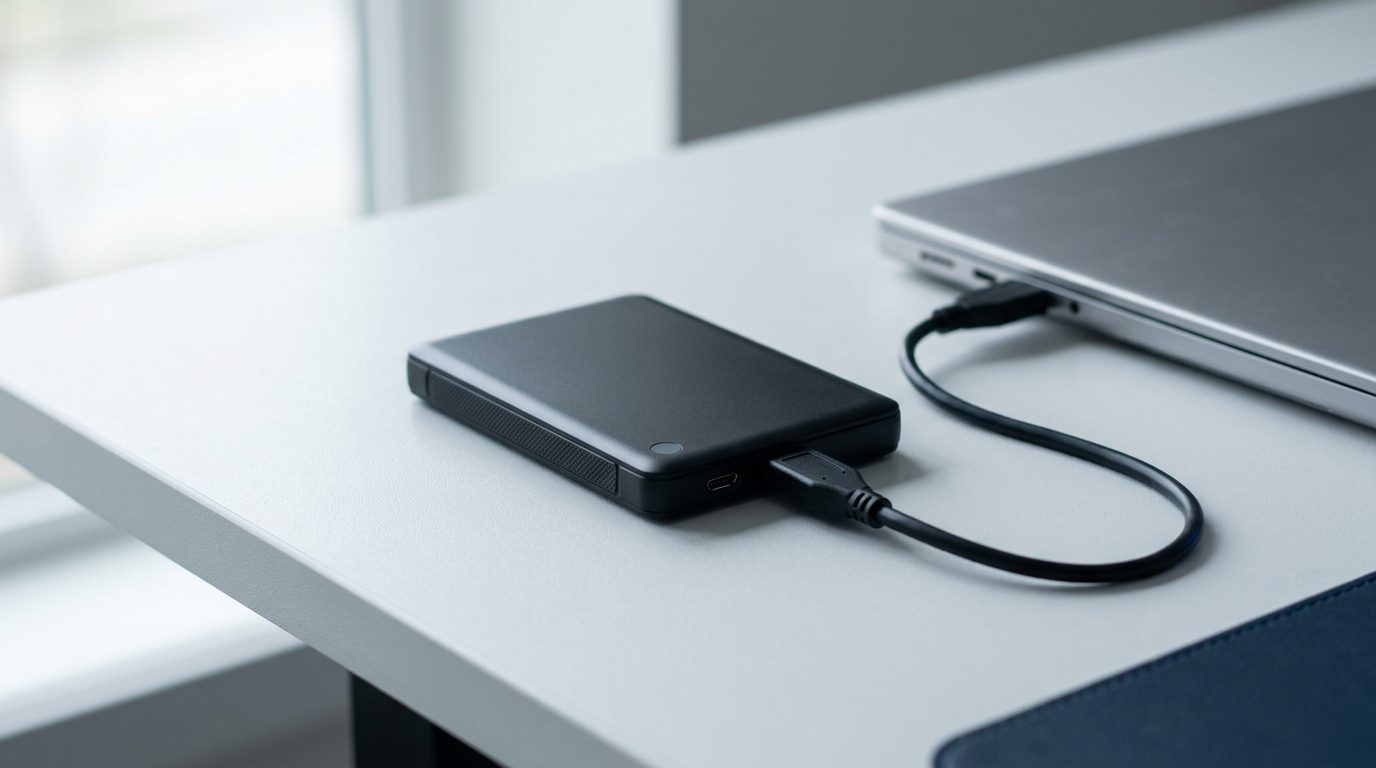
Quick answer: When an external hard drive is not showing up in Windows, the cause is usually a faulty cable, port or power supply, a missing drive letter, a damaged partition or file system, or a hardware fault inside the drive. Check the connections and Disk Management first. If you need the files, never format, initialize or run CHKDSK.
You plug in your external hard drive and nothing happens. There is no new icon in File Explorer, and maybe no sound from Windows either. It feels alarming, but in many cases the files are still sitting on the drive, untouched.
This guide helps you work out why your external hard drive is not showing up, using only checks that cannot harm your data. You will also learn which built-in Windows tools to stay away from, and how to tell when it is time to stop and get help.
Why is my external hard drive not showing up in Windows?
An external drive disappears from Windows for one of three reasons: a connection or power problem, a logical problem with how the data is organized, or a physical fault inside the drive.
- Connection and power: a worn USB cable, a weak port, an unpowered hub, or a failed power adapter on a desktop-style drive.
- Logical problems: no drive letter, a damaged partition table (the map that tells Windows where partitions start), or a corrupted file system such as NTFS or exFAT. These often follow unsafe ejection or a power cut.
- Hardware faults: a failed USB bridge board in the enclosure, a damaged PCB (the circuit board on the drive), worn read/write heads (the tiny parts that read the spinning platters), a seized motor, or a failed SSD controller.
The trick is to rule out the simple causes first, without doing anything that writes to the drive.
What should you check first?
Start with the cable, port, power and a second computer, because these checks are quick and cannot damage your data.
- Listen first. If the drive clicks, buzzes, grinds or beeps, unplug it now and skip the rest of this list. Those sounds point to a physical fault.
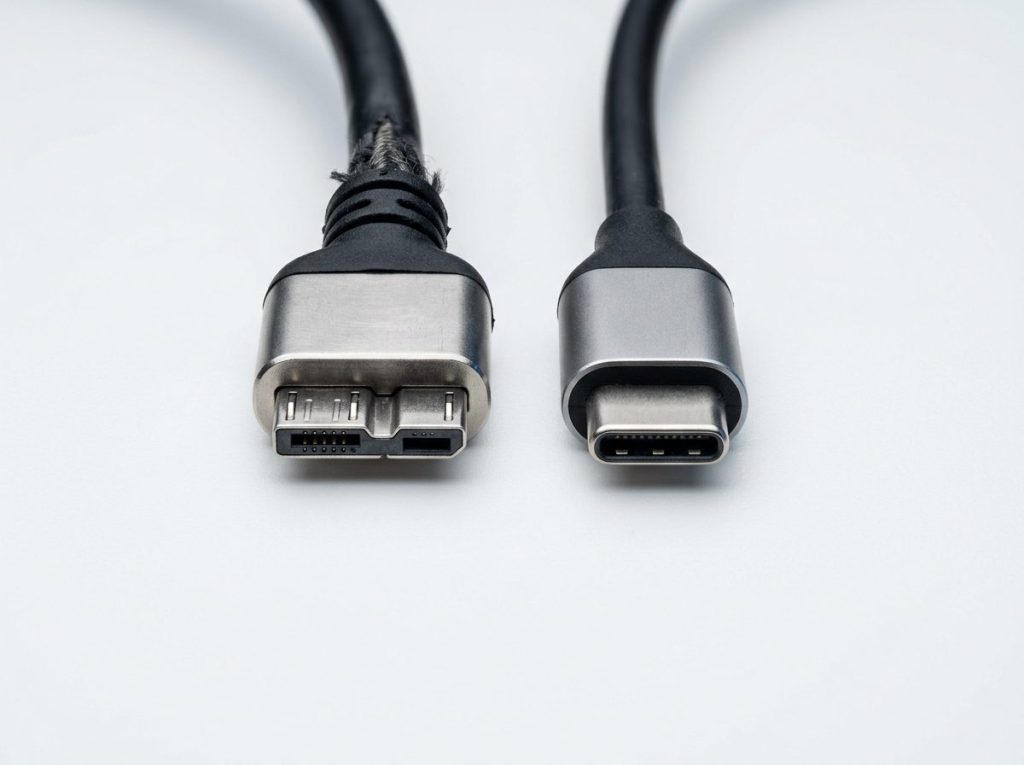
- Reseat the cable at both ends. Micro-B USB 3.0 connectors on many portable drives loosen with wear.
- Try a different cable. Use one you know works with the same connector type.
- Try another port. On a desktop, use a rear port on the motherboard rather than a front panel port or hub.
- Check the power. If the drive has its own adapter, confirm the outlet works and the drive’s light comes on.
- Test on another computer. If it appears there, the problem is your PC. If it fails everywhere, the problem is the drive or its enclosure.
If none of this brings the drive back, do not move on to repair tools yet. Look at what Windows can actually see.
How can you tell what Windows actually detects?
Disk Management and Device Manager show whether Windows sees the drive at a hardware level, even when File Explorer shows nothing.
Checking Disk Management
Right-click the Start button and choose Disk Management. Look at the lower pane for a disk that matches your drive’s size. Only look. If Windows pops up a window asking you to initialize the disk, click Cancel.
Checking Device Manager
Right-click Start and choose Device Manager. Expand Disk drives and Universal Serial Bus controllers. A yellow warning icon means Windows has a problem talking to the device. That can be a driver issue, but it is often a symptom of failing hardware.
What does each result mean?
| What you see | Likely cause | What to do | What not to do |
|---|---|---|---|
| Healthy partition, correct size, no drive letter | Drive letter not assigned or in conflict | If the drive is silent and behaved normally, assigning a letter is usually safe | Do not delete or resize the partition |
| Partition marked RAW | File system damaged or unreadable | Stop using the drive and get the data off first | Do not format or run CHKDSK |
| Shown as Unallocated | Partition table lost or damaged | Leave it as is; the data is usually still there | Do not create a new partition |
| “Unknown” or “Not Initialized” | Severe partition damage or hardware fault | Unplug and seek an evaluation | Never initialize (MBR or GPT) |
| Wrong size, such as 0 MB | Electronics, firmware or controller fault | Power down and seek professional help | Do not keep reconnecting it |
| Not listed anywhere | Power, enclosure or internal hardware failure | Confirm the cable and port are good, then stop | Do not open the enclosure |
| Clicking, grinding or beeping | Head, motor or stuck-platter problem | Unplug at once | Do not retry, tap or freeze the drive |
Which Windows fixes can make data loss worse?
Formatting, initializing and CHKDSK all write to the drive, and on a damaged drive each one can permanently destroy files you might otherwise recover.
- Format: Windows often says “You need to format the disk before you can use it.” Formatting replaces the file system records that point to your files. Recovery after that becomes harder and often less complete.
- Initialize: this writes a brand-new partition table over the old one, wiping out the original layout.
- CHKDSK: it “repairs” by changing file system structures, and it reads the whole drive hard. On a drive with weak heads or bad sectors (areas that can no longer be read reliably), that stress can turn a recoverable drive into a much worse case.
- Trial-and-error recovery software: read-only recovery programs exist for purely logical problems. However, every scan puts extra hours on a possibly failing drive. If the data matters, or the drive shows any physical symptom, skip it.
Does it matter whether it is an external HDD or an external SSD?
Yes, because spinning hard drives and SSDs fail in different ways and carry different risks after the problem starts.
An external hard disk drive (HDD) has moving parts. Heads that are starting to fail can scrape the platters each time the drive powers up, so repeated plugging and unplugging is risky. Clicking usually means the heads cannot read the platters. Our guide on what a clicking hard drive means explains this in detail.
An external SSD has no moving parts. It stores data in NAND flash memory, managed by a chip called the controller. When the controller or its firmware fails, the SSD may vanish completely or report a strange size. If files were deleted rather than lost to a fault, TRIM can tell the SSD to erase those blocks quickly, so stop using it right away. Read more about SSD data recovery if your drive is solid-state.
Should you take the drive out of its enclosure?
Usually not, because many external drives are not just a standard drive in a box.
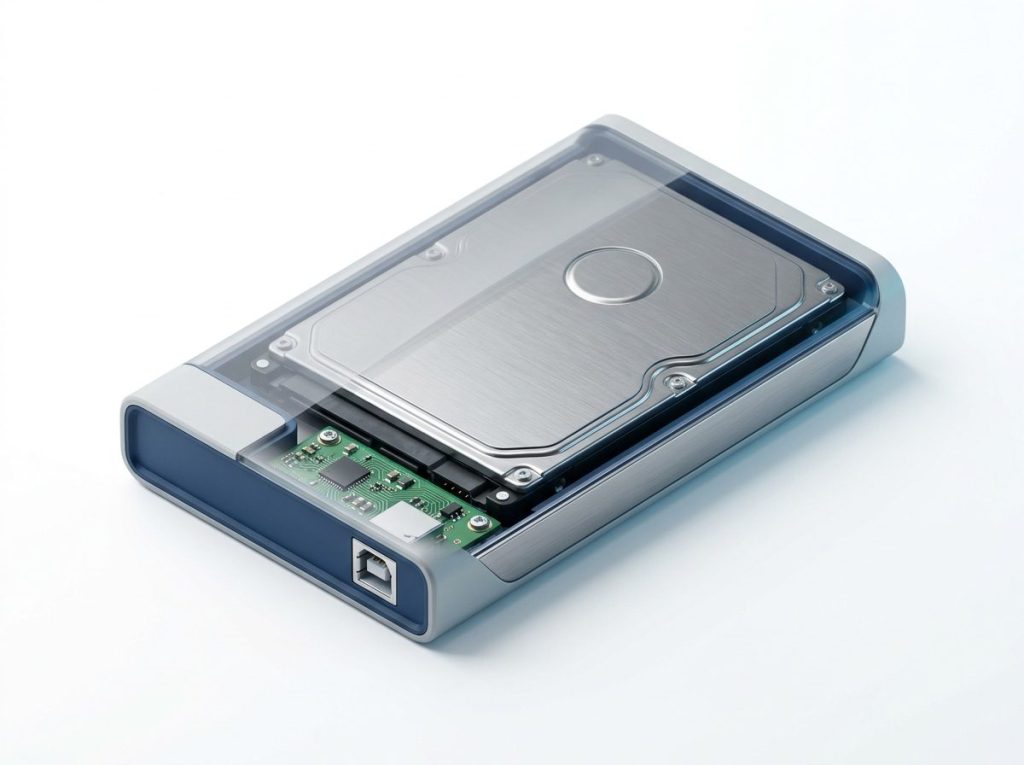
Inside the case, a small USB bridge board converts USB to the drive’s own interface, such as SATA. On some portable models, the USB connector is built right onto the drive’s PCB, so there is no standard drive to remove. Some bridges also encrypt the data in hardware. A drive moved out of that kind of enclosure can look blank or unreadable, even though nothing is wrong with the data.
Prying the case open can also crack the board or jolt the drive. Taking off the drive’s own cover is far more serious. A single dust particle can damage the platter surface, which is why that work belongs in a cleanroom.
When should you get professional help?
Get professional help when the drive makes unusual sounds, was dropped, got wet or went through a power surge, shows as RAW, Unallocated or Not Initialized, or is missing from Disk Management on every computer.
Use this quick checklist. If you tick any box and the files are important, stop troubleshooting:
- The drive clicks, grinds, buzzes, beeps or does not spin up.
- It was dropped, knocked over or exposed to liquid. Do not power it on or dry it with heat.
- It became very slow, froze or disconnected repeatedly before it disappeared.
- Windows reports the wrong size or asks you to format or initialize.
- You already tried software and the result got worse.
- The drive holds files you cannot replace, like family photos or business records.
Before you bring it in, write down the drive model, what happened just before the problem, and anything you have already tried. This speeds up diagnosis.
How does Prime Data Recovery handle an undetected external drive?
Prime Data Recovery, an independent lab in North York, Toronto, first finds out exactly why the drive is not detected, then recovers data from a copy, never by repeatedly working on the original.
- Free evaluation and diagnosis. We test the enclosure, bridge board, PCB and drive separately. For hard drives, tools such as PC-3000 help us check the firmware and the service area (a hidden zone that stores the drive’s operating data).
- Findings and quote. You get a clear explanation and a quote. Nothing goes ahead without your approval.
- Physical repair if needed. Head stack replacements using parts from a matching donor drive are done in our ISO certified Class 10 cleanroom.
- Controlled imaging. We make a sector-by-sector copy of the drive, called an image, using equipment such as the DeepSpar Disk Imager. It handles weak areas gently and never writes to the original.
- Recovery and file verification. We rebuild the file system from the image and you check your recovered files in a file verification session before delivery.
- Delivery. Your data is returned on a new storage device.
Your device and files are handled confidentially, in line with Canadian privacy law (PIPEDA). You can learn more on our external hard drive recovery page.
Key takeaways
- Check the cable, port, power and a second computer before anything else.
- Disk Management tells you whether the problem is a drive letter, the file system or the hardware.
- Never format, initialize or run CHKDSK on a drive holding files you need.
- Strange noises, drops, liquid or a wrong size mean you should power off and stop.
- Opening the enclosure can make data unreadable, especially on drives with built-in encryption.
Need your files back?
If your external drive still won’t show up, unplug it and leave it as it is. Prime Data Recovery offers a free quote and evaluation, a “No Data, No Fee” policy and confidential handling. You can drop the drive off at our North York lab or ship it from anywhere in Canada. Request a free evaluation to get started.
Frequently Asked Questions
Why does my external hard drive show up on a Mac but not on Windows?
The drive was most likely formatted with a Mac file system such as APFS or HFS+, which Windows cannot read natively. Disk Management may show the partition with no drive letter or as unknown, and Windows may offer to format it. Decline. The data is fine on the Mac side. Copy the files off using the Mac first, then decide how to reformat.
Can files be recovered from an external drive that shows as RAW?
Often, yes. RAW means Windows cannot understand the file system, not that the files are gone. The folder structure and data usually remain on the disk. Recovery chances are best if you have not formatted it, run CHKDSK or written anything new to it. If the RAW state followed a drop or strange noises, the cause may be physical, and a professional evaluation is the safer route.
Is it safe to keep plugging my external drive in to see if it comes back?
For a silent drive with a suspected cable or port problem, a few careful tests are fine. For a drive that clicks, beeps, grinds or has become very slow, each power-up can wear the heads further or scratch the platters. If it does not appear after the basic checks, unplug it and stop testing so you keep the best chance of recovery.
Does BitLocker encryption make it harder to recover an external hard drive?
Encryption adds a step but does not prevent recovery if you have the credentials. A lab first fixes or images the drive, then unlocks the data using your BitLocker password or 48-digit recovery key. Without a valid key, encrypted files cannot be read. Look for your recovery key in your Microsoft account or printed records before sending the drive in.
Can I send my external hard drive to a Toronto lab from another province?
Yes. Prime Data Recovery in North York, Toronto accepts drives shipped from across Canada. Pack the drive in an anti-static bag with plenty of padding inside a sturdy box so it cannot move around in transit. Include a note with your contact details, the symptoms and what happened before the failure. You can request a free quote online before shipping.