
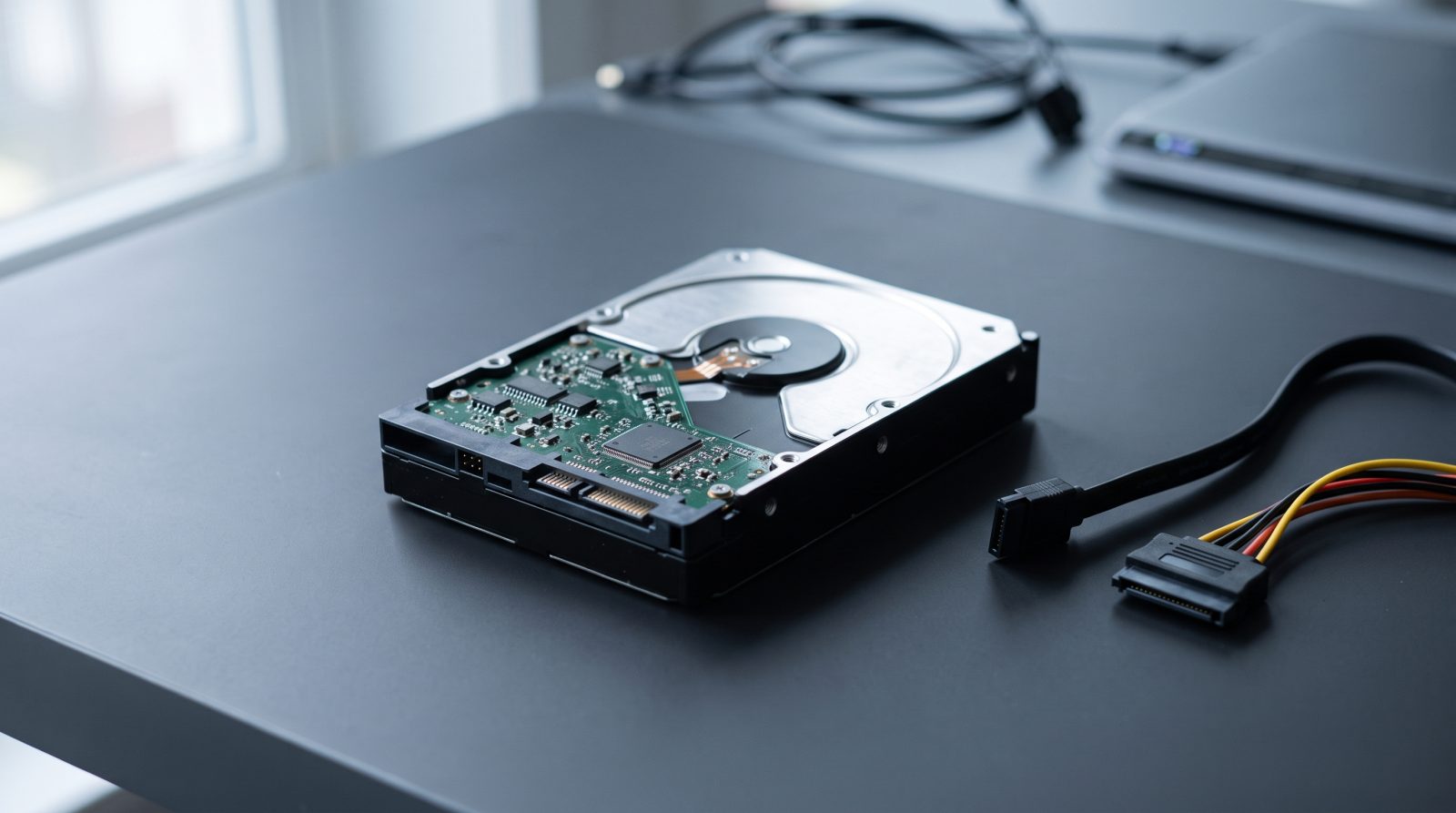
Quick answer: A clicking hard drive usually means the read/write heads cannot read the data, often because of worn or damaged heads, unreadable firmware, a circuit board fault or weak power. Turn it off right away and do not keep restarting it. If the files matter, have the drive checked by a professional lab before trying anything else.
A clicking hard drive is one of the clearest warning signs a computer can give you. The sound is often a steady tick, tick, tick, sometimes followed by a spin-down and a fresh start. It can come from a desktop, a laptop or an external USB drive.
This guide explains what the click actually is, which sounds are normal, what you can safely check, and what to avoid so you do not turn a recoverable problem into a permanent one.
What does a clicking sound from a hard drive actually mean?
The click is usually the sound of the head arm hitting its stop as the drive tries, fails, and tries again to find its data.
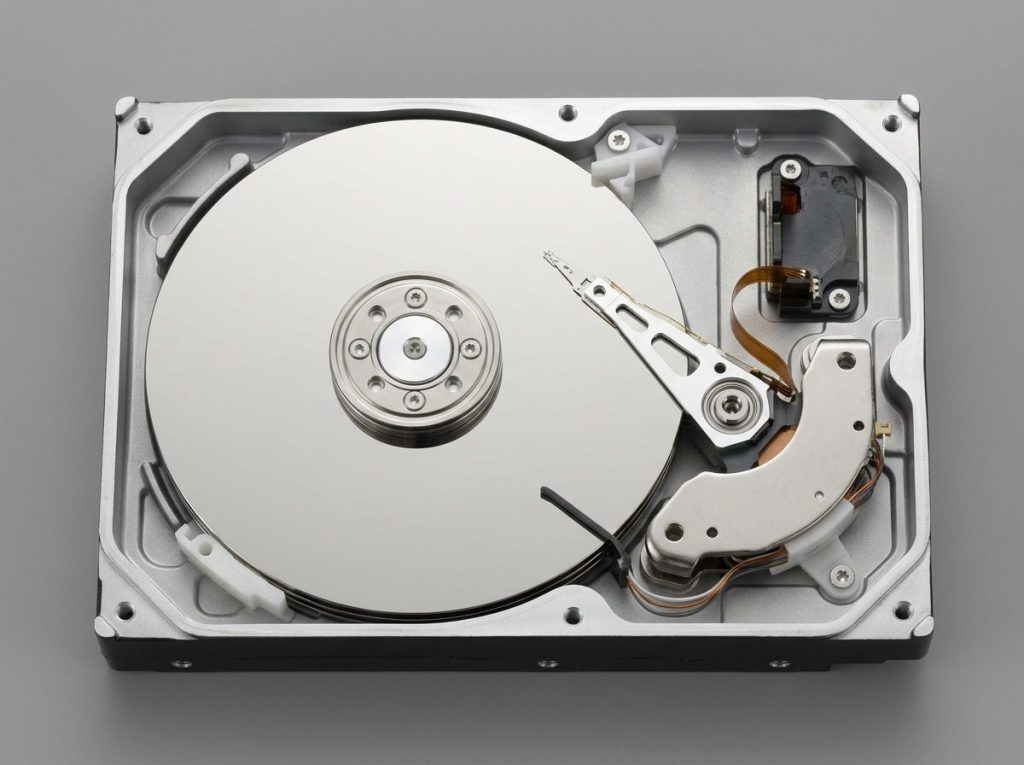
Inside a hard disk drive (HDD), spinning metal or glass discs called platters hold your data. Tiny read/write heads float a few nanometres above them on an arm called the actuator. When the drive powers on, the heads must read special tracks to learn where everything is stored.
If the heads cannot read those tracks, the drive pulls the arm back and tries again. Each retry makes a click. A rhythmic pattern of clicks means the drive is stuck in that loop and cannot get ready to work.
Are some hard drive sounds normal?
Yes. A healthy drive makes a soft whirr as it spins up and light, irregular ticking while it reads and writes. Many drives also make a single quiet click when they park the heads to save power.
The warning signs are different: clicking that repeats in a steady rhythm, clicking with the drive not showing up, or clicking followed by grinding, scraping or the drive spinning down and back up.
Why is my hard drive clicking?
Most clicking comes from one of five causes: failing heads, firmware trouble, a damaged circuit board, platter damage or not enough power.
Worn or damaged read/write heads
This is the most common cause. Heads can wear out over years of use, or be damaged in an instant by a drop or a bump while the drive is running. A damaged head cannot read the drive’s position markers, so the arm keeps searching.
Firmware and service area problems
Every drive stores its own operating code in a hidden zone called the service area. If part of that firmware becomes unreadable, the drive may never finish starting up. One important piece is the translator, the map that links logical addresses to physical locations on the platters.
Circuit board (PCB) faults
The PCB is the green board on the outside of the drive. It powers the motor and the heads and talks to your computer. A power surge or liquid can damage it. Each board also holds a chip with drive-specific calibration data called ROM/adaptives, which is why simply swapping in a board from another drive does not work and can make things worse.
Bad sectors and platter damage
Bad sectors are spots on the platter that can no longer be read reliably. A few are common, but many in key areas can force the heads into endless retries. If heads have already touched the surface, scratches can spread quickly with every minute of power.
Not enough power
Some 2.5″ portable drives click when a USB port cannot supply enough power. This is the one cause that is not a failure of the drive itself. It is also the reason a single, careful check of the connection can be worth doing.
What should I do first if my hard drive starts clicking?
Power the drive off as soon as you hear repeated clicking, and do not turn it back on to “see if it fixes itself.”
Each power cycle can let a damaged head drag across the platter. Damage to the platter surface is the hardest problem to recover from. Shutting down early keeps your options open.
- Shut down. Save open work elsewhere if you can, then shut down the computer. If the system is frozen, hold the power button.
- Disconnect. For an external drive, unplug the power adapter first, then the USB cable.
- Write down what happened. Note when the clicking started and anything that came before it: a drop, a storm, a power outage, a spill or a slow, noisy period.
- Decide how much the data matters. If it is backed up, you can replace the drive. If it is not, treat the drive as fragile from now on.
- Keep it safe. Store the drive in a dry place at room temperature, ideally in an anti-static bag.
Is there anything safe I can check myself?
Only one brief, non-invasive check is reasonable, and only if there was no drop, spill or surge. For an external portable drive, try the original cable plugged straight into a port on the computer, not a hub or front-panel port. If the clicking continues, unplug it at once and stop.
Do not repeat this test over and over. If the drive is inside a desktop or laptop, do not keep rebooting to check.
Clicking hard drive diagnosis table
This table matches what you hear and see with the most likely cause and the safest response.
| Symptom | Likely cause | What to do | What not to do |
|---|---|---|---|
| Steady clicking, drive not detected | Failed or weak read/write heads | Power off and get a professional evaluation | Restart repeatedly or run software |
| Clicking after a drop or bump | Head or actuator damage | Power off; do not reconnect | Tap, shake or open the drive |
| Clicking with a grinding or scraping sound | Heads touching the platters | Disconnect immediately | Power it on “one more time” |
| A few clicks, then the drive spins down and restarts | Firmware or service area problem, or weak heads | Shut down and seek diagnosis | Format or initialize when prompted |
| Portable drive clicks only on one computer or port | Not enough USB power | One test on a direct port with the original cable | Keep swapping ports for long periods |
| Clicking after a storm, surge or spill | PCB damage, possibly more | Do not power or dry it with heat; get help | Swap the circuit board from another drive |
| Drive detected but very slow, with clicks | Many bad sectors or degrading heads | Stop using it; copy nothing more yourself | Run CHKDSK, fsck or Disk Utility First Aid |
What mistakes make a clicking hard drive worse?
The biggest risks come from well-meant fixes that keep the drive running or put stress on damaged parts.
- Repeated restarts. Each start-up is another chance for a weak head to fail completely or scratch the surface.
- Repair tools. CHKDSK, fsck and Disk Utility First Aid write changes to the drive and work the heads hard. Never run them on a clicking drive.
- Recovery software. Software cannot fix a hardware fault. Scanning a clicking drive just forces hours of reading on failing parts.
- Freezing, tapping or shaking. These old “tricks” can cause condensation and further mechanical damage.
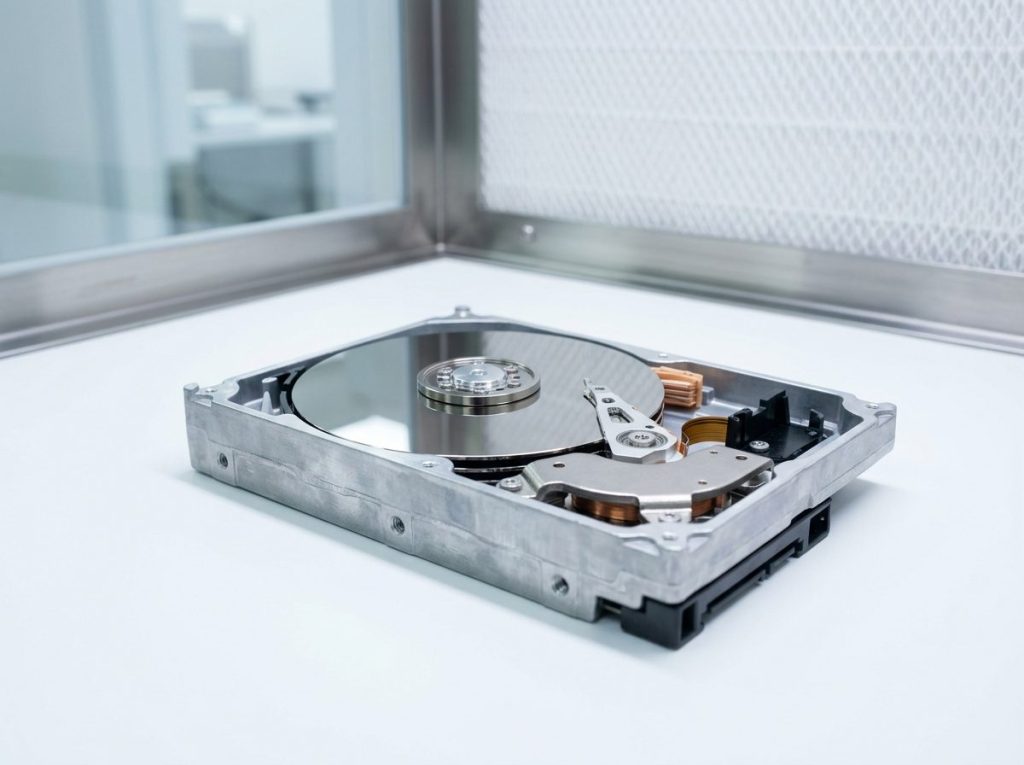
- Opening the case. A single speck of dust is larger than the gap between the heads and the platter. Opening a drive outside a cleanroom can ruin it.
- Formatting or initializing. If your computer asks you to format the disk, say no.
When should I get professional help for a clicking hard drive?
If you need the files on a drive that clicks steadily, professional recovery is the safe choice, because the fix needs a cleanroom, matching parts and firmware tools.
Use this quick decision guide:
- Data is fully backed up: replace the drive and restore your backup.
- Portable drive clicked only on a weak port and now works normally: back up your files right away and keep watching it.
- Any steady clicking, plus files you cannot replace: stop and contact a lab.
- Clicking after a drop, surge or liquid: do not power it again; get an evaluation.
- Business, legal or accounting data: treat it as urgent and ask about confidential handling.
Prime Data Recovery, a lab in North York, Toronto, handles clicking drives from desktops, laptops and external enclosures. Learn more about our hard drive data recovery service or our external hard drive recovery service for portable USB drives.
How do professionals recover data from a clicking hard drive?
A lab diagnoses the exact fault first, repairs only what is needed, and then copies the data without writing anything to your original drive.
- Free evaluation and diagnosis. We check the PCB, the firmware and the heads. Tools such as PC-3000 Express help us read the drive’s firmware and pinpoint the failure.
- Findings and quote. You get a clear explanation and a quote. Nothing happens until you approve.
- Cleanroom repair if needed. In an ISO certified Class 10 cleanroom, failed heads can be replaced in a head stack replacement, using compatible parts from a matching donor drive.
- Controlled imaging. Imaging means making a full sector-by-sector copy. A DeepSpar Disk Imager reads gently, skips weak areas first and returns to them later, so fragile heads are not overworked.
- Recovery and verification. Files are rebuilt from the image, whether the drive used NTFS, APFS, HFS+ or exFAT. You can then confirm the important files in a file verification session.
- Delivery. Your recovered data is returned on a new storage device.
Note that the goal is to recover your data, not to make the old drive fit for daily use again. A drive that has had head failure should be retired. You can read more on how the data recovery process works.
Key takeaways
- Steady, rhythmic clicking usually means the heads cannot read the drive’s data.
- Common causes are worn or damaged heads, firmware faults, PCB damage, bad sectors and low USB power.
- Power off right away; every restart adds risk.
- Avoid CHKDSK, fsck, First Aid, formatting, recovery software, freezing and opening the drive.
- Only one brief cable and port check is reasonable for a portable drive with no history of damage.
- If the data matters, a cleanroom lab with imaging tools gives you the safest chance.
Need help with a clicking hard drive?
Prime Data Recovery offers a free quote and evaluation, a “No Data, No Fee” policy and confidential handling in line with Canadian privacy law. You can drop your drive off in North York or ship it from anywhere in Canada. Request your free quote or call (416) 661-1112 to talk about your drive.
Frequently Asked Questions
Can a clicking hard drive fix itself?
No. A drive that clicks steadily has a hardware or firmware fault, and it will not heal on its own. It may work briefly between episodes, but each start-up puts more stress on weak heads. If it starts working again, copy your most important files at once and then retire it. If it keeps clicking, power it off and have it evaluated.
How long can a clicking hard drive keep running before the data is gone?
There is no safe amount of time. Some drives click for a while with little extra harm, while others scratch their platters within minutes once a head fails. You cannot tell which case you have from the sound alone. The safest approach is to shut the drive down as soon as you notice a repeating click and keep it off.
Is a clicking external hard drive different from a clicking internal one?
Usually the drive inside is the same kind of hard disk, so the causes are the same. External drives add two extra possibilities: a weak USB port or a faulty USB bridge board in the enclosure. A single test on a direct port with the original cable is fine. If it still clicks, stop and do not take the enclosure apart.
Will replacing the circuit board stop my hard drive clicking?
Rarely, and it can cause harm. Each board stores drive-specific calibration data, so a board from another drive normally will not match. Even when the board is the problem, the chip with that data has to be moved correctly. Most clicking is caused by heads or firmware, which a new board will not fix.
Should I back up a clicking hard drive myself before sending it to a lab?
Not if the drive clicks steadily. Copying large amounts of data forces the heads to read for a long time, which is exactly what failing heads cannot handle. A lab uses imaging hardware that reads gently and handles weak areas carefully. If only a few small files are urgent and the drive is reading normally, copy those only, then stop.
Does a clicking laptop hard drive mean my laptop is broken?
Not always. The clicking usually comes from the hard drive alone, so the rest of the laptop may be fine. Shut the laptop down and avoid restarting it. Once the data is recovered, the drive can be replaced, often with an SSD. Laptops that already use an SSD do not click this way because SSDs have no moving parts.