
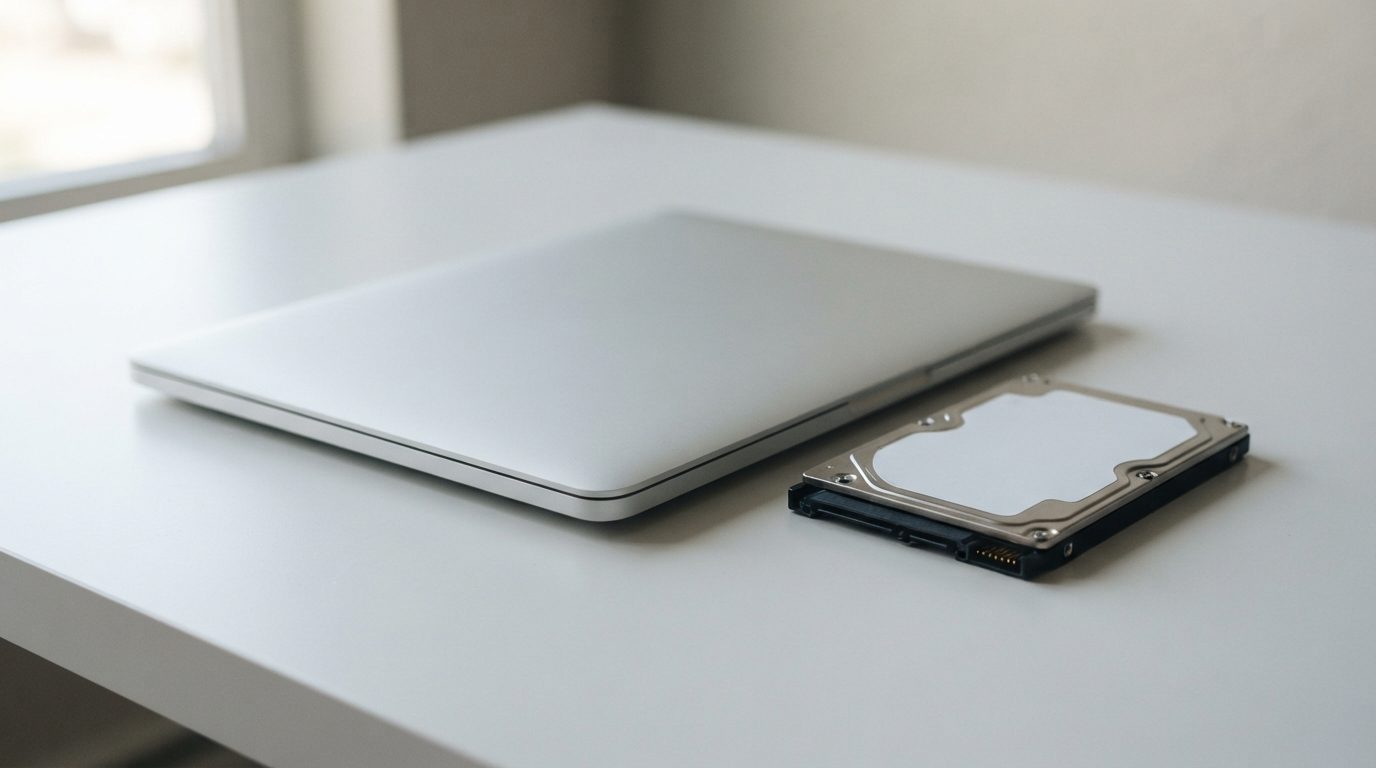
Quick answer: Laptop hard drive recovery is often possible if you stop using the drive early. Shut the laptop down, don’t keep rebooting it, and don’t run repair tools like CHKDSK. Logical problems can usually be solved from a copy of the drive. Clicking, grinding or damage from a drop needs cleanroom repair before anyone can safely copy the data.
Your laptop won’t boot, or it freezes every few minutes, or you can hear a faint ticking from inside the case. If your laptop uses a spinning hard disk drive (HDD), what you do in the next hour makes a big difference to your chances of laptop hard drive recovery. This guide explains what is likely going on, which checks are safe and when to stop and get help.
Can you recover data from a failed laptop hard drive?
Yes, data on a failed laptop hard drive can often be recovered. Your chances depend on what failed and how much the drive was used after the problem started. Logical faults, electronic faults and many mechanical faults can be fixed. Badly scratched platters (the discs that hold the data) are the hardest cases.
The biggest factor you control is how much more the drive runs. A failing drive can get worse each time it powers up. The less it runs, the more data is usually left to recover.
Is your laptop using a hard drive or an SSD?
Many laptops, especially older or budget models, use a 2.5″ HDD with spinning platters. Most newer laptops use a solid-state drive (SSD), either a 2.5″ SATA SSD or a small M.2 card. These two types of drive fail in different ways, so it helps to know which one you have.
- Signs of an HDD: you can hear faint spinning or ticking, the drive is a 2.5″ metal case with a SATA connector, or the laptop’s specs list a drive speed such as 5400 or 7200 rpm.
- Signs of an SSD: no moving parts and no sound at all, and the specs list “SSD”, “NVMe” or “M.2”.
This article covers hard drives. If your laptop has an SSD, the risks are different. For example, a feature called TRIM can quickly wipe deleted data for good, so stop using the laptop and see our laptop data recovery service for options.
Why do laptop hard drives fail?
Laptop hard drives usually fail from physical shock, wear on moving parts, electronic faults or file system damage. Because laptops get carried around, they face more knocks than desktop drives do.
Drops and bumps while the drive is spinning
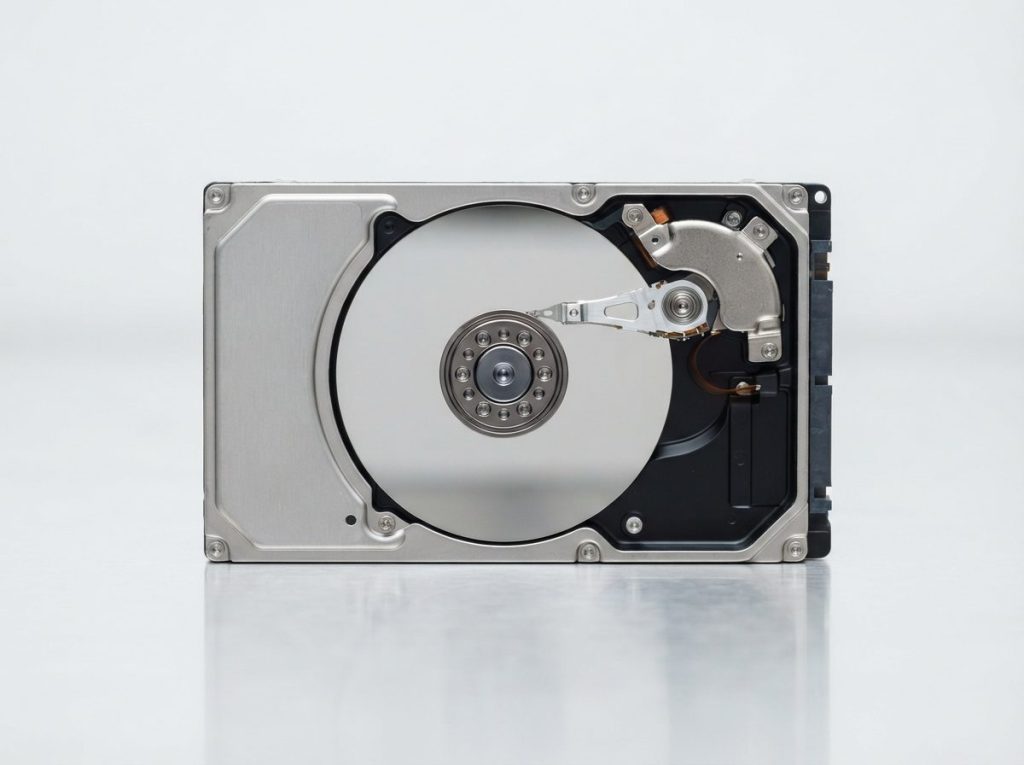
Inside the drive, tiny read/write heads float a few nanometres above the platters on a cushion of air. When the drive is off, the heads rest on a parking ramp. A jolt while the drive is running can slam the heads into the platter surface. This can damage the heads, scratch the platter, or both. A drop while the laptop is off is less risky, but it can still damage the drive.
Wear, heat and vibration
Laptops pack a lot into a small space and often run warm. Over time, heads weaken and the surface develops bad sectors, which are spots that can no longer be read reliably. Lots of slow-loading files and freezes are often an early sign.
Electronic and firmware faults
The drive’s PCB (printed circuit board) controls the motor and heads and talks to the laptop. A power problem or failed part can stop the drive from spinning up or being detected. The drive also keeps its own firmware in a hidden service area on the platters. If that firmware gets corrupted, the drive may show the wrong capacity or not be detected at all, even though the data is still there.
Logical damage
Sometimes the hardware is fine but the data can’t be reached. Common causes are a battery dying during a write, a forced shutdown, accidental deletion, formatting or malware. All of these can damage the file system, the index that tells the computer where each file lives. Windows laptops usually use NTFS. Macs with hard drives use HFS+ or APFS.
Encryption adds another layer. If BitLocker or FileVault was turned on, the recovered data is only readable with the password or recovery key. Look for that key now, before it’s needed.
What are the warning signs of a failing laptop hard drive?
The clearest warning signs are new noises, boot errors, freezes and a drive that disappears from the BIOS. Use the table below to match what you’re seeing to a likely cause and a safe response.
| Symptom | Likely cause | What to do | What not to do |
|---|---|---|---|
| Clicking or ticking in a repeating pattern | Damaged read/write heads or unreadable firmware | Power off right away and leave it off | Don’t restart it to “see if it works” |
| Grinding or scraping sound | Heads touching the platter surface | Power off immediately and get a professional evaluation | Don’t power it on again for any reason |
| Faint buzzing, no spin-up | Heads stuck to the platter (stiction) or a seized motor | Power off and get it evaluated | Don’t tap, shake or knock the laptop |
| “No boot device” or “Operating system not found” | Drive not detected, damaged boot area or a loose connection | Check whether the BIOS/UEFI lists the drive | Don’t reinstall the operating system |
| Very slow, frequent freezes, files won’t open | Growing bad sectors or weak heads | Copy only your most important files once, then stop | Don’t run CHKDSK, Disk Utility First Aid or a defragmenter |
| Boots fine, but files are missing or deleted | Deletion, formatting or file system damage | Stop using the laptop so nothing gets overwritten | Don’t install recovery software onto the same drive |
| Laptop was dropped, got wet or went through a power surge | Possible physical or electronic damage | Leave it off (and don’t charge it if it got wet) | Don’t use a hair dryer or try to boot it |
If you hear clicking, our guide to a clicking hard drive and what it means goes into more detail.
What should you do right after your laptop hard drive fails?
The safest first move is to stop using the laptop and keep the drive exactly as it is. Then follow these steps:
- Shut down cleanly if you can. If the laptop is frozen or making noises, hold the power button to turn it off. Unplug the charger.
- Don’t keep trying to boot it. Every power cycle makes a weak drive work harder.
- Write down what happened. Note any noises, error messages, recent drops, updates or power cuts, plus the laptop model.
- Find your encryption key. If BitLocker or FileVault was on, check your Microsoft or Apple account, or any printed copy you kept.
- List the files that matter most. Knowing which folders are a priority makes the recovery quicker and more focused.
- Get an evaluation before trying any software, especially if there are physical symptoms.
Which DIY checks are safe on a laptop hard drive?
The only safe DIY checks are simple ones that don’t stress the drive or write anything to it. Do these only if the drive is quiet and wasn’t dropped or exposed to water.
- Power: try a different charger or wall outlet, and see whether the laptop powers on at all.
- BIOS/UEFI: open the firmware setup screen at startup and check whether the drive is listed. If it shows up, the drive is at least responding.
- Is it really the drive? A black screen or a dead power button can point to the screen or motherboard instead. In that case, the hard drive may be perfectly fine.
A quick decision guide
- Any noise, burning smell, drop or liquid? Stop. Leave it off and get it professionally evaluated.
- Quiet drive, but listed as unknown or with the wrong size in the BIOS? This points to a firmware or electronic fault. Professional help is the safe route.
- Drive detected, files deleted, no other symptoms? Read-only recovery software exists, but run it from a different computer and save the results to a separate drive. If the data is important, skip the trial and error and get help, because every attempt can lower your chances.
- Laptop dead, drive healthy? The data is probably intact. A technician can remove the drive and copy it safely.
What common mistakes make recovery harder?
Most permanent data loss after a drive failure comes from well-meant attempts to fix it. Avoid these:
- Running CHKDSK, fsck or First Aid. These tools change the file system to “repair” it and can make lost files harder to rebuild.
- Reinstalling or resetting the operating system. This writes new data straight over your old files.
- Opening the drive. Dust in ordinary room air is enough to damage the platters permanently.
- Freezing, tapping or swapping circuit boards. A replacement PCB won’t work without the original drive’s ROM/adaptives, which is calibration data unique to each drive. The other two tricks risk physical damage.
- Running recovery software over and over on a clicking drive. Weak heads can scratch the platters during long scans.
How does professional laptop hard drive recovery work?
Professional laptop hard drive recovery means fixing whatever stops the drive from being read, then making a safe copy and recovering your files from that copy. At Prime Data Recovery in North York, Toronto, we follow the same order every time:
- Free evaluation and diagnosis. We remove the drive from the laptop with care and test it with PC-3000 hardware. This tells us whether the fault is logical, electronic, firmware or mechanical.
- Findings and quote. We explain what we found and what it will cost. Nothing goes ahead until you approve.
- Physical repair if needed. Failed heads are fixed with a head stack replacement using matching parts from a donor drive. This work is done only in our ISO certified Class 10 cleanroom. Firmware faults in the service area or translator (the drive’s internal address map) are repaired with PC-3000 tools.
- Controlled imaging. Imaging means making a sector-by-sector copy of the drive. We use tools such as the DeepSpar Disk Imager, which reads gently, skips weak areas at first and comes back to them later. Nothing is ever written to your original drive.
- Recovery and verification. We rebuild the file system from the image and check your priority files with you in a file verification session before delivery.
- Delivery on a new storage device.
You can read more about each stage on our page explaining how the data recovery process works. Your drive is handled confidentially and in line with Canadian privacy law (PIPEDA).
When should you get professional help?
Get professional help as soon as the drive makes unusual noises, has been dropped, got wet, isn’t detected, or holds files you can’t replace. You don’t need to wait until you’ve tried everything. In fact, the earlier a failing drive is evaluated, the more options there usually are. Businesses with client records or accounting files should treat any drive failure this way.
Key takeaways
- Laptop hard drive recovery is often possible, especially when you stop using the drive early.
- Clicking, grinding, buzzing, drops and liquid damage all mean: power off and leave it off.
- Never run CHKDSK or First Aid, reinstall the operating system, or open the drive.
- Check whether your laptop has an HDD or an SSD, because the risks are different.
- Find your BitLocker or FileVault recovery key before you need it.
- Professionals fix the fault first, image the drive and recover your files from the copy.
Prime Data Recovery offers a free quote and evaluation and a “No Data, No Fee” policy. Our lab is highly rated on Google. You can bring your laptop to our North York lab, or ship it from anywhere in Canada. Request a free evaluation and we’ll tell you exactly what we find before any work begins.
Frequently Asked Questions
Can I take the hard drive out of my dead laptop and get my files myself?
If the laptop died because of a screen, battery or motherboard fault and the drive is quiet and undamaged, the files are often intact. A healthy 2.5-inch SATA drive can usually be read in another computer. But if the drive clicks, was dropped or got wet, or if it's encrypted with BitLocker or FileVault, leave it alone and get a professional evaluation first.
Will my data still be there if my laptop has BitLocker or FileVault turned on?
Yes. Encryption doesn't stop the data from being recovered, but the recovered data can only be read with your password or recovery key. For BitLocker, the key is often saved in your Microsoft account. For FileVault, it may be linked to your Apple account or stored as a code you wrote down. Without the key, the recovered data stays unreadable.
How long can a clicking laptop hard drive keep working before the data is gone?
Nobody can predict this. A clicking drive might keep running for minutes or might fail the next time it powers up. Each restart can wear down weak heads further or scratch the platters. The safest choice is to turn it off as soon as you hear repeated clicking and keep it off until a professional has looked at it.
Should I send in the whole laptop or just the hard drive?
Either can work. Sending the whole laptop is often easier. It also lets technicians remove the drive safely and check for things like built-in encryption. If you do take the drive out yourself, pack it in an anti-static bag with plenty of padding. Include any passwords or recovery keys the lab may need, as well as a list of your most important folders.
Is a laptop hard drive the same as an external hard drive inside?
Many portable external drives contain a 2.5-inch hard drive much like the one in a laptop, plus a USB bridge board. Some external models have the USB connector built right into the drive's circuit board instead. That's why opening an external case or moving its drive into a laptop isn't a safe shortcut. The warning signs and safe first steps are the same for both.
