
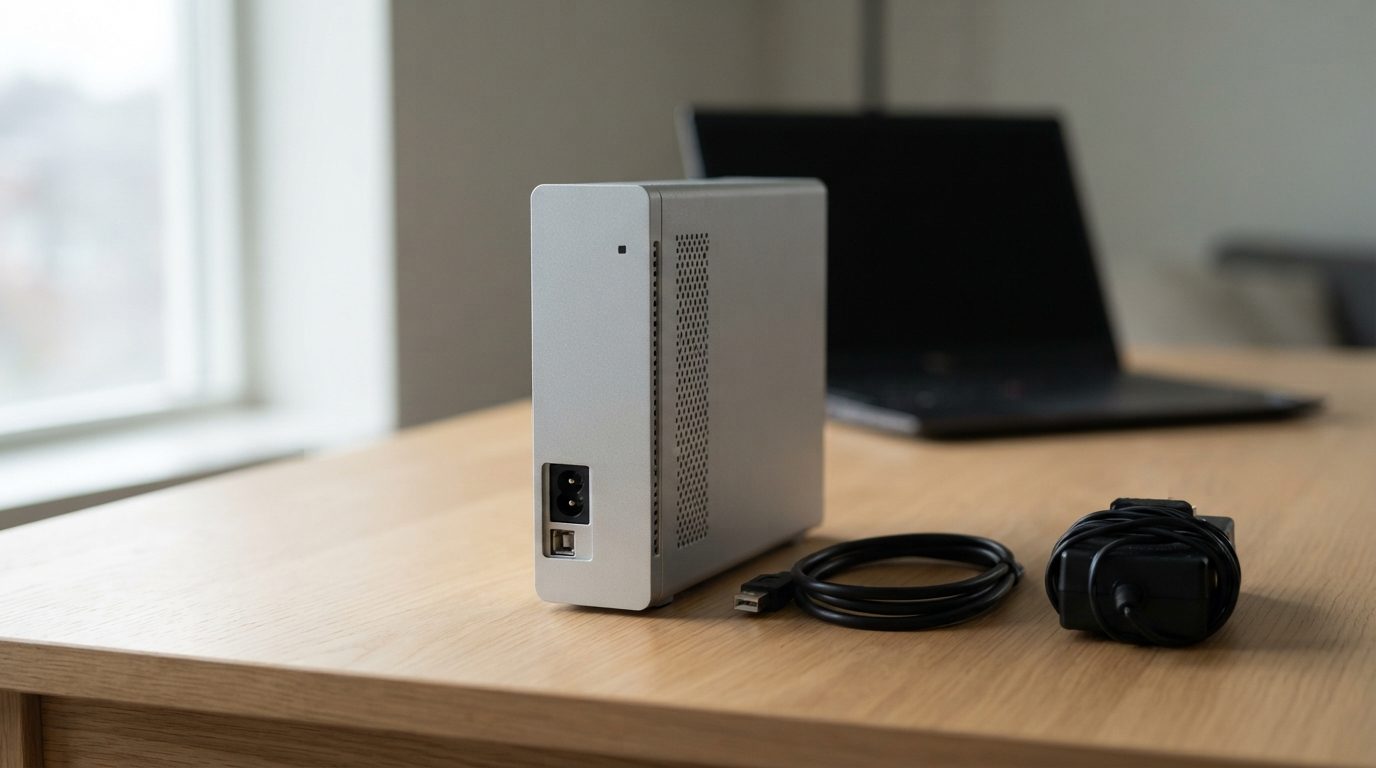
Quick answer: An Iomega external hard drive not showing up is usually caused by a weak power adapter, a worn cable or port, a failed enclosure bridge board, a Mac/Windows format mismatch, or a failing hard drive inside. Check power, cable and another computer first. If it clicks, beeps or won’t spin, power it off and get a professional evaluation.
Iomega drives are often years old by the time they stop working. Many have sat in a drawer holding family photos, old business files or a backup nobody has touched in a long time. When your Iomega external hard drive is not showing up, the cause is often simple, but age means a real hardware fault is also possible.
This guide explains how to tell the difference safely, without risking the files you want back.
Why is my Iomega external hard drive not showing up?
An Iomega external drive usually disappears because of a fault somewhere along the chain from wall outlet to computer: power, cable, port, the enclosure’s electronics, the file system, or the hard drive itself.
Because many Iomega models are older, a few causes come up more than you might expect:
- Power adapter problems. Desktop models use a separate AC adapter. Old adapters can weaken and supply too little power to spin the drive up.
- Legacy connections. Some models use USB 2.0, FireWire or eSATA. Most current computers have no FireWire or eSATA port, and chains of adapters add more places for a fault.
- Not enough USB power. Portable 2.5″ models draw power from the USB port. Some older ones shipped with a Y-cable or a separate power lead because one port wasn’t enough.
- Enclosure bridge board failure. The small circuit board that converts the internal drive’s SATA connection to USB or FireWire can fail on its own.
- Format mismatch. A drive formatted for Mac (HFS+) won’t open normally in Windows, and Windows may offer to format it.
- Internal hard drive failure. Worn read/write heads (the tiny parts that read data from the spinning disks), a failed circuit board, firmware corruption or bad sectors (areas of the disk that can no longer be read reliably).
What safe checks can you try first?
Start with checks that don’t write anything to the drive and don’t stress it. Stop at any step where the drive makes unusual noises.
- Check the power. For desktop models, confirm the adapter is the correct one and plugged straight into a working wall outlet, not a power bar. Look for a power light on the drive.
- Swap the cable. Use a known-good cable of the same type. Old USB and FireWire cables often fail at the plug.
- Try a different port. Plug directly into the computer, not a hub or keyboard. On a portable model, use a rear port on a desktop or a Y-cable if one came with it.
- Try another computer. If it works there, the problem is your original computer’s port, driver or settings. If it fails everywhere, the problem is in the drive.
- Listen briefly. A soft spin-up and quiet hum is normal. Clicking, grinding, beeping or total silence means stop.
- Check whether the computer sees it at all, using the view-only steps below.
What do the lights and sounds on an Iomega drive mean?
The drive’s light and sound together usually tell you whether you’re facing a connection problem or a hardware failure.
| Symptom | Likely cause | What to do | What not to do |
|---|---|---|---|
| No light, no sound | Dead adapter, failed bridge board, or failed drive circuit board | Test another outlet and a matching adapter with the correct voltage and polarity | Don’t use a random adapter that “fits”; the wrong voltage can damage the electronics |
| Light on, drive spins quietly, nothing appears | Cable, port, driver, bridge board or file system issue | Try another cable, port and computer; check Disk Management or Disk Utility | Don’t initialize or format when asked |
| Repeated clicking or ticking | Failing read/write heads or unreadable areas of the disk | Power off right away and get a professional evaluation | Don’t keep reconnecting to “catch” it working |
| Grinding or scraping | Heads touching the disk surface | Power off immediately | Don’t power it on again for any reason |
| Beeping or buzzing, no spin | Heads stuck to the disk (stiction) or a seized motor | Power off; this needs cleanroom work | Don’t tap, shake or freeze the drive |
| Shows up but very slow, freezes or errors | Bad sectors or weak heads | Stop using it; copy nothing more if data is critical | Don’t run CHKDSK, First Aid or scanning software |
| Appears as RAW or “needs formatting” | File system damage or a Mac/Windows format mismatch | Try it on the original type of computer (Mac or PC) | Don’t click Format or Initialize |
If you hear clicking, our guide on a clicking hard drive and what to do next explains why repeated power-ups make things worse.
How do you check whether your computer sees the drive?
Your operating system’s disk tools can show whether the drive is detected even when it has no drive letter or icon. Use them to look only, never to repair.
On Windows
- Disk Management: right-click Start and choose Disk Management. Note whether the drive shows as healthy without a letter, RAW, Unallocated, Not Initialized, or not at all.
- Device Manager: look under Disk drives and Universal Serial Bus controllers for the drive or a USB storage device with a warning icon.
If Windows says the disk is not initialized or asks to format it, close the prompt. A Mac-formatted Iomega drive often looks like this in Windows even though the data is fine.
On a Mac
- Disk Utility: open it, choose View, then Show All Devices. A greyed-out entry means the Mac sees the hardware but can’t mount the volume.
- System Information: hold Option, open the Apple menu and choose System Information. Check the USB (or FireWire) section. If the drive is listed there, the connection works.
A Windows-formatted (NTFS) drive normally mounts read-only on a Mac, so it should still appear. If it doesn’t, the cause is likely hardware.
Is the problem the Iomega enclosure or the drive inside?
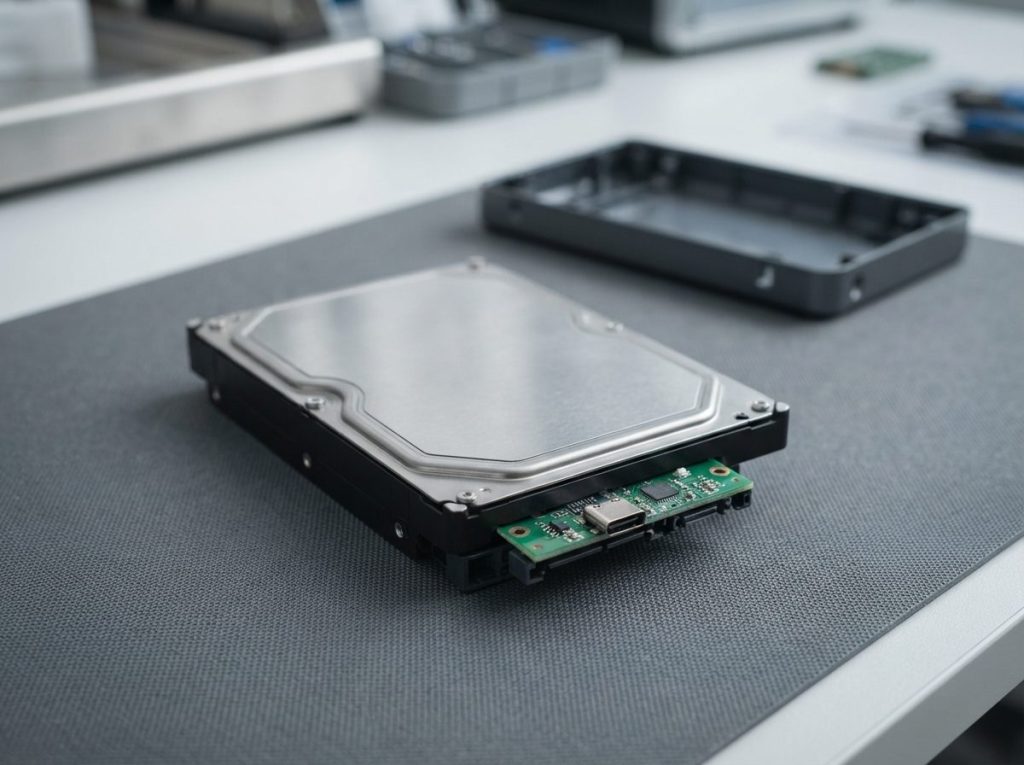
An Iomega external drive is really two parts: a standard SATA hard drive and an enclosure with a bridge board that connects it to your computer, and either part can fail.
If the drive spins normally and sounds healthy but never shows up on any computer, the bridge board or the adapter is a strong suspect. If it clicks, beeps, grinds or stays silent with a working adapter, the internal drive is more likely at fault.
It’s tempting to pry the case open and connect the internal drive directly. Plastic clips break easily, static can damage exposed electronics, and some external enclosures encrypt data at the bridge board, so the bare drive may look blank. If the data matters, let a lab separate the two parts with the right tools.
What mistakes make an unrecognized Iomega drive worse?
Most permanent data loss on unrecognized external drives comes from well-meant fixes, not the original fault.
- Formatting or initializing to “make it work”. This writes a new file system over the old one.
- Running CHKDSK, fsck or Disk Utility First Aid. These tools change the file system and stress weak heads.
- Repeated power cycling of a clicking or beeping drive. Each attempt can scratch the disks further.
- Trial-and-error recovery software. Read-only recovery tools exist for simple logical problems, but long scans on a failing drive can finish it off. If the drive shows any physical symptom or the files are important, skip them.
- Opening the internal hard drive. Even a speck of dust on the platters (the magnetic disks that hold your data) can cause permanent damage. Opening a drive is cleanroom work only.
- Freezing, tapping or swapping circuit boards. A replacement board won’t work without moving the original drive’s ROM/adaptives, the unique calibration data stored on the board.
- Saving files to the drive or installing software on it.
When should you get professional help?
Get professional help when the drive makes abnormal noises, fails on every computer and cable you try, or holds files you can’t afford to lose.
Use this quick decision guide:
- Works on another computer: fix the original computer’s port or driver. Copy your files to a newer drive soon.
- Detected but asks to format, and it’s a Mac/PC mismatch: connect it to the type of computer it was used with.
- Detected as RAW, slow, or freezing: stop and get an evaluation, especially if the data is irreplaceable.
- Clicking, grinding, beeping, burning smell, or not spinning: power off now and don’t retry.
- Dropped, wet or hit by a power surge: don’t power it on; seek a professional evaluation.
How does professional recovery work for an Iomega drive?
Professional recovery repairs the hardware only as far as needed, then copies the data off without writing to the original drive.
At Prime Data Recovery, our lab in North York, Toronto, follows the same order for every drive:
- Free evaluation and diagnosis. We work out whether the fault is the enclosure, the drive’s circuit board (PCB), its firmware, or its mechanics. Our PC-3000 diagnostic systems help test the drive and its service area, the hidden firmware zone the drive needs to start up.
- Findings and quote. You approve the work before anything goes ahead.
- Physical repair if needed. Failed heads are replaced with matching parts from a donor drive (a head stack replacement) inside our ISO certified Class 10 cleanroom.
- Controlled imaging. Imaging means making a sector-by-sector copy. A DeepSpar Disk Imager reads weak drives gently and skips problem areas first, so healthy data is saved before anything else.
- Recovery and file verification. We rebuild the file system (NTFS, HFS+, exFAT or FAT32) from the copy, then you check your recovered files in a file verification session.
- Delivery on a new storage device.
You can read more about each stage in how the data recovery process works, or see our external hard drive recovery service. Results depend on the type and extent of damage, so no lab can promise recovery before diagnosis. Your files are handled confidentially and in line with Canadian privacy law (PIPEDA).
Key takeaways
- Most Iomega drives are older, so check the power adapter, cable and legacy ports first.
- Test on a second computer to tell a computer problem from a drive problem.
- Use Disk Management or Disk Utility to look, never to format, initialize or repair.
- A Mac-formatted drive may look “empty” or “unformatted” in Windows when the data is fine.
- Clicking, grinding, beeping or silence means power off and don’t retry.
- Don’t open the enclosure or the drive if the data matters.
If your Iomega drive still won’t show up, Prime Data Recovery offers a free evaluation under a “No Data, No Fee” policy and is highly rated on Google. Drop your drive off in North York or ship it from anywhere in Canada. Request a free quote or call (416) 661-1112.
Frequently Asked Questions
Why does my Iomega drive light up but not show on the computer?
A light only shows the enclosure is getting power. Communication can still fail because of a bad cable or port, a failed bridge board, a damaged circuit board on the internal drive, firmware problems or file system damage. Try another cable and computer. If it still doesn't appear, or it makes unusual sounds, stop and have it evaluated rather than reconnecting it repeatedly.
Can I use an old Iomega FireWire drive on a new computer?
Often yes, but most current computers have no FireWire port, so you would need adapters or an older computer that still has one. Adapter chains can be unreliable and may not supply enough power. If the drive also has a USB port, use that instead. If it fails on every connection you try and the data is important, a lab can read the internal drive directly.
Will Windows read a Mac-formatted Iomega external drive?
Not natively. Windows can't open HFS+ or APFS volumes, so a Mac-formatted Iomega drive may appear unformatted, unallocated or ask to be formatted. The data is usually still there. Close the prompt and connect the drive to a Mac instead. Formatting it in Windows would overwrite the file system and make recovery harder.
Is it safe to take the hard drive out of my Iomega enclosure?
It carries risk. Plastic clips can break, static can damage exposed electronics, and some external enclosures encrypt data at the bridge board, so the bare drive may look blank when connected directly. Removing the case is not the same as opening the hard drive itself, which must never be done outside a cleanroom. If the files matter, let a lab handle it.
Can data be recovered from an Iomega drive that sat unused for years?
In many cases, yes. Long storage can cause stiction, lubricant issues or tired electronics, but the magnetic data on the platters often survives. The key is not to power it on repeatedly if it beeps, clicks or won't spin. A professional evaluation can find the fault and image the drive safely. No lab can promise recovery before diagnosis.
