
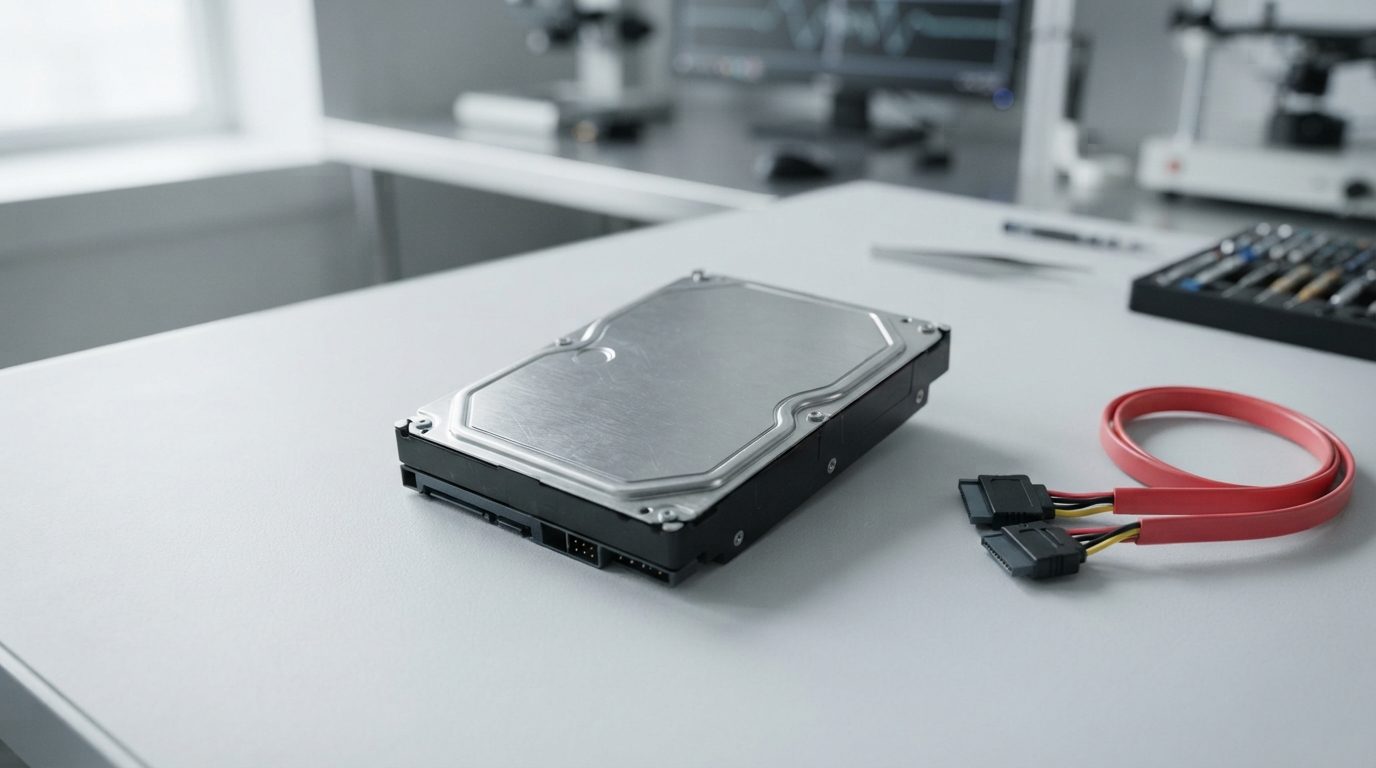
Quick answer: An internal hard drive not showing up is usually caused by a loose SATA cable, a missing drive letter, an unmounted volume, a damaged partition table or a failing drive. Check BIOS/UEFI first, then Disk Management or Disk Utility. Never initialize, format or repair a drive with important data. If it clicks or isn’t detected at all, power off and get help.
Your computer starts normally, but the second drive with your photos, projects or archive is gone from File Explorer or Finder. An internal hard drive not showing up can mean anything from a loose cable to a mechanical failure. The good news is that a few safe checks will tell you which one you’re dealing with, without putting your files at risk.
This guide covers internal 3.5″ desktop and 2.5″ laptop hard drives (HDDs) connected by SATA. It explains what each status in your disk tools means, what you can safely try, and which “fixes” quietly destroy data.
Why is my internal hard drive not showing up?
An internal hard drive disappears for one of three broad reasons: the computer can’t talk to it, the computer sees it but can’t read its structure, or the drive itself is failing.
In practice, the most common causes are:
- Connection problems: a SATA data or power cable that worked loose, a damaged cable, or a faulty port on the motherboard.
- Configuration problems: no drive letter assigned in Windows, or a volume that isn’t mounted on a Mac.
- Logical damage: a corrupted partition table or file system, which makes the drive appear as “RAW”, “Unallocated” or “Not Initialized”.
- Unsupported format: a drive formatted for another system, such as ext4 from Linux or APFS from a Mac, placed in a Windows PC.
- Hardware failure: worn or damaged read/write heads (the tiny arms that read the spinning disks), a failed electronics board, or corrupted firmware.
Is the drive “not showing up” or “not detected”? Why the difference matters
If the drive appears in BIOS/UEFI or Disk Management but not in File Explorer, the hardware is probably talking and the problem is often logical; if it appears nowhere, suspect a connection or hardware fault.
This one distinction shapes everything that follows. A drive that the firmware of your computer lists by model name is at least powering up and answering basic commands. A drive that is missing even there is either not connected properly or not responding, and repeated attempts to wake it can make a mechanical problem worse.
How to check BIOS/UEFI
- Restart the computer and press the setup key shown at start-up (often Delete, F2 or F10).
- Look for a storage, SATA or boot section that lists connected drives.
- Note whether your hard drive appears by model or capacity.
- Exit without saving changes. Avoid switching SATA modes (such as AHCI or RAID) because that can stop Windows from booting.
What safe checks can I do myself?
Safe checks are limited to power, cables, ports and read-only visibility in your system tools; nothing in this list writes to the drive.
- Listen at start-up. A healthy hard drive spins up with a soft whirr. Clicking, buzzing, beeping or grinding means stop now and leave the computer off.
- Shut down and unplug the desktop before touching anything inside the case.
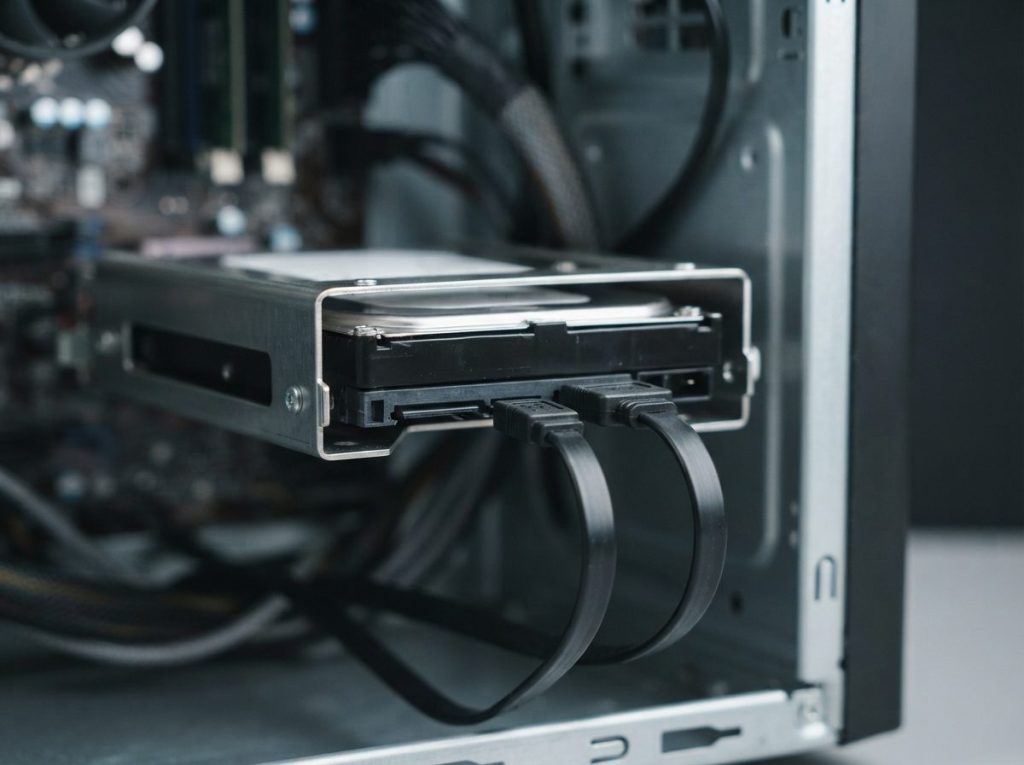
- Reseat both SATA cables at the drive and motherboard end: the thin data cable and the wider power connector.
- Try a spare SATA data cable and a different SATA port on the motherboard.
- Try a different power connector from the power supply.
- Check BIOS/UEFI again, then check Disk Management or Disk Utility as described below.
On a laptop, opening the case to reseat the drive is riskier because of fragile connectors and ribbon cables. If you aren’t comfortable doing it, don’t. Never open the hard drive itself. Dust particles smaller than you can see can scratch the platters, the disks that hold your data.
What do the statuses in Disk Management and Disk Utility mean?
Disk Management (Windows) and Disk Utility (macOS) often list a drive that File Explorer or Finder hides, and the status shown tells you whether the issue is minor or serious.
In Windows, press Win + X and choose Disk Management. On a Mac, open Disk Utility and choose View > Show All Devices. Look only; don’t click any action yet. Use this table to read what you see.
| What you see | Likely cause | What you can do | What not to do |
|---|---|---|---|
| Healthy partition with NTFS or exFAT, but no letter (Windows) | Drive letter lost or conflicting | Assign a letter via “Change Drive Letter and Paths” | Don’t delete or reformat the partition |
| Volume greyed out (Mac) | Volume not mounted | Select the volume and click Mount once | Don’t run First Aid if mounting fails |
| “RAW” file system | File system damage | Stop; copy nothing to it | Don’t format, and don’t run CHKDSK |
| “Unallocated” on a drive that held files | Partition table lost or damaged | Stop and seek recovery if data matters | Don’t create a new volume |
| “Not Initialized” or “Unknown” on a used drive | Damaged partition table, firmware or electronics fault | Click Cancel on the prompt; power off | Don’t initialize the disk |
| Wrong capacity (for example, a few MB or 0 bytes) | Firmware problem or failing drive | Power off and get an evaluation | Don’t keep rebooting to “see if it comes back” |
| “Foreign” or “Dynamic” disk | Drive came from another PC or a software RAID | Note which machine it came from | Don’t import or convert it if it was part of an array |
| Not listed at all, but seen in BIOS | Driver or controller issue, or drive not responding properly | Restart once; check Device Manager | Don’t install recovery tools on that drive |
Which fixes are actually safe?
Assigning a drive letter to a partition that Windows already reads as healthy NTFS or exFAT is generally safe. Clicking Mount once on a greyed-out Mac volume is also low risk. If the volume still won’t mount, that is a sign of corruption, and it is time to stop.
What about a drive formatted on another system?
A drive from a Linux machine (ext4) or a Mac (APFS or HFS+) can look blank or unreadable in Windows. Your files are usually fine. Connect the drive to a computer running the original system to read it. Never accept a prompt to format it.
Which mistakes make a missing drive harder to recover?
The biggest risk to your files is usually not the original fault but the well-meant repairs that follow it.
- Clicking “Initialize Disk”. Windows offers this for drives it can’t read. It writes a new partition table over the old structure.
- Formatting a RAW drive because Windows says “You need to format the disk before you can use it.”
- Running CHKDSK, fsck or Disk Utility First Aid. These tools rewrite file system records to make the volume consistent, and can discard the very entries you need.
- Restarting a noisy drive again and again. Each power cycle on a drive with damaged heads can scratch the platters further.
- Trying several recovery programs one after another. Every scan stresses a weak drive, and installing software to the wrong disk can overwrite files.
- Swapping the circuit board. A replacement PCB (printed circuit board) from another drive won’t work without the original ROM/adaptives, the drive-specific calibration data.
When does a missing hard drive need professional recovery?
You should stop troubleshooting and seek professional help when the drive makes unusual noises, is missing from BIOS, reports a wrong capacity, or shows as RAW, Unallocated or Not Initialized while holding data you need.
Use this quick decision guide:
- Seen in Disk Management as healthy, just no letter: assign a letter yourself.
- Seen, but RAW, Unallocated or Not Initialized, and the files matter: stop, power off, get an evaluation.
- Seen in BIOS only, or with a strange capacity: likely firmware or hardware; power off.
- Not seen anywhere after cable and port checks: likely hardware; power off.
- Clicking, beeping, grinding, burning smell, recent drop, surge or water: power off immediately and don’t retry.
- Drive was slow, freezing or showing health warnings before it vanished: treat it as failing; don’t keep using it.
For desktops specifically, our desktop data recovery service covers secondary drives that have dropped out of a working system. If you hear clicking, read our guide on what a clicking hard drive means before doing anything else.
How does a lab recover data from a hard drive that won’t show up?
A professional lab first finds out why the drive is invisible, repairs only what is needed to make it readable, then copies it sector by sector before any file recovery begins.
At Prime Data Recovery in North York, our hard drive data recovery work follows the same order every time:
- Free evaluation and diagnosis. We use PC-3000 Express or PC-3000 Portable III to check the drive’s electronics, heads and service area, the hidden firmware zone the drive needs to start. A damaged translator, the firmware map that links logical addresses to physical locations, is a common reason a drive shows a wrong capacity or no capacity at all.
- Findings and quote. You approve the work before anything further is done.
- Physical repair if needed. Head replacement from a matching donor drive is done only in our ISO certified Class 10 cleanroom.
- Controlled imaging. Imaging means making a complete copy of the drive. We use the DeepSpar Disk Imager to read weak areas and bad sectors carefully, without writing to the original.
- Recovery and verification. We rebuild the partition and file system (NTFS, exFAT, APFS, HFS+ or ext4) from the image using tools such as ACE Lab Data Extractor. You then check your recovered files in a file verification session.
- Delivery on a new storage device.
Recovery is never guaranteed, because results depend on the type and severity of damage. A drive that hasn’t been formatted, initialized or repeatedly restarted generally gives us more to work with.
How can I stop an internal drive from disappearing again?
Most repeat incidents are prevented by secure connections, stable power and a current backup that lives on a separate device.
- Route SATA cables so they aren’t bent sharply or pulled by fans and side panels.
- Use a quality power supply and a surge protector or UPS.
- Shut down properly rather than holding the power button.
- Watch for early signs: slowness, freezing when opening folders, or drive health warnings.
- Keep at least one backup on a different device, and ideally one off-site.
Key takeaways
- Check BIOS/UEFI first, then Disk Management or Disk Utility, before trying any fix.
- Assigning a drive letter or mounting a volume is low risk; initializing, formatting and CHKDSK are not.
- RAW, Unallocated or Not Initialized on a used drive points to damage, not a blank disk.
- Noises, a wrong capacity or a drive missing from BIOS mean power off and stop.
- Professional recovery starts with imaging, so the original drive is never written to.
Need help with a drive that won’t show up?
Prime Data Recovery is an independent lab in North York, Toronto, serving the GTA in person and customers across Canada by shipping. We offer a free quote and evaluation, a fast 30-minute free diagnostic, confidential handling in line with PIPEDA, and a “No Data, No Fee” promise. Request your free evaluation or call (416) 661-1112.
Frequently Asked Questions
Can I put my internal hard drive in a USB enclosure to see if it shows up?
Yes, as a diagnostic step, if the drive makes no unusual sounds and hasn't been dropped or exposed to liquid. A USB enclosure or adapter rules out a faulty motherboard port or cable. If the drive still shows as RAW, Unallocated or a wrong size, or starts clicking, unplug it. Don't format, initialize or run repair tools through the enclosure either.
Why did my second hard drive disappear after a Windows update?
An update can reset drive letter assignments, change storage drivers or leave a volume offline. Open Disk Management and check whether the drive is listed as healthy without a letter, or marked Offline. Assigning a letter or bringing a healthy disk online is usually safe. If it now shows as RAW or Not Initialized, stop and avoid any repair prompts.
Is my data gone if Windows asks me to initialize the disk?
Not necessarily. The prompt only means Windows can't read the partition table, which can happen from logical damage, firmware faults or failing electronics. The files are often still on the platters. Click Cancel, shut down and don't let any tool write to the drive. Initializing replaces the partition structure and makes recovery more difficult.
Can a bad motherboard SATA port make a hard drive vanish?
Yes. A failed SATA port, a damaged data cable or a weak power connector can all make a healthy drive disappear or drop out at random. Moving the drive to another port and cable is a safe test. If the drive appears on another port and reads normally, back up your files right away before relying on that computer again.
How long does it take to find out what's wrong with my hard drive?
Prime Data Recovery offers a fast, free 30-minute diagnostic at its North York lab, plus a free quote and evaluation. The diagnosis identifies whether the problem is logical, firmware or mechanical. You get the findings and a quote before any recovery work begins, and nothing proceeds without your approval.
