Quick answer: If your NAS is not showing on the network, first check power, cables, link lights and whether your computer can reach the NAS’s IP address. If you can reach it by IP, the problem is usually a discovery or sharing setting. If it doesn’t respond, beeps or shows warning lights, stop and protect the disks before you try anything else.
A NAS not showing on the network is one of the most common storage problems in homes and small offices. Most of the time the cause is harmless: a loose cable, a changed IP address or a setting on your computer. Sometimes, though, the NAS disappears because a disk or the RAID volume inside it has failed. This guide helps you tell the two apart, using only checks that won’t put your files at risk.
Why is my NAS not showing on the network?
A NAS usually vanishes from the network for one of three reasons: a connection problem, a setting on your computer, or a fault inside the NAS itself.
A NAS (network attached storage) is a small computer with its own operating system and one or more drives. It has to boot, get an IP address and start its file-sharing services before Windows or macOS can see it. If any of those steps fails, the NAS goes missing from File Explorer or Finder, even though your files may still be sitting safely on the disks.
- Connection causes: unplugged or damaged Ethernet cable, a failed switch port, a new router, or the NAS getting a different IP address.
- Computer causes: network discovery turned off, a VPN or firewall blocking local traffic, or the computer sitting on a guest Wi-Fi network that is isolated from wired devices.
- NAS causes: a corrupted NAS operating system, a failed system disk, a degraded or crashed RAID volume, or failed hardware such as the power supply or motherboard.
What should I check first when my NAS disappears?
Start with the physical basics, because they are safe, quick and solve a large share of cases.
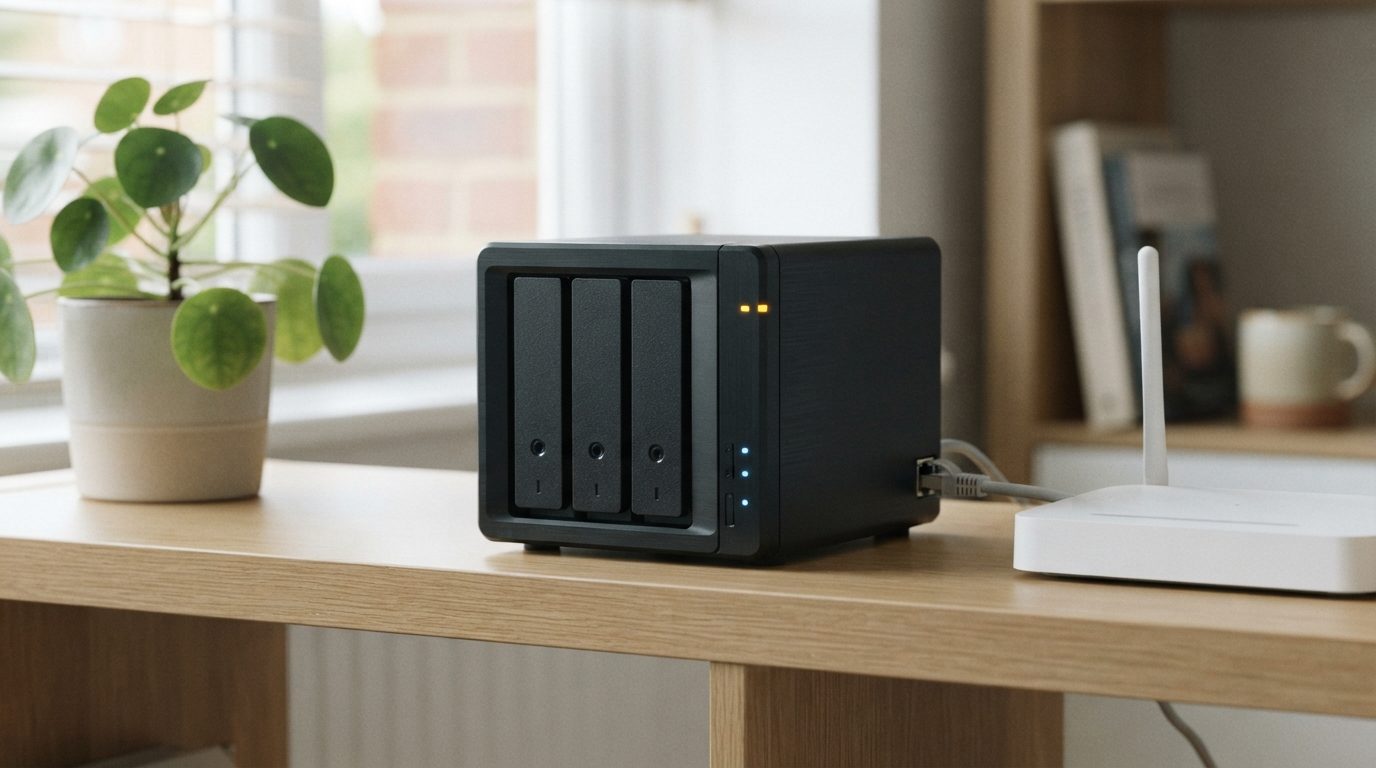
- Look at the front lights. Is the NAS powered on? Note the colour and pattern of the status and disk lights before you touch anything. Your manual explains what they mean.
- Listen to the unit. Steady humming is normal. Repeated clicking, grinding or beeping is not. If you hear those sounds, skip ahead to the “stop” section below.
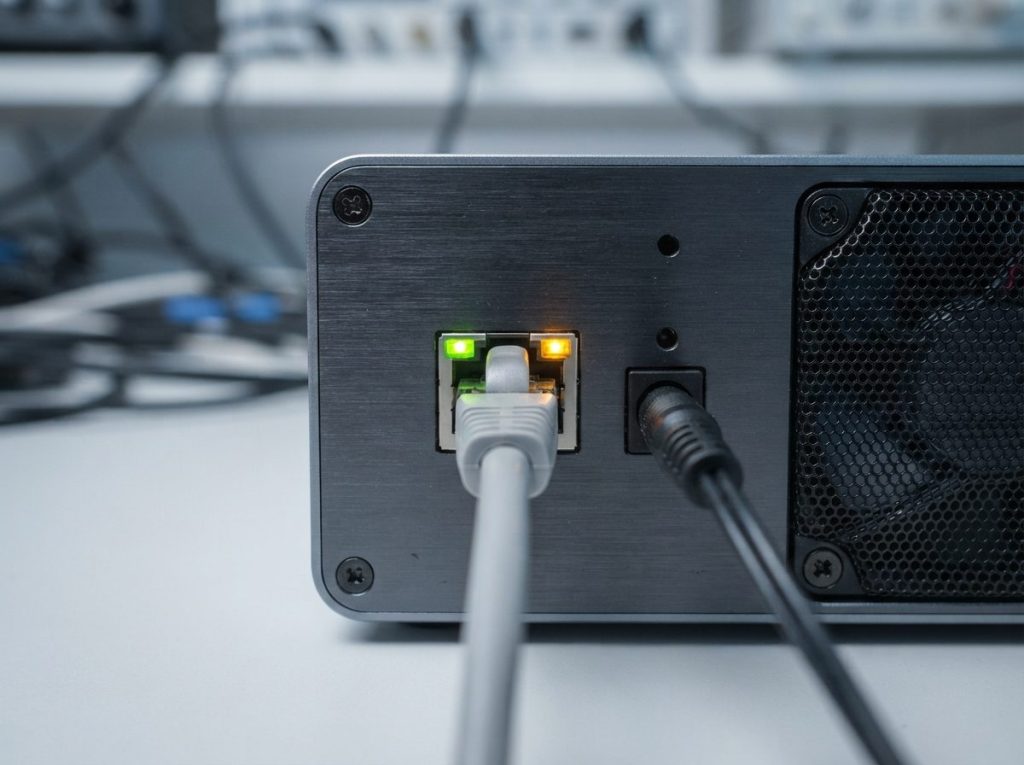
- Check the link lights on the back. The Ethernet port on the NAS and the matching port on your router or switch should be lit or blinking. No light means no physical connection.
- Swap the cable and the port. Try a known-good Ethernet cable and a different port on the router or switch.
- Check that other devices work. If no device can reach the internet or each other, the router is the problem, not the NAS.
- Restart the network gear once. Restart the modem and router, wait until they are fully back, then restart your computer. Leave the NAS alone for now unless it is clearly frozen.
How can I tell if it’s a network problem or a NAS problem?
The quickest test is whether your computer can reach the NAS by its IP address; that single answer points you in the right direction.
Find the NAS’s IP address in your router’s admin page, in the list of connected devices (often called DHCP clients). The manufacturer’s discovery utility can also find it. Then open Command Prompt on Windows or Terminal on a Mac and type ping followed by the address. Finally, type the IP address into a web browser to see if the NAS login page appears.
| Ping result | Web login page | What it most likely means | Next step |
|---|---|---|---|
| Replies | Loads normally | NAS is running; discovery or sharing settings are the issue | Connect by IP and check computer settings |
| Replies | Loads, but shows volume errors | Disk, RAID or file system problem inside the NAS | Do not click repair; document and seek help |
| Replies | Does not load | NAS operating system partly started or corrupted | Avoid resets; get a professional evaluation |
| No reply | Does not load | Wrong IP, network fault, or NAS not booting | Recheck router list and cables; if lights show errors, stop |
How do I make my NAS show up in Windows?
On Windows 10 and 11, the most reliable fix is to connect to the NAS directly by IP address instead of waiting for it to appear in the Network folder.
- Connect by address: type followed by the NAS IP address (for example 192.168.1.50) in the File Explorer address bar. If the shared folders appear, map the one you need as a network drive.
- Turn on network discovery: go to Settings, Network and internet, Advanced network settings, Advanced sharing settings. Make sure your network is set to Private and network discovery is on.
- Check your VPN and security software: a VPN client or third-party firewall can block local network traffic. Disconnect the VPN and test again.
- Older NAS units: some older models only speak an outdated version of the SMB file-sharing protocol that current Windows disables for security reasons. Updating the NAS firmware, if it is healthy, is safer than re-enabling the old protocol on your PC.
How do I make my NAS show up on a Mac?
On a Mac, connecting through Finder’s “Connect to Server” by IP address usually works even when the NAS doesn’t appear in the sidebar.
- Connect directly: in Finder, press Command+K and enter smb:// followed by the NAS IP address.
- Show network locations: in Finder Settings, under Sidebar, make sure Bonjour computers and Connected servers are ticked.
- Check local network access: recent macOS versions ask apps for permission to reach devices on your local network. Check the Privacy and Security settings, and disconnect any VPN.
- Check the Wi-Fi network: make sure the Mac is on your main network, not a guest or isolated network.
Which symptoms point to a problem inside the NAS?
Warning lights, beeping, drive noises or volume errors in the web interface mean the NAS itself has a fault, and network fixes won’t help.
| Symptom | Likely cause | What to do | What not to do |
|---|---|---|---|
| NAS beeps, status light orange or red | Failed or missing disk, degraded volume | Read the alert if the web page loads; note the details | Don’t pull disks or start a rebuild |
| Clicking or grinding from a bay | Physical failure of a hard drive’s read/write heads or motor | Shut down cleanly if possible, then leave it off | Don’t keep restarting the NAS |
| Web page says volume crashed or not found | Too many failed disks for the RAID level, or file system damage | Screenshot the message and stop | Don’t click repair, initialize or create a new volume |
| Lights normal, no web page, no ping | Corrupted NAS operating system or failed hardware | Check the router list once more, then seek help | Don’t factory reset or reinstall the OS |
| Disappeared after a power cut or update | Interrupted update or unclean shutdown | Note what happened and when | Don’t repeat the update or power-cycle again and again |
Most NAS units use RAID (redundant array of independent disks), which spreads data across several drives so the box can survive one failure. When more disks fail than the RAID level allows, the volume goes offline. Many NAS systems also store their own operating system on the data disks, so a disk problem can stop the whole unit from booting. If you want to learn more about early warning signs, see our guide to NAS drive failure signs and causes.
What should I avoid doing if my NAS still won’t appear?
Avoid any action that writes to the disks or changes the RAID layout, because those steps can turn a recoverable problem into permanent loss.
- Don’t factory reset or reinstall the NAS operating system. Some reset options wipe the disks or rebuild the volume configuration.
- Don’t initialize disks or create a new volume, even if the NAS suggests it.
- Don’t start a rebuild or “repair” on a degraded volume when a second disk may be weak. A rebuild reads every sector and can push a failing drive over the edge.
- Don’t change the disk order. If you must remove the disks, label each with its bay number first.
- Don’t connect NAS disks to a Windows PC. Windows can’t read most NAS file systems, such as ext4, and may offer to initialize or format them.
- Don’t run disk-checking or repair tools on the NAS disks, and don’t use trial-and-error recovery software if the data matters.
- Don’t open a drive. Dust can permanently scratch the platters, the disks that hold your data.
Can data be recovered from a NAS that won’t show on the network?
In many cases yes, because the files usually still sit on the disks even when the NAS can’t share them, but the outcome depends on the type and extent of the damage.
At Prime Data Recovery in North York, Toronto, we never work on your original disks directly. Our data recovery process follows the same order every time:
- Free evaluation and diagnosis of the NAS and each disk.
- Findings and a quote, and nothing proceeds without your approval.
- Physical repair if needed. A drive with failed heads gets a head stack replacement, using matching parts from a donor drive, inside our ISO certified Class 10 cleanroom.
- Controlled imaging. We make a sector-by-sector copy of each disk with hardware such as the DeepSpar Disk Imager and PC-3000, without writing to the originals. Weak areas called bad sectors are handled carefully.
- RAID reconstruction and recovery. We rebuild the array virtually from the images, then rebuild the file system with tools such as ACE Lab Data Extractor. You then check your files in a file verification session.
- Delivery of your data on a new storage device.
Your data is handled confidentially and in line with Canadian privacy law (PIPEDA). For more on how we handle multi-disk units, see our NAS data recovery service.
When should I get professional help?
Get professional help as soon as the NAS shows disk warnings, makes unusual noises, or stays unreachable after the network checks above.
Before you call, power the NAS down cleanly if you can, label the disks if any have been removed, and write down the model, number of disks, RAID type if known, and every step already tried. That record saves time during diagnosis. Prime Data Recovery serves the GTA from its North York lab and accepts shipped devices from across Canada. Business servers and NAS units can also use our 24/7 emergency support.
Key takeaways
- A NAS not showing on the network is often a cable, IP address or computer setting issue.
- Ping the NAS and open its IP address in a browser to tell a network fault from a NAS fault.
- Connecting by IP address works on Windows and Mac even when discovery fails.
- Beeping, orange or red lights, clicking or volume errors mean an internal problem.
- Never reset, initialize, rebuild or reorder the disks if the data matters.
- Professional recovery works from images of each disk, never the originals.
Need help with a NAS that won’t appear?
If your NAS is still missing or shows signs of disk trouble, leave it powered off and request a free quote and evaluation. Prime Data Recovery is highly rated on Google and works on a “No Data, No Fee” basis. You can also call (416) 661-1112 to talk through your situation.
Frequently Asked Questions
Why does my NAS show up on my phone but not on my laptop?
If one device can see the NAS and another can't, the NAS itself is almost certainly working. The laptop is the likely cause: it may be on a guest Wi-Fi network, connected to a VPN, using a Public network profile, or blocked by security software. Try connecting from the laptop by typing the NAS IP address directly, and check those settings one at a time.
Did my NAS lose its data when it disappeared from the network?
Usually not. A NAS that drops off the network has often only lost its connection or its sharing service, and the files remain on the disks. Even when a disk or RAID volume has failed, the data is often still recoverable. What causes real loss is what happens next, such as resets, rebuilds or initializing disks, so pause before trying fixes.
Can a new router make my NAS disappear?
Yes. A new router may hand out addresses in a different range, so a NAS set to a fixed IP address from the old network can become unreachable. Mapped drives pointing to the old address will also fail. Check the new router's list of connected devices. If the NAS isn't listed, connecting it to a computer is a job best left to someone comfortable with network settings.
Is it safe to press the reset button on my NAS?
It depends on the model and how long you hold it. On many units a short press only resets network and admin settings, while longer presses or reset options in the software can reinstall the system or affect volumes. If your data isn't backed up elsewhere, check the manual carefully first, or get advice before pressing anything.
Can I take the drives out of my NAS and read them on my computer?
It isn't recommended. Most NAS units use Linux file systems and RAID layouts that Windows and macOS can't read natively, and Windows may prompt you to initialize the disks, which can overwrite important structures. If the data matters, keep the disks in order, label them, and have them imaged professionally rather than connecting them to a desktop.
