
Quick answer: When an SSD is not showing up, find where it disappears. If the computer’s BIOS lists it, the fix is usually software: a drive letter, initialization or a driver. If the BIOS never sees it, check the cable, slot and port, then another computer. If it still fails, stop and get professional help.
Why is my SSD not showing up?
An SSD fails to appear for one of three reasons: a connection problem, a software or settings problem, or a fault inside the drive. The quickest way to tell them apart is to ask which layer can still see the drive.
Your computer detects storage in stages. First the firmware (BIOS/UEFI) sees the hardware. Then the operating system lists the disk. Finally the disk gets a partition and a drive letter. A break at any stage gives a different symptom.
Decision guide: where does the SSD disappear?
| What you see | Likely cause | What to do |
|---|---|---|
| Not in BIOS/UEFI | Loose cable or slot, wrong slot mode, failed drive | Reseat, check the motherboard manual, test elsewhere |
| In BIOS, not in Disk Management | Driver, controller or port issue | Update drivers, try another port or computer |
| In Disk Management as "Not Initialized" | New or wiped drive, damaged partition table | Initialize only if the drive is empty |
| Listed as "Unallocated" or "RAW" | Missing or damaged partition or file system | Do not format if you need the files |
| Healthy but no letter | Drive letter missing or clashing | Assign a letter |
| External SSD only, no detection | Cable, port, power or enclosure board | Swap cable and port, test on another computer |
What should I check first?
Start with the physical connection, because it is the most common cause and does no harm. Shut the computer down fully before touching anything inside.
- Power off and unplug a desktop or remove the battery or power from a laptop where the manufacturer allows it.
- Touch bare metal on the case to discharge static before handling parts.
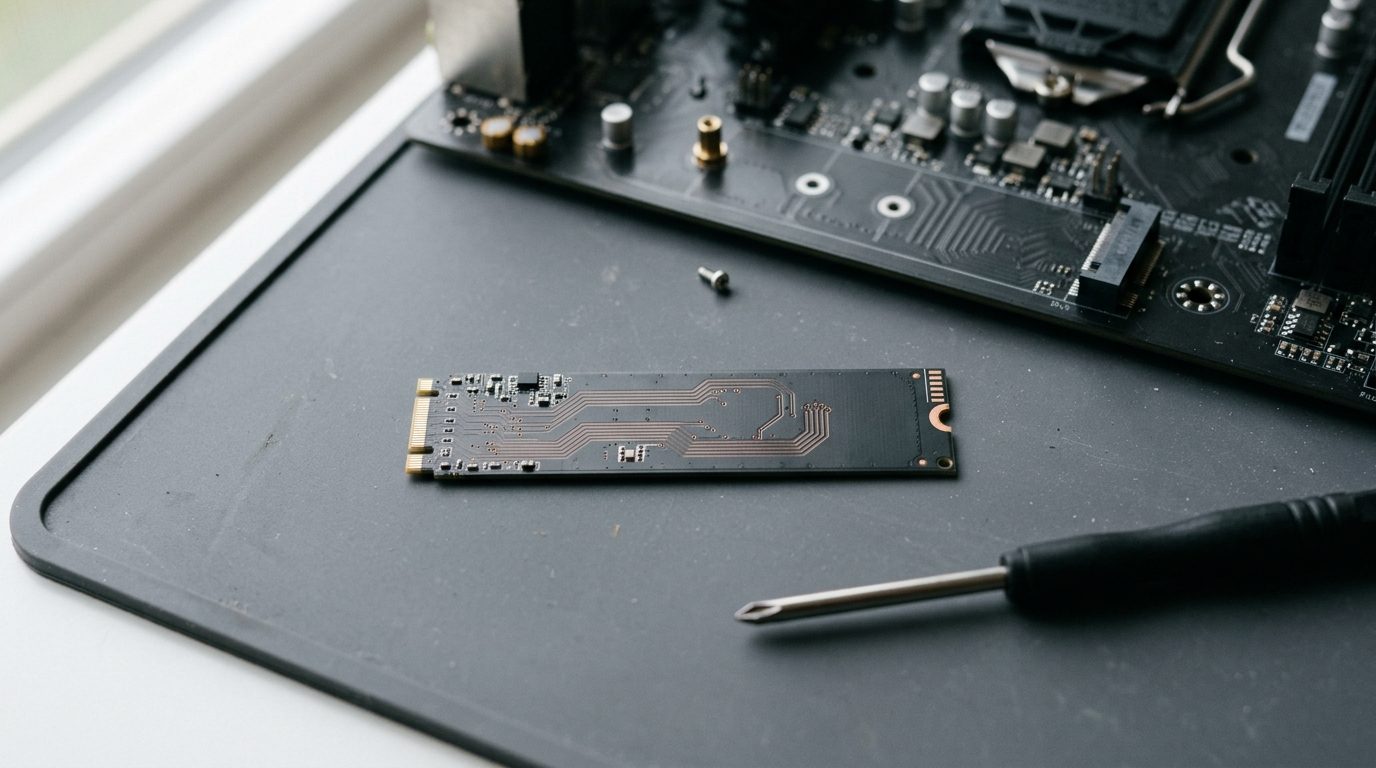
- Reseat an M.2 or NVMe drive so it sits flat and the screw holds it firmly.
- Check both SATA cables (data and power) at each end, or swap in a spare cable.
- Try a different slot or SATA port if your board has one.
- For an external SSD, use another cable and another port, ideally directly on the computer rather than a hub.
If you are not comfortable opening a laptop, stop here. Forcing a tiny M.2 drive can bend the connector.
What if the SSD is not showing up in BIOS?
If the BIOS does not list the SSD, Windows or macOS will not see it either. Open the BIOS or UEFI setup at startup (the key is often Del, F2 or F10) and look at the storage or NVMe information page.
Then check the settings that commonly hide a drive:
- Port or slot enabled: some boards disable a SATA port when an M.2 slot is in use.
- M.2 mode: some slots handle both SATA and NVMe drives. The motherboard manual shows which your slot supports.
- SATA mode: modern systems normally use AHCI. Changing it on a computer that already boots from another drive can stop Windows starting, so note the original setting before you change anything.
If the drive still does not appear after this, test it in another computer or enclosure. If it fails there too, the problem is almost certainly the drive.
What if the SSD is in BIOS but not in Windows?
When the BIOS sees the SSD but File Explorer does not, the drive usually needs setup or has a damaged partition. Right-click the Start button and open Disk Management to see its state.
New, empty SSD: initialize it (GPT for current systems), right-click the unallocated space, choose New Simple Volume and follow the wizard.
SSD that held your files: do not initialize, format or "repair" it yet. Those actions write new structures to the drive and can make recovery harder. If the drive shows as RAW or asks to be formatted, treat that as a sign of file system damage, not an invitation to format.
If the volume is healthy but has no letter, right-click it, choose Change Drive Letter and Paths, and assign one. On a Mac, open Disk Utility and check whether the drive is listed there, even greyed out.
Why is my external SSD not showing up?
An external SSD has extra parts that can fail: the cable, the USB port and the small bridge board that converts the drive to USB. Swap the cable first, then the port, then the computer.
Some portable drives need more power than a weak port or unpowered hub provides. Plug straight into the computer. If the light comes on but the drive never appears on two computers with two cables, the bridge board or the SSD itself may have failed. Taking the SSD out of its enclosure can pin down which, but it often voids a warranty and is best left to a technician if the data matters.
What mistakes make a missing SSD harder to recover?
Most extra damage comes from well-meant attempts to force the drive back. Avoid these:
- Formatting the drive to make it appear.
- Initializing a disk that already holds your files.
- Running repair tools repeatedly on a drive that keeps dropping out.
- Powering a drive on and off again and again.
- Opening the casing or trying to heat or freeze it.
- Installing "free recovery" software onto the same drive.
SSDs also work differently from hard drives. Once deleted data is cleared internally, it may be gone for good, so repeated use of an unstable drive can reduce what a specialist can get back.
When should I call a data recovery professional?
Call a professional when the SSD is missing in the BIOS and on a second computer, when it appears with the wrong size or name, or when it vanishes mid-use. The same applies if it disconnects repeatedly, or if it holds files you cannot replace.
Those symptoms point to a controller, firmware or electronic fault inside the drive. No setting on your computer can fix those. Prime Data Recovery Services in Toronto recovers data from failed drives, including SSDs, and can assess the drive before you decide what to do. Stop using the drive and keep it as it is. Note what happened just before it failed, because that helps a technician.
Key takeaways
- Work out whether the BIOS, the operating system or only the drive letter is missing.
- Check cables, slots, ports and power before any settings.
- Initialize or format only a drive that is empty.
- A drive undetected in BIOS and on a second computer usually has an internal fault.
- If the files matter, stop trying fixes and get an assessment.
If your SSD is still not showing up and the data matters, contact Prime Data Recovery Services to talk through your options.
Frequently asked questions
Why is my new SSD not showing up in File Explorer?
A new SSD usually arrives without a partition, so Windows lists it only in Disk Management. Open Disk Management, initialize the disk when prompted, then create a new simple volume and give it a drive letter. If it is missing from Disk Management too, check the cable, slot and BIOS.
Can formatting make an undetected SSD work?
No. Formatting only works on a drive the operating system can already see, such as one marked unallocated or RAW. It cannot fix a drive that is missing in the BIOS. If the drive holds files you need, formatting also makes recovery harder.
Is my data gone if the SSD is not detected?
Not necessarily. If the drive is undetected because of a controller, firmware or electronic fault, the stored data may still be intact and a specialist may be able to reach it. Keep powering the drive on and off to a minimum and avoid formatting it.
Can a Windows update make an SSD disappear?
It can, though it is not common. An update may change a driver or a drive letter, so the SSD stays in Disk Management but disappears from File Explorer. Check Disk Management and Device Manager first. If the BIOS no longer lists the drive, the cause is not the update.
Why does my SSD show up and then disappear?
A drive that drops in and out often has a failing controller, unstable firmware, a bad connection or a power problem. A loose cable is worth ruling out. If a good cable and a second computer give the same result, stop using it and seek an assessment.
Need help with this?
Talk to the team at Prime Data Recovery Services. We will tell you honestly what your options are.
Need help with an SSD that is not detected? See our SSD data recovery service in Toronto or request a free evaluation.
