
Quick answer: You can often recover deleted files from a hard drive because deleting a file only removes its entry from the file system. The data stays on the platters until new data overwrites it. Stop using the drive right away, check your backups and Recycle Bin, and get professional help if the files matter.
You emptied the Recycle Bin, pressed Shift+Delete, or quick-formatted the wrong drive. Now a folder of client files or family photos is gone. The good news: if you want to recover deleted files from a hard drive, the odds are usually better than you fear. The odds depend mostly on what you do in the next few minutes.
This guide explains what deletion actually does, which checks are safe, which common moves destroy data for good, and when to hand the drive to a lab.
Can you recover deleted files from a hard drive?
Yes, in many cases deleted files on a traditional hard disk drive (HDD) can be recovered, as long as the space they used has not been overwritten.
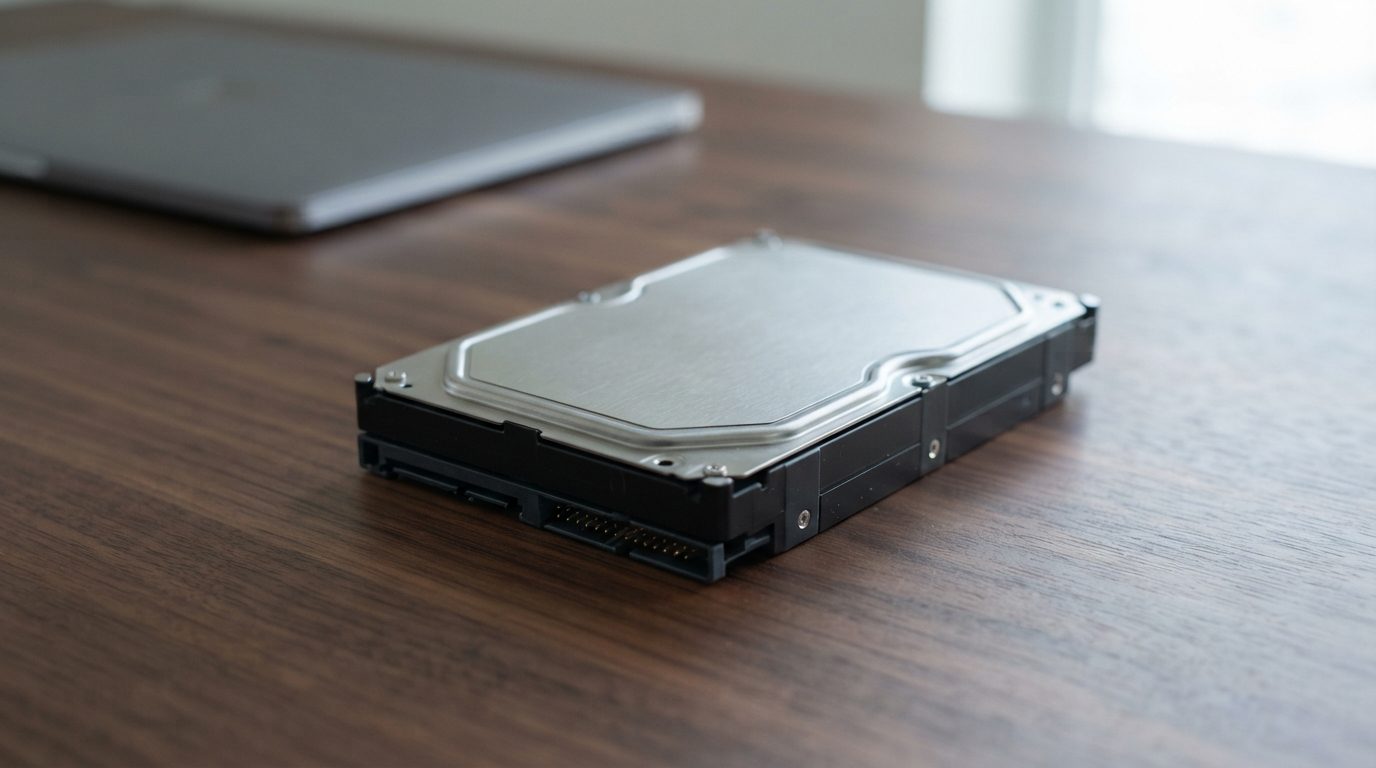
On a Windows drive formatted with NTFS, deleting a file marks its record in the Master File Table as unused. It also flags its clusters as free space. The actual bytes stay magnetically recorded on the platters, the spinning disks inside the drive. On macOS (APFS or HFS+) and Linux (ext4), the details differ, but the principle on a hard drive is similar. The drive does not wipe anything until the operating system decides to write something new in that spot.
That is why time is not really the enemy. Use is. A file deleted months ago from a drive that sat in a drawer may still be intact. A file deleted ten minutes ago from a busy system drive may already be partly gone.
What should you do first after deleting files by mistake?
The first thing to do is stop writing anything to that drive, because every new file, update or download can land on top of the data you want back.
- Stop working on the affected drive. Do not save, download, install or copy anything to it.
- If it is your main (C:) drive, shut the computer down normally. Windows, browsers and apps constantly write temporary files, logs and updates in the background.
- If it is an external drive, eject it safely and unplug it. Leave it disconnected until you have a plan.
- Check safe places first, from another device if possible. Look in the Recycle Bin or Trash, your cloud storage’s deleted-items folder, Windows File History, Time Machine or any backup drive.
- Write down what happened. Note what was deleted, how, when, and what was done afterwards. This helps any technician judge your chances.
If the drive was clicking, grinding, very slow or freezing before or after the deletion, treat it as a physical problem. Power it off and do not retry.
Why does an SSD make deleted file recovery harder?
Solid state drives (SSDs) are different because of TRIM, a command that tells the drive which blocks are no longer in use so its controller can erase them in the background.
On a hard drive, deleted data waits passively until it is overwritten. On an SSD with TRIM enabled, the controller may clear those NAND flash blocks within minutes, even if you write nothing new. Most modern laptops, including NVMe-based Windows laptops and Macs, use SSDs with TRIM active.
So if your files were deleted from an internal SSD, stop using the computer immediately and seek help quickly. Results vary a lot, and sometimes the data is already gone. Our SSD data recovery service page explains how these cases are evaluated. The rest of this article focuses on spinning hard drives.
Which deletion scenarios are recoverable, and what should you do?
How you lost the files matters as much as what kind of drive they were on. Use this table as a quick decision guide.
| What happened | What it likely means | What to do | What not to do |
|---|---|---|---|
| Emptied Recycle Bin or used Shift+Delete on an HDD | File entries removed; data usually still on the platters | Stop using the drive; check backups; consider professional recovery if the files are important | Keep working, download files or install anything on that drive |
| Quick format of a partition | New, empty file system written over the old one; most file data remains | Disconnect the drive and have the old file system reconstructed from an image | Copy new files onto the freshly formatted drive |
| Full format in Windows (Vista or later) | Windows writes zeros across the volume; data is generally overwritten | Check backups and cloud copies; ask for an honest evaluation | Expect recovery software to bring the files back |
| Partition deleted, or Windows asks to “initialize” the disk | Partition table lost or damaged; files often intact | Cancel the prompt and get the drive evaluated | Click “Initialize”, create a new partition or format |
| Operating system reinstalled on the same drive | New system files written over part of the old data | Stop using the computer; partial recovery may be possible | Restore apps and settings onto that drive |
| Files missing and the drive clicks, grinds or is very slow | Possible physical fault, such as weak or damaged read/write heads | Power off and seek professional evaluation | Run recovery scans, CHKDSK or keep restarting it |
| Files deleted from an internal SSD | TRIM may have already erased the blocks | Shut down and seek help quickly | Keep using the laptop “to see if they come back” |
Is it safe to use data recovery software yourself?
Read-only recovery software can work for simple deletions on a healthy hard drive, but it becomes risky when the data is important or the drive has any physical symptom.
If you decide to try it, follow these ground rules:
- Never install the software on the drive you are recovering from. The installation alone can overwrite the files.
- Save recovered files to a different drive, never back onto the source.
- Use only tools that read without writing, and do not let any program “repair” the drive.
- Stop immediately if the drive makes new noises, slows down, disconnects or shows read errors.
Be aware of the limits. A scan may list a file by name, yet the recovered copy will not open because part of it was overwritten. Repeated scans on a drive with bad sectors (areas the drive struggles to read) add wear to weak components. If the files are irreplaceable, every trial-and-error attempt can lower the chance of a full recovery.
What mistakes make deleted files unrecoverable?
The mistakes that do the most harm are the ones that write new data to the drive or stress a failing drive.
- Running CHKDSK, fsck or Disk Utility First Aid. These tools “fix” the file system by rewriting it, which can wipe the leftover records a recovery needs.
- Saving recovered files back to the same drive. Each saved file can overwrite another file you have not recovered yet.
- Accepting a format or initialize prompt. It replaces the structures that point to your data.
- Continuing to use the computer normally. Updates, browser cache and syncing quietly write gigabytes over time.
- Opening the drive. Dust alone can permanently damage the platters. Opening a drive is cleanroom work only.
- Repeatedly powering a noisy drive. Clicking or grinding drives can get worse with every start.
When should you get professional help?
Professional help is the safer choice whenever the files are important, the drive was formatted or reinstalled, or the drive shows any sign of physical trouble.
Typical cases that benefit from a lab include business records, accounting data, legal or medical files, and years of family photos with no backup. The same goes for drives that were formatted, partitioned or reinstalled, as well as encrypted volumes. Any drive that clicks, beeps, was dropped or no longer shows up belongs in the same group. If you are simply unsure, a free evaluation costs you nothing and keeps your options open.
How does a lab recover deleted files from a hard drive?
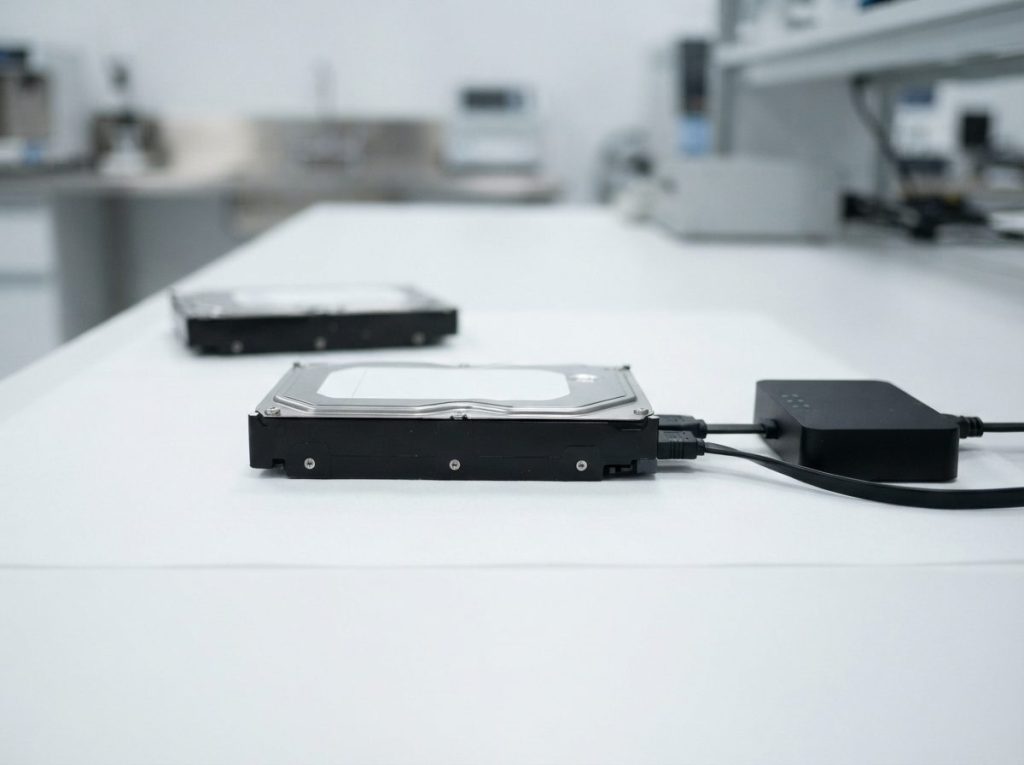
A professional lab never works on your original drive directly; it first makes a complete sector-by-sector copy, called an image, and recovers the files from that copy.
At Prime Data Recovery in North York, Toronto, deleted-file cases follow the same standard process as every hard drive data recovery job:
- Free evaluation and diagnosis. We check the drive’s health with PC-3000 hardware, because a “deleted file” problem sometimes hides a failing drive.
- Findings and quote. You get a clear explanation and a quote, and nothing proceeds without your approval.
- Physical repair if needed. If the read/write heads or other parts have failed, the work is done in our ISO certified Class 10 cleanroom.
- Controlled imaging. A DeepSpar Disk Imager reads the drive carefully, handling weak areas without writing anything to the original.
- Recovery from the image. Tools such as ACE Lab Data Extractor rebuild old file system structures. They can also identify files by their internal signatures when folder information is lost, a technique called file carving. You then confirm the results in a file verification session.
- Delivery on a new storage device. Your recovered files come back on a separate, healthy drive.
You can read more about each stage on our how the data recovery process works page. Your files are handled confidentially and in line with Canadian privacy law (PIPEDA).
How can you avoid losing files to deletion again?
The most reliable protection against accidental deletion is an automatic, versioned backup that you never have to remember to run.
- Follow the 3-2-1 idea: three copies of important data, on two different types of storage, with one copy kept off-site or in the cloud.
- Turn on File History in Windows or Time Machine on a Mac, pointed at a separate drive.
- Keep version history enabled in your cloud storage, and learn how long it keeps deleted items.
- Label external drives clearly so you do not format the wrong one.
- Test a restore once in a while. A backup you have never restored is only a hope.
Key takeaways
- Deleting a file on a hard drive removes its entry, not its data. Recovery is often possible until the space is overwritten.
- Stop using the drive immediately; on a system drive, shut the computer down.
- Check the Recycle Bin, cloud deleted items and backups before anything else.
- SSDs with TRIM can erase deleted data on their own, so act faster.
- Never install software on, save to, format or “repair” the affected drive.
- Any clicking, grinding or slowness means a physical problem: power off and get it evaluated.
Need your deleted files back?
If the files matter, the safest move is to leave the drive untouched and let a lab assess it. Prime Data Recovery offers a free evaluation, a “No Data, No Fee” policy and a file verification session before delivery. Bring your drive to our North York lab, or ship it from anywhere in Canada. Request a free quote and evaluation to get started.
Frequently Asked Questions
Can files deleted years ago still be recovered from a hard drive?
Sometimes, yes. On a hard drive, what matters is whether the space was reused, not how long ago the files were deleted. A drive that has sat unused since the deletion may still hold the data. A drive that has been in daily use for years has probably overwritten most of it, though fragments can occasionally be found.
Will recovered files keep their original names and folders?
It depends on how much of the file system survived. After a simple deletion or quick format, names, dates and folder structure can often be rebuilt. When those records are overwritten, files may be found by their content instead and come back with generic names. You may then need to sort them, but the contents can still be fully usable.
Can I get back files after reinstalling Windows on the same drive?
Partial recovery is often possible. Reinstalling Windows writes new system files over part of the drive, so some old data is lost, but documents and photos stored elsewhere on the disk may survive. Stop using the computer right away and do not restore apps or settings. Any further use reduces what can be found.
Is it possible to recover deleted files from a hard drive for free?
Start with the free options: the Recycle Bin or Trash, your cloud storage's deleted-items folder, File History, Time Machine and any backup drives. If none of those have the files, a professional evaluation can tell you what is still recoverable. Prime Data Recovery offers a free evaluation and quote before any paid work begins.
Does a hard drive that was emptied from the Mac Trash work the same way?
On a spinning hard drive, emptying the Trash on a Mac works much like on Windows: the file system stops tracking the files, but the data can remain until overwritten. Most current Macs use internal SSDs, though, where TRIM and built-in encryption make recovery much harder. Stop using the Mac and seek help quickly.
