

Quick answer: If your Mac won’t turn on, first try a different outlet and a known-good charger, then hold the power button for 10 seconds. Reset the SMC only on Intel Macs. If there’s still no sign of life, stop. On most recent Macs the storage is soldered to the logic board and encrypted, so your files can only be read through that original board.
A Mac that won’t turn on gives you very little to work with. You press the power button and get no sound, no light and no picture. Most people worry about the repair bill first and their photos, documents and projects second. This guide puts your data first. It covers the safe checks you can do at home, what each symptom usually means, and why the type of Mac you own decides how your files can be saved.
Why won’t my Mac turn on?
A Mac usually won’t turn on because of a power problem, such as a faulty adapter, cable or outlet, or because of a hardware fault inside, most often on the logic board. The logic board is the main circuit board that holds the processor, memory and, on newer models, the storage chips.
Common causes include:
- Power delivery: a damaged charger or cable, a dead outlet, or a power strip that has tripped.
- Logic board failure: a short circuit, a failed power component or heat damage on the board.
- Battery problems (MacBooks): a deeply drained, failed or swollen battery.
- Internal power supply (iMac, Mac mini, Mac Pro): desktop Macs turn wall power into lower voltages inside the case, and that part can fail.
- Liquid exposure: even a small spill can cause corrosion that shows up days or weeks later.
- Display-only faults: the Mac is actually running, but the screen or backlight stays dark.
What should I check first when my Mac won’t turn on?
Start with checks that don’t involve opening the Mac or changing anything on its storage. They rule out simple power faults in a few minutes.
- Test the outlet. Plug a lamp or phone charger into the same outlet. If you’re using a power bar, plug the Mac straight into the wall.
- Inspect the charger and cable. Look for kinks, frayed spots or bent connectors. If you can, try a known-good charger with the correct wattage for your Mac.
- Let a MacBook charge. Leave a fully drained laptop plugged in for at least 15–30 minutes before trying again.
- Force a restart. Hold the power button (or Touch ID button) for about 10 seconds, release it, wait a few seconds, then press it once.
- Reset the SMC on Intel Macs only. The System Management Controller (SMC) handles power, battery and fans on Intel models. The key sequence depends on the model, so follow Apple’s official instructions for your exact Mac. Apple silicon Macs (M-series) have no SMC reset. A full shutdown and restart does the same job.
- Disconnect accessories. Unplug docks, hubs, drives and displays, then try again with only the charger connected.
Do these steps once, calmly. Pressing the power button over and over won’t fix a hardware fault. On a board that is shorting, it can make things worse.
Is my Mac dead, or is it just the screen?
Your Mac may be running with a dark screen if you notice any sign of life, such as fan noise, a startup sound, a keyboard backlight or a Caps Lock light that responds. That points to a display problem rather than a dead computer.
Try these quick tests:
- Press the brightness-up key a few times. The brightness may simply be at zero.
- Press Caps Lock and see whether its light turns on.
- Connect an external monitor. For a Mac mini or Mac Studio, try a different cable and input on the display.
- Listen closely near the vents for a fan after you press power.
If an external monitor shows your desktop, your data is likely fine. Back it up right away to an external drive or cloud service before you send the Mac for screen repair.
What do the symptoms tell me?
The way your Mac behaves when you press power is the best clue to what failed and what you should do next. Use this table as a guide, not a diagnosis.
| Symptom | Likely cause | What to do | What not to do |
|---|---|---|---|
| No light, sound or fan at all | Power path, charger, battery or logic board fault | Try the outlet and charger checks once, then seek an evaluation | Don’t keep pressing power or try random chargers of the wrong wattage |
| Charger light on, but Mac won’t start | Charging circuit works; board or storage fault likely | Force restart once, then stop and get help if the data matters | Don’t leave it plugged in for days hoping it recovers |
| Fan or Caps Lock light works, screen stays black | Display, backlight or graphics fault | Test an external monitor and back up if you can | Don’t erase or reinstall macOS to “fix” the screen |
| Starts, then shuts off within seconds | Power, heat or board fault | Note what you see and stop after one or two tries | Don’t keep cycling it on and off |
| Stopped working after a spill | Short circuit or corrosion on the board | Unplug it, don’t charge it, and seek help quickly | Don’t power it on or use a hair dryer |
| Case bulging, trackpad lifting, warm smell | Swollen battery | Stop charging, keep it away from heat, get it looked at | Don’t press on the case or try to remove the battery |
Can I get my files off a Mac that won’t turn on?
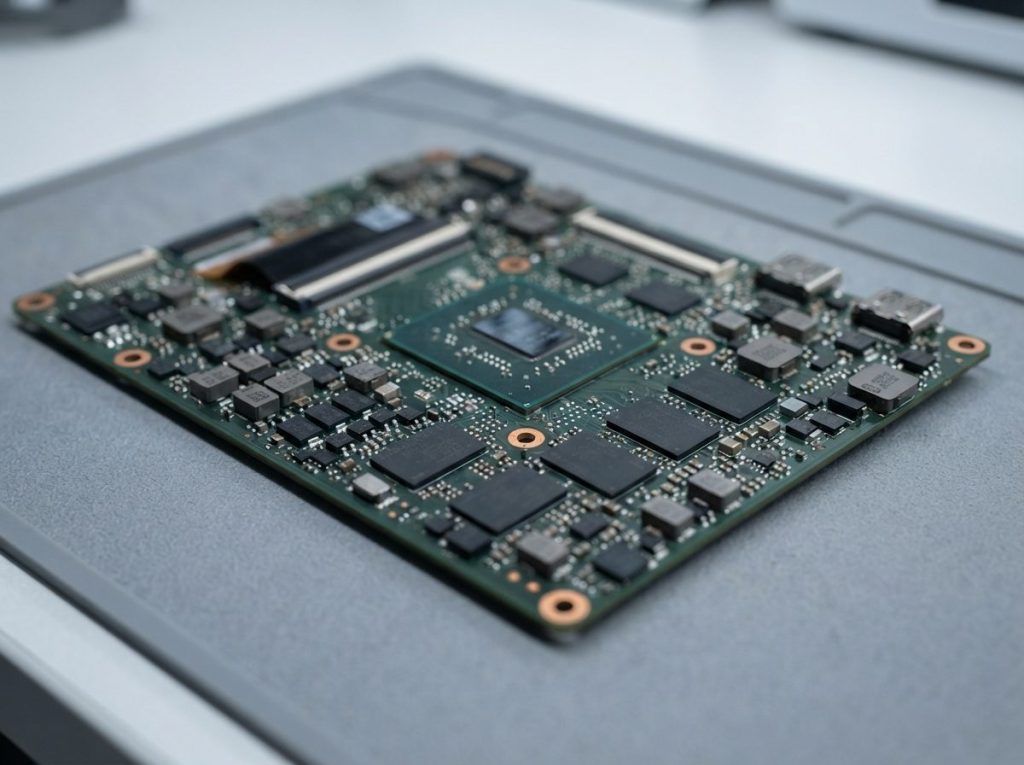
Often you can, but how depends on your model. Older Macs have a removable drive. Most Macs from roughly 2016 onward store data on chips soldered to the logic board, and newer ones encrypt it with keys tied to that same board.
| Type of Mac | Where your data lives | What it means for recovery |
|---|---|---|
| Older MacBooks, iMacs and Mac minis with a separate drive | A removable hard drive (HDD) or SSD | The drive can be removed and imaged in a lab, as long as the drive itself is healthy or repairable |
| Intel Macs with the T2 security chip | NAND flash chips soldered to the logic board | Data is encrypted by the T2 chip, so it can only be read through the original, working board |
| Apple silicon Macs (M-series) | NAND chips soldered to the logic board | Keys are held in the Secure Enclave of the original chip, so the original board must run |
NAND is the type of flash memory that stores your files. On T2 and Apple silicon Macs, removing those chips and reading them elsewhere, called chip-off, does not produce usable data. The contents are encrypted with keys that never leave the original processor. Moving the chips to another board doesn’t work either, because the keys don’t travel with them.
This is why “repair” and “recovery” are not the same thing. A standard repair often replaces the whole logic board. That brings the Mac back to life with empty storage, and your files leave with the old board. If you need your data, say so before any repair is approved. Ask whether the original board will be kept.
What about FileVault?
If FileVault was turned on, your login password or recovery key is still needed after the hardware is working again. Write it down or find it in your records before sending the Mac in. Without it, the encrypted volume can’t be opened, even from a healthy board.
What should I avoid doing?
The most common mistakes come from trying to fix the hardware without thinking about the data on it. Avoid these:
- Erasing or restoring firmware. Some recovery tools offer a “restore” option that wipes the internal storage completely. Never choose an erase, restore or reinstall that formats the drive if you still need your files.
- Running First Aid repeatedly. If the Mac partly starts, don’t run Disk Utility First Aid over and over on a failing disk. It writes changes to the file system.
- Opening the Mac at home. Static, slipped tools and loose connectors can damage the board that holds your data.
- Charging after a spill. Power going through a wet board speeds up corrosion and short circuits.
- Removing an older Mac’s hard drive yourself and testing it with recovery software. If the drive clicks, buzzes or isn’t detected, every power-on can add damage to the read/write heads, the tiny parts that read the disk surface.
- Approving a board swap before you decide about your data. Once the original board is gone, so is the path to your files.
When should I get professional help?
Get professional help when the basic power checks haven’t worked and the files on the Mac aren’t backed up anywhere else. That’s especially true for any T2 or Apple silicon Mac.
Contact a recovery lab if:
- The Mac shows no sign of life after the outlet, charger and restart checks.
- The charger light comes on but the Mac still won’t start.
- There has been a spill, a drop or a power surge.
- The battery looks swollen or the case is bending.
- An older Mac’s internal drive was clicking or slow before it stopped.
- A repair shop has suggested replacing the logic board.
At Prime Data Recovery in North York, Toronto, we start with a free evaluation. You get our findings and a quote before any work begins. For Macs with a removable drive, we work from a sector-by-sector copy of the drive, called imaging, so the original is never written to. If that drive needs physical work, it’s opened only in our ISO certified Class 10 cleanroom. Recovered files are checked with you in a file verification session before delivery on a new storage device. You can read the full step-by-step data recovery process or learn more about our Mac and computer data recovery service.
How should I prepare my Mac before sending it in?
A little preparation helps the evaluation and protects your privacy. Before you drop off or ship your Mac:
- Note the model and year. You’ll find them on the underside of a MacBook or in your purchase records.
- Write down what happened just before it stopped: a spill, an update, a drop or a gradual slowdown.
- Find your login password and FileVault recovery key.
- List the folders or file types that matter most, such as a photo library, accounting files or a project folder.
- Include the charger, and pack a MacBook in its original box or a padded box if you’re shipping it from elsewhere in Canada.
Your device and files are handled confidentially, in line with Canadian privacy law (PIPEDA).
Key takeaways
- Check the outlet, charger and cable first, then do one forced restart. Reset the SMC on Intel Macs only.
- Fan noise or a Caps Lock light with a black screen usually points to a display fault, not lost data.
- On T2 and Apple silicon Macs, your data is encrypted and soldered to the logic board. It can only be read through that original board.
- A logic board replacement fixes the Mac but not your data. Decide about recovery first.
- Never erase, restore or reformat, and never charge a Mac after a spill.
Need your files back from a Mac that won’t start?
Prime Data Recovery is highly rated on Google and offers a free quote and evaluation, plus a “No Data, No Fee” promise. You can drop off your Mac at our North York lab or ship it from anywhere in Canada. Request a free evaluation or call (416) 661-1112 to talk about your Mac before you approve any repair.
Frequently Asked Questions
Will replacing the logic board on my MacBook keep my files?
Usually not on recent MacBooks. On models with soldered storage, your files are stored on chips attached to the original logic board. Replacing the board gives you a working Mac with empty storage. If you need the data, ask for a recovery evaluation before approving the replacement, and make sure the original board isn't discarded.
Can data be recovered from an M1, M2 or M3 Mac that won't turn on?
Sometimes, but only through the original logic board. Apple silicon Macs encrypt internal storage with keys held inside the processor's Secure Enclave. The board has to be brought back to a working state so the data can be decrypted and copied. Severe board damage can make recovery impossible, which is why an early professional evaluation matters.
Is my data safe if I restore my Mac's firmware with another Mac?
Not always. Some firmware tools offer a gentler option that keeps user data, and a restore option that erases the internal storage completely. Picking the wrong one wipes your files permanently. If your data isn't backed up, don't attempt firmware restores yourself. Get the Mac evaluated first so the choice is made with your data in mind.
Do I need my password to recover data from a dead Mac?
Very likely, yes. If FileVault was on, the encrypted volume needs your login password or FileVault recovery key, even after the hardware works again. Find it before you send the Mac in. Without it, encrypted data stays unreadable. Macs without FileVault still have hardware encryption on T2 and Apple silicon models, but that is unlocked by the original board.
My old iMac won't turn on. Is the hard drive inside probably fine?
It often is. On older iMacs a failed power supply or logic board doesn't necessarily harm the separate internal drive. That drive can be removed and copied in a lab. If the drive was clicking, very slow or showing errors before the iMac died, it may also need repair, so avoid powering it repeatedly in another computer.
Does iCloud mean I don't need data recovery for my dead Mac?
Only if everything you need was syncing. iCloud may hold your Photos library, Desktop and Documents folders, but only if those features were turned on and had finished uploading. Sign in on another device and check before deciding. Files stored elsewhere on the Mac, such as app libraries or large project folders, may exist only on the internal storage.
