
Quick answer: If your Crucial P3 Plus has disappeared, freezes your system or has gone read-only, stop using it. Don’t initialize it, format it, update its firmware or run repair tools. Most failures come from the controller or firmware, not lost data. A lab with SSD firmware tools can often get the files back, but no one can promise recovery.
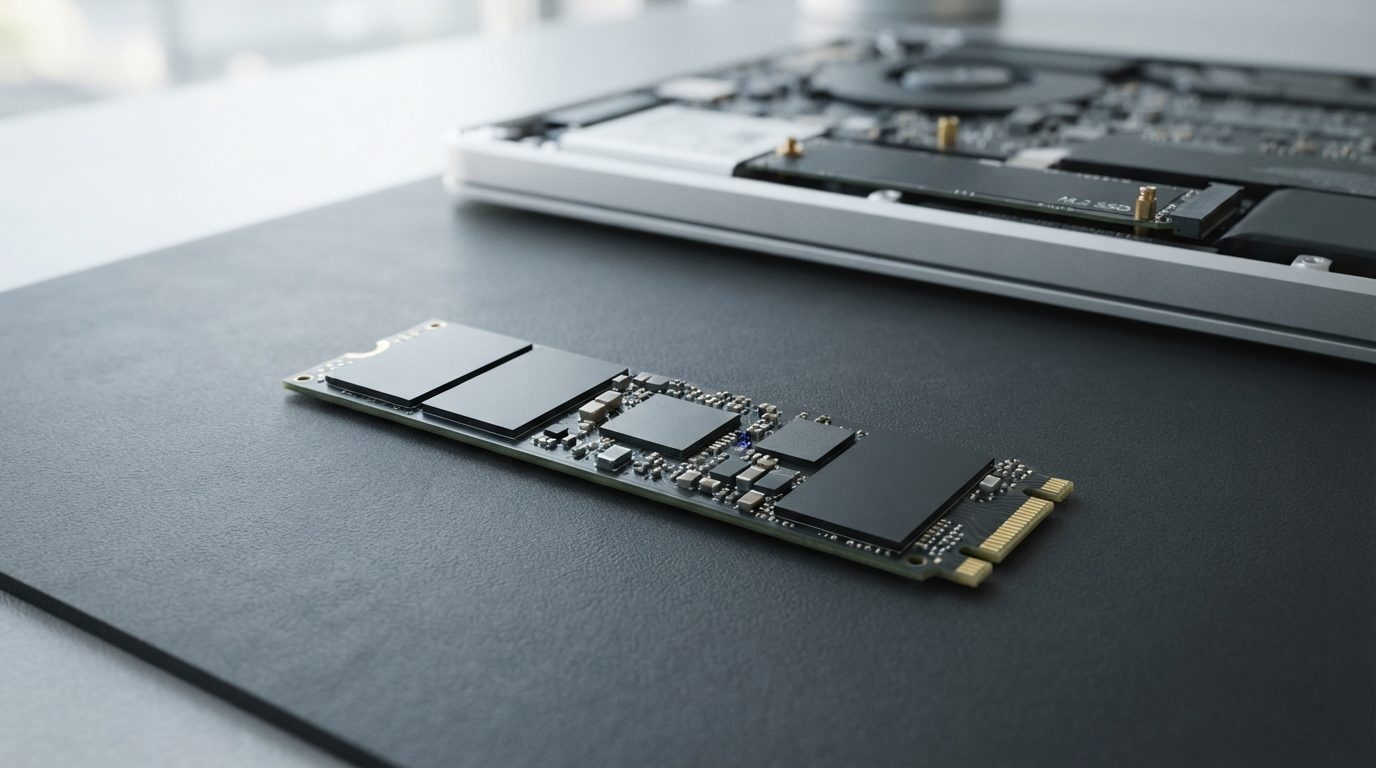
The Crucial P3 Plus is a PCIe Gen4 NVMe SSD in the common M.2 2280 size. It’s popular in laptops, gaming PCs and budget builds. When it fails, it usually gives very little warning. One day it boots fine. The next day it’s missing from the BIOS, or the computer hangs every time it tries to read it.
This guide covers Crucial P3 Plus data recovery in plain terms. You’ll learn what the symptoms mean, which checks are safe to do yourself, which “fixes” make things worse, and what professional recovery involves.
Why does a Crucial P3 Plus suddenly stop working?
Most sudden P3 Plus failures happen because the controller or its firmware can no longer reach the data. The memory chips holding your files are usually still there.
An NVMe SSD has no moving parts. It has three main pieces:
- The controller: a small processor that manages every read and write.
- NAND flash: the memory chips that actually store your files. The P3 Plus uses QLC NAND, which stores four bits in each memory cell.
- Firmware: the controller’s internal software. Among other things, it keeps a map of where each piece of data really sits on the NAND.
The controller spreads your data across the chips and moves it around all the time to spread out wear. So the firmware’s map is what makes your files readable. If that map gets corrupted, the drive can look empty, show the wrong capacity, or vanish completely, even though the data is still on the NAND.
Common triggers include:
- Firmware corruption, often after a sudden power loss or a crash while the drive was writing.
- Controller failure, sometimes from heat or an electrical fault.
- Power surges or a faulty power supply damaging parts on the board.
- NAND wear. Every flash cell can only be written a limited number of times, and heavy write workloads use that up faster.
- Physical damage, such as a cracked board or a broken M.2 connector after the drive was dropped or forced into its slot.
What do Crucial P3 Plus failure symptoms mean?
Each symptom points to a likely cause, and the cause decides what you should and shouldn’t do next. Use this table as a quick guide.
| Symptom | Likely cause | What to do | What not to do |
|---|---|---|---|
| Not detected in BIOS/UEFI at all | Controller or firmware failure, power fault, or a seating problem | Do the safe checks below once, then power off and get an evaluation | Don’t keep rebooting or try firmware tools |
| Detected with the wrong name or a tiny capacity (for example a few MB) | Firmware is stuck in a fault or safe mode | Stop and get professional help | Don’t initialize, partition or format it |
| Shows up, but Windows asks to initialize the disk | Partition table or file system damage, or a firmware problem | Cancel the prompt and disconnect the drive | Don’t click “Initialize” or run CHKDSK |
| System freezes or slows to a crawl when opening files | Failing NAND areas or the controller struggling to read | Back up the most important files first if you still can, then stop | Don’t run long scans, benchmarks or defrag tools |
| Drive has switched to read-only | Worn-out NAND; the drive is protecting what’s left | Copy your critical data to another device right away | Don’t try to “unlock” it or force writes to it |
| Files deleted by mistake or drive was formatted | Logical loss; TRIM may erase the data soon | Shut down and stop using the drive straight away | Don’t install recovery software on that same drive |
| Dead after a power surge, spill or drop | Electrical or physical damage to the board | Leave it unpowered and get an evaluation | Don’t power it on, charge the laptop or dry it with heat |
What should you do first when your SSD stops working?
Your first job is to protect the data: stop writing to the drive and limit how many times you power it on.
- Shut the computer down normally if you can. If it’s frozen, hold the power button.
- Write down what happened. Note any error messages, the last thing you did, and whether there was a power outage, update or spill. This helps whoever diagnoses the drive.
- Check that the BIOS/UEFI can see the drive. Open the firmware setup at startup and look at the storage or NVMe list. Just look. Don’t change any settings.
- Try one other computer or slot, once. If you’re comfortable doing it, test the drive in another M.2 slot or a USB-to-NVMe enclosure on a second computer. If the operating system asks you to initialize or format the drive, cancel.
- Stop after that. If the drive still doesn’t appear, or appears wrong, power it off and leave it alone.
If the P3 Plus is your boot drive, don’t reinstall the operating system to “get the computer working again.” A fresh install writes over the same drive and triggers TRIM. TRIM is a command that tells the SSD which blocks are no longer needed, and the drive then wipes those blocks in the background.
Which common mistakes make recovery harder?
The biggest risks come from tools and prompts that write to the drive or reset its firmware.
- Initializing or formatting. This creates a new, empty structure. On an SSD, it can also trigger TRIM across the whole drive.
- Running CHKDSK or other repair utilities. They “fix” the file system by rewriting it, which can make damaged folders much harder to rebuild.
- Updating or reflashing firmware on a failed drive. Firmware updates are for healthy drives. On a failing one, a reflash can wipe the internal map that links your data to its location on the NAND.
- Secure erase or “reset” functions. Some tools offer these as a fix. They delete everything on purpose.
- Trial-and-error recovery software. Read-only recovery software can help with simple deletions on a drive that’s healthy. But if the drive is missing, freezing or acting strangely, every scan puts more strain on a struggling controller. If the data matters, stop and get help.
- Power cycling again and again. Each failed start-up is another chance for a weak controller or worn NAND to get worse.
How does professional Crucial P3 Plus data recovery work?
Professional recovery means getting a controlled, read-only copy of the data, either by repairing access through the controller or by working around the problem, and then rebuilding your files from that copy.
At Prime Data Recovery in North York, the work follows our standard data recovery process:
- Free evaluation and diagnosis. We check the power circuits, the controller’s response and the firmware state to find out why the drive is failing.
- Findings and quote. You get a clear explanation and a quote. Nothing goes ahead without your approval.
- Repair of access. For controller and firmware faults, we use PC-3000 SSD. Depending on the controller, it can put the drive into a technological (factory) mode, load a working copy of the firmware into memory, and rebuild the internal map without writing new data to your NAND. Board-level faults such as a failed power component may be repaired first.
- Controlled imaging. Imaging means making a complete sector-by-sector copy of the drive. All further work happens on that copy, never on the original.
- Recovery and file verification. The file system (usually NTFS on Windows, APFS on a Mac with an external enclosure, or ext4 on Linux) is rebuilt from the image. You then check your recovered files in a file verification session before delivery.
- Delivery on a new storage device.
Can data be read straight from the NAND chips?
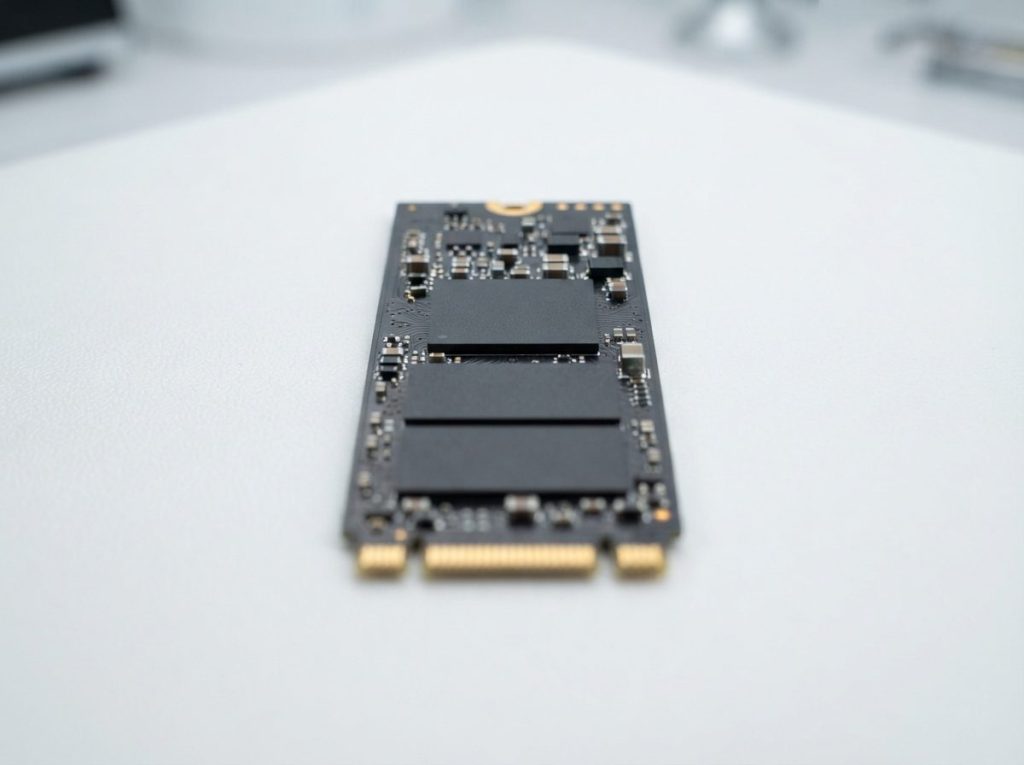
Chip-off recovery means removing the memory chips and reading them directly. It works well for many USB drives and memory cards, but it’s rarely a practical route for modern NVMe SSDs. Controllers like the one in the P3 Plus usually scramble or encrypt data and spread it across every chip. Without the controller’s logic and keys, the raw chip contents can’t be turned back into files. That’s why repairing access through the original controller is normally the main path for an NVMe SSD.
Is data on a failed Crucial P3 Plus recoverable?
Often yes, but it depends on what failed and what happened after the failure.
- Better odds: firmware faults, controller hang-ups, drives stuck in read-only mode, and logical damage where nothing has been written since.
- Harder cases: severe electrical damage to the controller itself, heavily worn NAND, and drives that were formatted or reinstalled on.
- Usually not recoverable: data deleted on a drive where TRIM has already run, or a drive that was secure-erased.
Only a proper diagnosis can tell which group your drive falls into. That’s why the evaluation comes before any quote.
When should you get professional help?
Get professional help as soon as the drive is missing from the BIOS, shows the wrong capacity, freezes your system, or was hit by a surge, a spill or a fall. The same goes for any situation where the data isn’t backed up anywhere else.
Prime Data Recovery offers SSD data recovery from our laboratory in North York, Toronto, and customers anywhere in Canada can ship their drives to us. If the P3 Plus came out of a notebook, our laptop data recovery service covers that too. Every job starts with a free evaluation, comes with our “No Data, No Fee” promise, and is handled confidentially in line with Canadian privacy law (PIPEDA).
How can you prevent data loss on your next SSD?
A tested backup is the only real protection, because SSDs often fail with no warning at all.
- Keep at least two copies of important files, one on a separate device or in the cloud.
- Use a surge protector or a UPS (battery backup) on desktops to avoid sudden power loss.
- Check your drive’s SMART health data now and then, especially the wear indicators.
- Update firmware only while the drive is healthy and backed up.
- Keep the M.2 slot area ventilated. Fast Gen4 drives can get hot under long workloads.
Key takeaways
- Most Crucial P3 Plus failures are controller or firmware problems. Your files are usually still on the NAND.
- Never initialize, format, reflash or secure-erase a failed SSD.
- Deleted files on an SSD can disappear quickly because of TRIM, so shut down right away.
- Limit yourself to safe checks: BIOS visibility and one try in another slot or computer.
- Professional recovery repairs access, images the drive, and rebuilds your files from the copy.
Has your Crucial P3 Plus stopped responding? Leave it powered off and request a free evaluation. Prime Data Recovery’s team will tell you what failed and what can realistically be recovered before any work begins.
Frequently Asked Questions
Can I put my Crucial P3 Plus in a USB enclosure to recover files?
Yes, a USB-to-NVMe enclosure is a safe way to test the drive on a second computer, as long as you cancel any prompt to initialize or format it. If the drive still doesn't show up, appears with the wrong capacity, or freezes the computer, stop there. An enclosure can't fix controller or firmware faults, and repeated attempts can strain a failing drive.
Will updating the firmware fix a Crucial P3 Plus that isn't detected?
No. Firmware updates are meant for healthy, working drives, and a drive that isn't detected usually can't accept one anyway. Forcing a reflash on a failed SSD can erase the internal map that links your data to its location on the memory chips, which can make recovery much harder or impossible. Have the drive diagnosed first.
Does warranty replacement of a Crucial SSD include data recovery?
Generally, no. A warranty replacement gives you a new drive, and the failed one, with your data on it, is usually not returned. If the files matter, get the data recovered before you send the drive in for warranty service. Check your warranty terms to see how a professional evaluation could affect your claim.
How do I recover deleted files from a Crucial NVMe SSD?
Shut the computer down right away. On most NVMe SSDs, TRIM tells the drive to wipe deleted blocks in the background, often within minutes, so every minute of use lowers your chances. Don't install recovery software on the same drive. If the files are important, have a lab check whether the data is still on the NAND.
Is my data private if I send my SSD to a recovery lab in Toronto?
Prime Data Recovery handles every device and every recovered file confidentially, in line with Canadian privacy law (PIPEDA). Your drive is only accessed to diagnose and recover the data you ask for. You review the recovered files during a verification session before delivery, and you can ask any privacy questions before you approve the work.
