
Quick answer: You can often recover data from a failed SSD, especially when the cause is a controller, firmware or circuit board fault and the memory chips are intact. Chances drop sharply for deleted files (because of TRIM), hardware encryption tied to a dead controller, or badly damaged chips. Power the drive off and avoid repair attempts until it is evaluated.
Can you recover data from a failed SSD?
Yes, in many cases it is possible to recover data from a failed SSD, because the failure is often in the parts that manage the data, not in the data itself. Your files live on memory chips. Many SSD failures happen in the electronics or firmware that sit between those chips and your computer.
The honest answer depends on three things: what failed, how the drive protects its data, and what has been done to it since. A drive that suddenly vanished from your computer is a very different case from one where files were deleted and the computer kept running for a week.
SSDs do not behave like spinning hard drives. There are no platters or read/write heads to repair, so the work is electronic and firmware-based rather than mechanical.
What is inside an SSD, and what can go wrong?
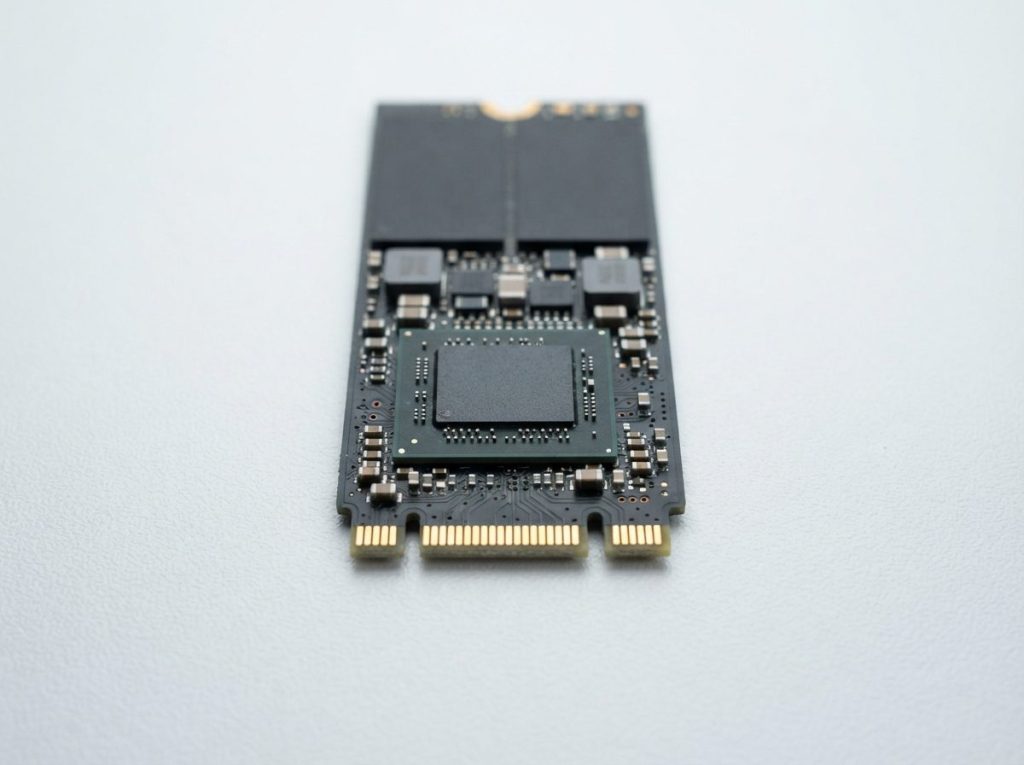
An SSD has three main parts that matter for recovery: the controller, the firmware and the NAND flash memory. Each one fails in its own way and needs a different recovery approach.
- Controller: the drive’s processor. It decides where each piece of data is written, corrects errors, spreads wear evenly and often encrypts everything it stores.
- Firmware: the drive’s internal software. It holds the translation tables that map your files to physical locations on the chips. If these tables are damaged, the data is still there but the drive no longer knows where.
- NAND flash: the memory chips that hold your files. Each cell wears out after many write cycles and slowly loses its charge over time.
- PCB (printed circuit board): carries power regulation and connects everything. A power surge can damage small components here while leaving the chips unharmed.
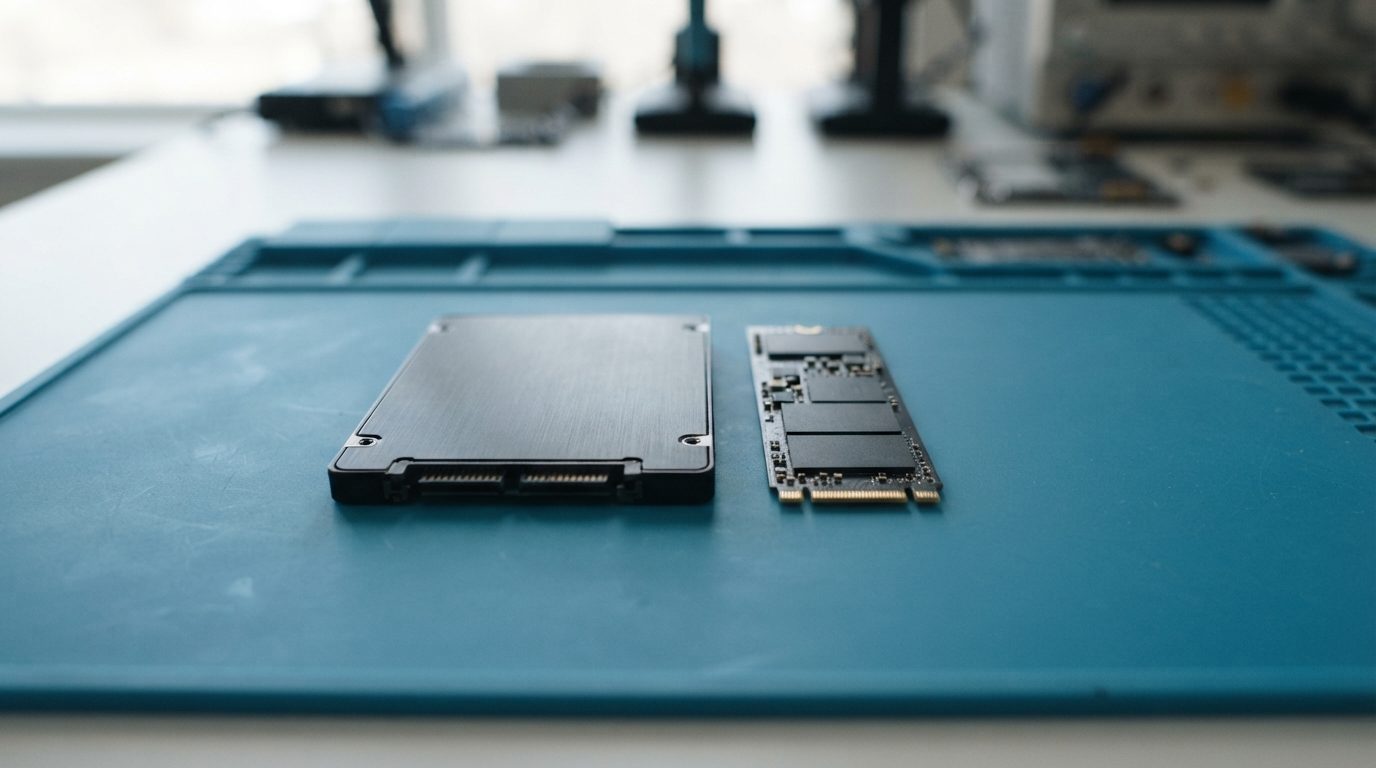
You will find SSDs in several forms: 2.5″ SATA drives, M.2 SATA sticks, M.2 NVMe sticks and storage soldered directly onto a laptop’s motherboard. The form changes how the drive is handled in the lab, but the same three parts are always there.
Which SSD symptoms point to which problem?
The way an SSD fails usually hints at the cause, though only a proper diagnosis can confirm it. Use this table to understand what you are seeing and what to avoid.
| Symptom | Likely cause | What to do | What not to do |
|---|---|---|---|
| Drive not detected in BIOS/UEFI or Disk Management | Controller fault, firmware lockup or PCB damage | Check cable/slot once, then power off | Do not keep reconnecting it for hours |
| Wrong capacity (0 MB, 1 GB) or odd model name | Firmware corruption; drive stuck in a safe mode | Stop and seek evaluation | Do not run a firmware update or initialize the disk |
| Detected but freezes, or “drive busy” errors | Firmware or translation table damage | Power off and leave it disconnected | Do not run CHKDSK, fsck or Disk Utility First Aid |
| Slow, read errors, corrupted files | Worn or weak NAND cells | Copy only the most critical files once, or stop | Do not run full scans or benchmarks |
| Completely dead after a surge or power issue | Damaged PCB components | Disconnect from power | Do not try other power supplies repeatedly |
| Liquid spill, bent connector or cracked board | Physical damage | Do not power on; keep it dry and still | Do not use a hair dryer or try to straighten pins |
| Files deleted or drive formatted | Logical loss; TRIM may erase blocks | Stop using the computer immediately | Do not install recovery software on the same drive |
What makes SSD recovery harder than hard drive recovery?
SSD recovery is often more complex because the controller hides where data really sits, and it may encrypt and scramble everything it writes. On a hard drive, data has a fixed place on the platter. On an SSD, data constantly moves between chips to spread wear.
TRIM and garbage collection
TRIM is a command your operating system sends to tell the SSD which blocks are no longer in use. The drive then erases those blocks in the background during “garbage collection”. This is great for speed but hard on deleted files. Once a block is cleared, nothing can bring it back.
TRIM mostly affects deleted or formatted data. If your drive failed suddenly, the data you need was not marked as deleted, so TRIM usually has not touched it.
Encryption and scrambling
Many SSD controllers encrypt data automatically, even when you never set a password. The key is stored inside the drive and tied to the controller. That means simply removing the memory chips and reading them (chip-off) does not work on many modern SSDs. The data has to be read through the original controller, which must be brought back to a working state.
Software encryption such as BitLocker or FileVault adds another layer. Recovery is still possible, but you will need your password or recovery key at the end.
Soldered storage
Many thin laptops, including recent Macs, have the SSD soldered to the motherboard and encrypted by the system chip. In these cases the data can usually only be read through that original board, so board repair becomes part of the recovery.
How do professionals recover data from a failed SSD?
A lab recovers SSD data by talking to the drive at a lower level than a normal computer can, repairing or working around the fault, then copying the data without writing to the drive. The goal is always a full image first, then file recovery from that image.
At Prime Data Recovery in North York, our SSD data recovery work follows the same order every time:
- Free evaluation and diagnosis. We identify the controller, firmware state and any board damage.
- Findings and quote. You see what we found and approve the work before anything else happens.
- Repair if needed. This can mean replacing damaged PCB components or, with PC-3000 SSD, putting the controller into a technological mode and loading a temporary firmware so the drive can respond again.
- Controlled imaging. Imaging means reading the whole drive, sector by sector, into a safe copy. Nothing is written to your original SSD.
- Recovery and verification. File systems such as NTFS, APFS or exFAT are rebuilt from the image. You then check your files in a file verification session.
- Delivery on a new storage device.
Where the controller does not encrypt data, such as in many USB-style or older designs, a chip-off approach with PC-3000 Flash or Rusolut Visual NAND Reconstructor can rebuild the data directly from the NAND chips. You can read more about each stage on our page explaining how the data recovery process works.
What should you do right now if your SSD has failed?
The safest first move is to stop using the drive and limit yourself to simple, non-invasive checks. Every extra power cycle or repair attempt can make things worse.
Safe checks you can do
- Reseat the SATA cable or try a different SATA port or power lead once.
- Check whether the drive appears in BIOS/UEFI setup.
- Look in Disk Management (Windows) or Disk Utility (Mac) to see if it is listed. Look only; do not click “Initialize”, “Format” or “First Aid”.
- For an external SSD, try a different USB cable and another computer.
Stop and seek help if
- The drive is not detected anywhere, or shows the wrong size or name.
- It was exposed to liquid, a drop, a surge or a burning smell.
- The files are important and you cannot afford a second chance.
For simple deletions on a healthy drive, read-only recovery software exists. Never install it on the affected drive, and stop if the drive shows any errors. If the data matters, skip trial-and-error tools. Each attempt adds wear and can lower the chance of success.
What are the most common mistakes after an SSD fails?
Most avoidable SSD data loss comes from well-meant fixes that write to the drive or stress weak memory. Watch out for these:
- Running a firmware update on a drive that is already misbehaving. An interrupted update can leave it permanently unresponsive.
- Initializing the disk when Windows prompts you. This writes a new partition table over your old one.
- Running CHKDSK, fsck or First Aid. These tools “fix” the file system by changing it, which can remove the very records needed for recovery.
- Leaving the computer running after deleting files. Garbage collection keeps clearing blocks while the drive is powered.
- Opening or resoldering the drive. Static discharge and heat can destroy the controller or chips.
- Running a secure erase or manufacturer “reset” tool. These wipe the data on purpose.
When should you get professional help?
Get professional help as soon as the drive is not detected, reports the wrong details, or holds data you cannot replace. Early evaluation keeps more options open, especially before any repair software or firmware changes are tried.
Prime Data Recovery offers a free quote and evaluation, works on a “No Data, No Fee” basis, and handles your drive confidentially and in line with Canadian privacy law (PIPEDA). You can bring your SSD to our lab in North York, Toronto, or ship it from anywhere in Canada. If cost is your first question, our page on data recovery cost explains what affects the quote.
Key takeaways
- Many SSD failures affect the controller, firmware or board, not the stored data itself.
- Deleted files on SSDs can be erased quickly by TRIM, so stop using the drive right away.
- Built-in encryption means many modern SSDs must be recovered through their original controller.
- Avoid firmware updates, disk checks, initializing and formatting on a failed drive.
- Limit DIY to cable, port, BIOS and Disk Management checks.
- No lab can guarantee recovery; results depend on the type and severity of the damage.
Need your SSD evaluated?
If your SSD has stopped responding or your files are missing, power it off and request a free quote from Prime Data Recovery. We will diagnose the drive, explain what we found in plain language, and only proceed once you approve.
Frequently Asked Questions
Is it harder to recover data from an SSD than from a hard drive?
Often, yes. Hard drive recovery is mainly mechanical, while SSD recovery depends on the controller, its firmware and built-in encryption. Data constantly moves between memory chips, and many controllers scramble it with an internal key. That means the lab usually has to revive the original controller rather than just reading the chips. Specialized tools and drive-specific knowledge make many SSD cases recoverable, but each failure must be diagnosed individually.
Can data be recovered from an SSD after it was formatted?
It depends on how quickly TRIM ran. A quick format on a TRIM-enabled system tells the SSD that all blocks are free, and the drive may erase them within minutes. If the drive was formatted in an external enclosure or system that did not pass TRIM, more data may survive. Stop using the drive immediately and avoid writing anything to it to keep any remaining chance.
Will a firmware update fix my SSD that is not detected?
Usually not, and it can make things worse. A firmware update needs a drive that communicates normally. On a drive that is failing, the update can stop halfway and leave the controller unable to start, which complicates professional recovery. If your data matters, recover it first and only update firmware on a healthy drive with a current backup.
Can I recover a BitLocker or FileVault encrypted SSD that failed?
Often, yes, if you still have the password or recovery key. The lab first repairs or works around the drive fault and creates an image, then the encrypted volume is unlocked with your credentials. Without the correct password or recovery key, the data cannot be read. Look for your BitLocker key in your Microsoft account or saved printouts before sending the drive in.
Does an SSD lose data if it is left unplugged for a long time?
It can. NAND cells hold data as a small electrical charge that slowly leaks over time, faster in warm conditions and on heavily worn drives. A healthy SSD stored at room temperature usually keeps data for a long period, but it is not ideal for long-term archives. Keep important data backed up on more than one device and check old drives periodically.
Is it safe to ship a failed SSD for data recovery in Canada?
Yes, when packed properly. Place the SSD in an anti-static bag, wrap it in bubble wrap and put it in a sturdy box with padding so it cannot move. Do not send cables or the computer unless asked. Include your contact details and a short description of what happened. Prime accepts shipped devices from across Canada and handles them confidentially.
