
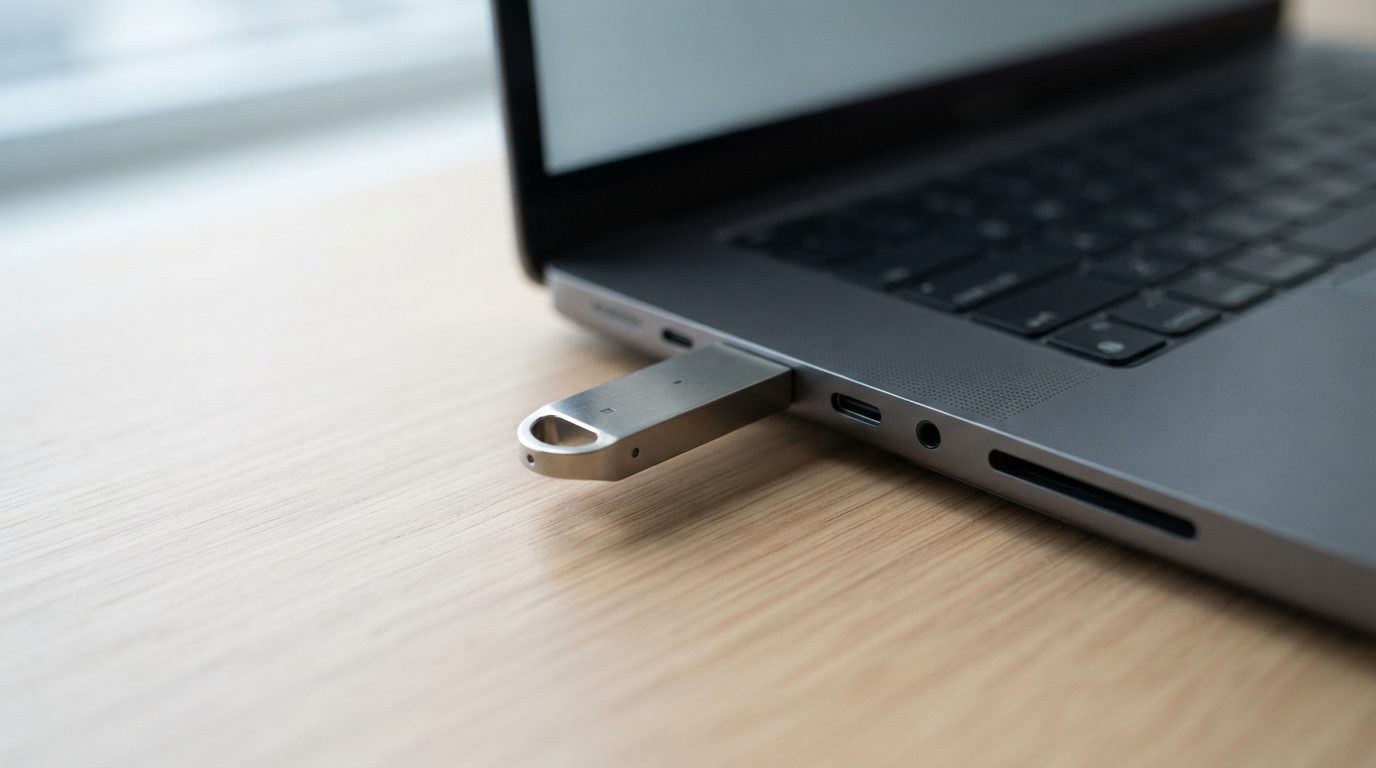
Quick answer: When a flash drive doesn’t show up, the cause is usually a bad port or connection, a computer setting, a damaged file system or a failed controller inside the drive. Start with a different port and a second computer. If the drive still won’t appear, or the computer asks you to format it, stop there. Formatting and repair tools can destroy files you could otherwise recover.
A USB flash drive that won’t show up can look like a dead drive, but often it isn’t. Sometimes the computer sees the hardware but can’t read what’s on it. Sometimes the drive never connects at all. Each case needs a different response, and a few common “fixes” make recovery much harder.
This guide helps you work out which layer has failed: the connection, the computer, the file system or the drive’s electronics. You’ll also learn which checks are safe and when to stop and get help.
Why is my flash drive not showing up?
A flash drive stops showing up when something breaks along the chain between your computer and the memory chips inside the drive. That chain has several links, and you can rule some out at home.
- Connection: a worn USB port, a loose connector, a passive hub or an extension cable that doesn’t carry enough power.
- Computer: a driver problem, a missing drive letter in Windows, or Finder set to hide external disks on a Mac.
- File system: the structure that organizes your files (usually FAT32, exFAT or NTFS) is damaged, often after the drive was pulled out mid-transfer. The drive is detected but appears as RAW or unreadable.
- Controller: the small chip that manages the drive and translates between USB and the memory has failed. The drive may not appear at all, or may report 0 bytes or a strange capacity.
- NAND memory: the flash chips that actually hold your data have worn out or developed errors.
- Physical damage: a bent or snapped connector, a cracked circuit board, broken solder joints or liquid exposure.
The first two are usually easy to fix. The last four put your data at risk if you keep experimenting.
What should you check first?
The safest first step is to rule out the port and the computer without writing anything to the drive. These checks are non-invasive and work on Windows and Mac alike.
- Look at the drive. If the connector is bent or loose, the casing is cracked, or the drive got wet, skip the rest of this list. Don’t force it into a port.
- Plug it in directly. Remove any hub, adapter, dock or extension cable. On a desktop, use a port on the back, which connects straight to the motherboard.
- Try another port. Try one other USB port, and a USB-A or USB-C port if your drive supports both.
- Try another computer. This is the most useful test. If the drive works elsewhere, the problem is your original computer, not the drive.
- Notice the signs. Does the activity light come on? Does the drive get unusually hot within seconds? Does the computer make a connect sound and then a disconnect sound? Write these down. They help with diagnosis.
Keep the number of attempts small. A drive with a failing controller or weak memory cells can get worse with every power cycle. If it isn’t detected after two or three tries on two computers, stop.
How can you tell if Windows or a Mac sees the drive?
Your operating system has built-in tools that show whether the hardware is detected even when the drive doesn’t appear in File Explorer or Finder. Use them only to look. Don’t click format, initialize, erase or repair.
On Windows
- Disk Management (right-click the Start button): look for a removable disk that matches your drive’s capacity. Note what it says, such as “Healthy”, “RAW”, “Unallocated”, “No Media” or “Not Initialized”.
- Device Manager: expand “Disk drives” and “Universal Serial Bus controllers”. A yellow warning icon or an “Unknown USB Device” entry suggests the drive is failing to identify itself properly.
On a Mac
- Disk Utility: choose View, then Show All Devices. Check whether the drive is listed, and whether its volume is greyed out (not mounted).
- System Information: under Hardware, then USB, see if the drive appears at all. If it’s listed here but nowhere else, the connection works but the data side doesn’t.
Don’t run First Aid in Disk Utility or CHKDSK in Windows on a drive you need data from. They change the file system as they “repair” it.
What does each symptom mean, and what should you do?
What your computer reports narrows the cause down quickly. Use this table to match what you see with the safest next step.
| What you see | Likely cause | What to do | What not to do |
|---|---|---|---|
| Works on another computer | Port, driver or setting on your computer | Copy your files off first, then troubleshoot the original computer | Don’t reformat the drive to “reset” it |
| Listed as “Healthy” in Disk Management but no drive letter | Missing drive letter assignment | Adding a drive letter is generally safe if the file system shows normally; if unsure, ask first | Don’t delete or recreate the partition |
| Hidden in Finder but mounted in Disk Utility | Finder settings | Turn on external disks in Finder settings | Don’t erase or repartition |
| Shows as RAW, or Windows says “You need to format the disk” | Damaged file system or partition | Click Cancel, unplug and stop using the drive | Don’t format, run CHKDSK or First Aid |
| “Not Initialized” or “Uninitialized” | Lost partition table or a controller fault | Unplug and get an evaluation | Never initialize; it writes a new partition table |
| “No Media” or 0 bytes | Controller can’t reach the memory chips | Stop; this needs professional tools | Don’t use manufacturer “repair” or low-level format utilities |
| Not listed anywhere, gets hot quickly | Electrical or controller failure | Unplug immediately and leave it unplugged | Don’t keep reconnecting to “see if it wakes up” |
| Bent connector, cracked case, dropped or wet | Physical damage to the board or solder joints | Keep it dry and unplugged; seek help | Don’t bend, glue, solder or dry it with heat |
Which common fixes can destroy your data?
Most online “fixes” for a flash drive not showing up aim to make the drive usable again, not to save the files on it. If your files matter, avoid these:
- Formatting, initializing or erasing. These write a fresh, empty structure over the old one. Recovery becomes far harder, and sometimes impossible.
- CHKDSK, First Aid or similar repair tools. On a damaged file system they can discard file fragments they don’t understand. On failing hardware the extra reading adds stress.
- Repeated tries with recovery software. Read-only recovery software can help with simple logical problems on a healthy drive. But each pass on a weak drive is another risk, and nothing helps if the controller isn’t responding. If the data is important, skip trial and error.
- Manufacturer reflash or “mass production” tools. These rewrite the controller’s firmware and usually wipe the drive’s internal map of where your data lives.
- Home repairs. Bending a connector back, gluing a snapped plug or soldering pins can tear tiny traces on the board or short components.
Why would a flash drive show 0 bytes or the wrong size?
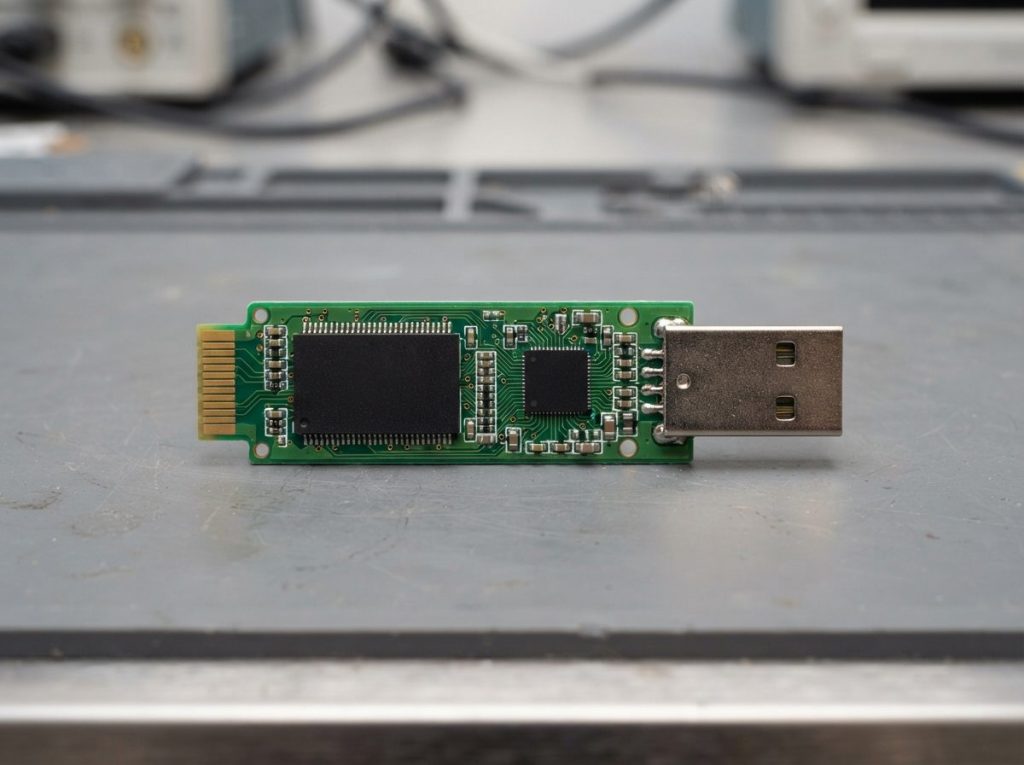
A flash drive that reports 0 bytes, “No Media” or an odd capacity usually has a controller that powers up but can’t read its own internal map. The controller keeps a translation table (sometimes called the flash translation layer) that links the addresses your computer asks for to physical spots on the NAND chips.
If that table gets corrupted, the controller fails, or memory cells wear out, the controller may fall back to a safe mode. It still identifies itself over USB, but shows no usable storage. Your files are often still on the memory chips. They just can’t be reached through the normal USB path.
Many modern flash drives are “monolith” designs. The controller and memory are sealed together in a single package, with no separate memory chip to remove. These need a different recovery method from drives with a standard NAND chip on a circuit board.
Can data be recovered from a flash drive that isn’t detected?
Yes, data can often be recovered from an undetected flash drive, because the failure is usually in the controller or connector while the memory chips still hold the data. Success depends on the condition of the NAND and the type of damage, so no honest lab can promise a result before an evaluation.
At Prime Data Recovery in North York, Toronto, the work follows our standard data recovery process:
- Free evaluation and diagnosis. We find out which part has failed. Our diagnostic takes about 30 minutes and is free.
- Findings and quote. You approve the plan before any recovery work starts.
- Physical repair if needed. A snapped connector or broken joint may be repairable so the drive can be read normally.
- Reading the data without writing to the original. If the controller is dead, we use PC-3000 Flash to read the memory directly. On drives with a separate NAND chip, this may mean chip-off: removing the memory chip and reading it in a dedicated reader. On monolith drives, we connect to tiny test points on the package instead.
- Rebuilding and verification. Raw NAND data is scrambled and spread out by the controller. Tools such as Rusolut Visual NAND Reconstructor help correct errors and put it back in order. The file system is then rebuilt, and you check your recovered files in a file verification session before delivery.
- Delivery on a new storage device.
One limit is worth knowing. Some flash drives use built-in hardware encryption. If the controller holding the encryption key has failed, recovering readable data can be much harder or impossible. That’s another reason to avoid steps that could damage the controller further.
For a wider look at what’s recoverable, see our guide on when you can recover data from a USB flash drive.
Should you try it yourself or get professional help?
Try it yourself only when the drive is detected and healthy-looking and the problem is clearly on the computer side. Use this quick decision guide:
- Works on another computer: copy your files off, then fix your computer.
- Healthy volume with no drive letter, or hidden in Finder: a settings fix is usually fine.
- RAW, format prompt, Not Initialized, No Media or 0 bytes: stop and get an evaluation if the files matter.
- Not detected anywhere, hot, bent, cracked, dropped or wet: unplug and seek professional USB flash drive recovery.
- You’ve already tried recovery software or repair tools without success: stop now. Further attempts lower the odds.
Before you hand the drive over, write down what happened: when it stopped working, what the computer showed and anything you already tried. This helps the diagnosis. Your data is handled confidentially and in line with Canadian privacy law (PIPEDA).
Key takeaways
- A flash drive not showing up can be a port, computer, file system, controller or physical problem.
- Safe checks: look for damage, plug in directly, try one other port and one other computer.
- Use Disk Management, Device Manager, Disk Utility and System Information only to look.
- Never format, initialize, erase, run CHKDSK or First Aid, or reflash a drive whose files you need.
- A drive that’s undetected, hot, 0 bytes or physically damaged needs professional tools. The data is often still on the memory chips.
Need your files back?
If your flash drive won’t show up and the files matter, unplug it and leave it as it is. Prime Data Recovery offers a free evaluation and quote at our North York lab, with a “No Data, No Fee” policy. Customers across Canada can ship their drives to us. Request a free quote or call (416) 661-1112 to talk through your situation.
Frequently Asked Questions
Is it safe to keep plugging my flash drive in to see if it starts working?
Not really. A few tries on different ports and one other computer are fine. Beyond that, each connection powers up a controller or memory chips that may already be failing, and an electrical fault can get worse. If the drive isn't detected after two or three attempts, or it gets hot, unplug it and leave it unplugged until it can be evaluated.
Why does my USB drive keep connecting and disconnecting?
A drive that connects and disconnects over and over usually has a loose connector, a cracked solder joint, not enough power from a hub or front port, or a controller that crashes while starting up. Try one rear port with no hub. If it still drops out, stop. Repeated reconnects during file access can corrupt the file system further.
Will data recovery software find files on a flash drive that isn't detected?
No. Recovery software can only scan a drive the operating system can see. If the flash drive doesn't appear in Disk Management, Disk Utility or System Information, the software has nothing to read. These cases usually involve a failed controller or connector, so the memory has to be read with specialized hardware instead.
Can a flash drive that went through the washing machine be recovered?
Often, yes, because the memory chips are sealed and fairly tough. The danger is plugging the drive in while moisture or detergent is still on the circuit board, which can short components. Don't connect it, and don't dry it with a hair dryer or oven. Keep it in a dry bag and have it professionally cleaned and assessed.
Is my data kept private when I send a flash drive to a recovery lab?
It should be. At Prime Data Recovery, devices and recovered files are handled confidentially and in line with Canadian privacy law (PIPEDA). Only the work needed to recover your data is done, and you check the recovered files in a verification session before they're delivered on a new storage device.
