
Quick answer: A cyclic redundancy check error means your computer read data from a drive or card and it failed an integrity check, so it can’t trust what came back. The cause is often a bad cable or connection, but it can also mean bad sectors or worn flash memory. Stop copying, check connections once, and don’t run repair tools.
The message usually pops up at the worst possible time. You’re copying photos off an external drive, or opening a work file, and Windows stops with “Data error (cyclic redundancy check)”. The file won’t copy, and sometimes the whole drive becomes slow or freezes.
This guide explains what a cyclic redundancy check error really tells you and how to spot whether the problem is a simple connection fault or a failing device. It also covers what you can safely try and which common “fixes” put your files at risk.
What does a cyclic redundancy check error actually mean?
A cyclic redundancy check (CRC) is a short checksum stored or sent along with a block of data, and an error means the data that arrived didn’t match it. In other words, the computer knows something went wrong between the storage media and your system, so it refuses to hand you a file that may be damaged.
CRC checks happen in two places, and telling them apart is the key to diagnosing the problem:
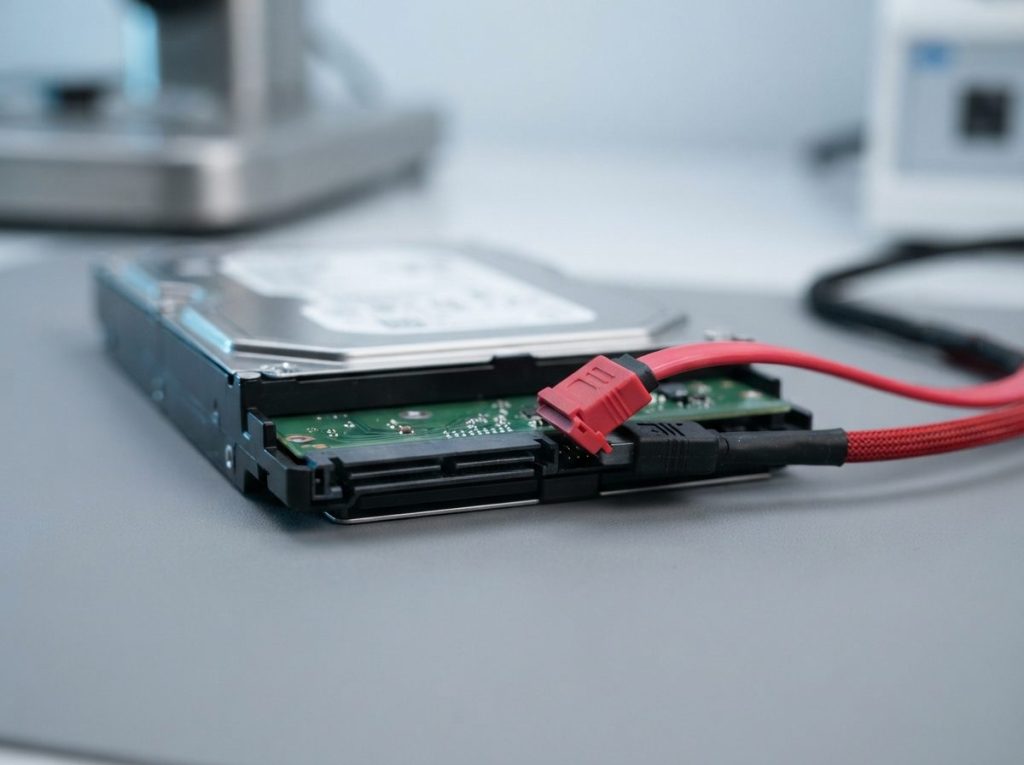
- On the connection (interface CRC). SATA and USB links check every packet of data they move. A loose, damaged or poor-quality cable, a worn port or an unstable USB adapter can corrupt data in transit. The data on the drive itself may be perfectly fine.
- On the media (read errors). Hard drives and flash devices store error-correcting codes with every sector or page. When a sector is too damaged to correct, the drive reports an unreadable block. Windows shows this as the same “cyclic redundancy check” message, even though the real cause is a bad sector: a small area of the disk or flash memory that can no longer be read reliably.
So the same error text can mean “replace your cable” or “your drive is starting to fail”. The symptoms around the error help you tell which one you’re facing.
Which devices can show a CRC error?
Any device that stores or moves data can show a cyclic redundancy check error, including internal and external hard drives, SSDs, USB flash drives, SD and microSD cards, and even optical discs. Where the error comes from depends on the device.
- Hard drives (HDDs): data sits on spinning platters read by tiny read/write heads. Surface wear, a drop or weakening heads lead to sectors that can’t be read.
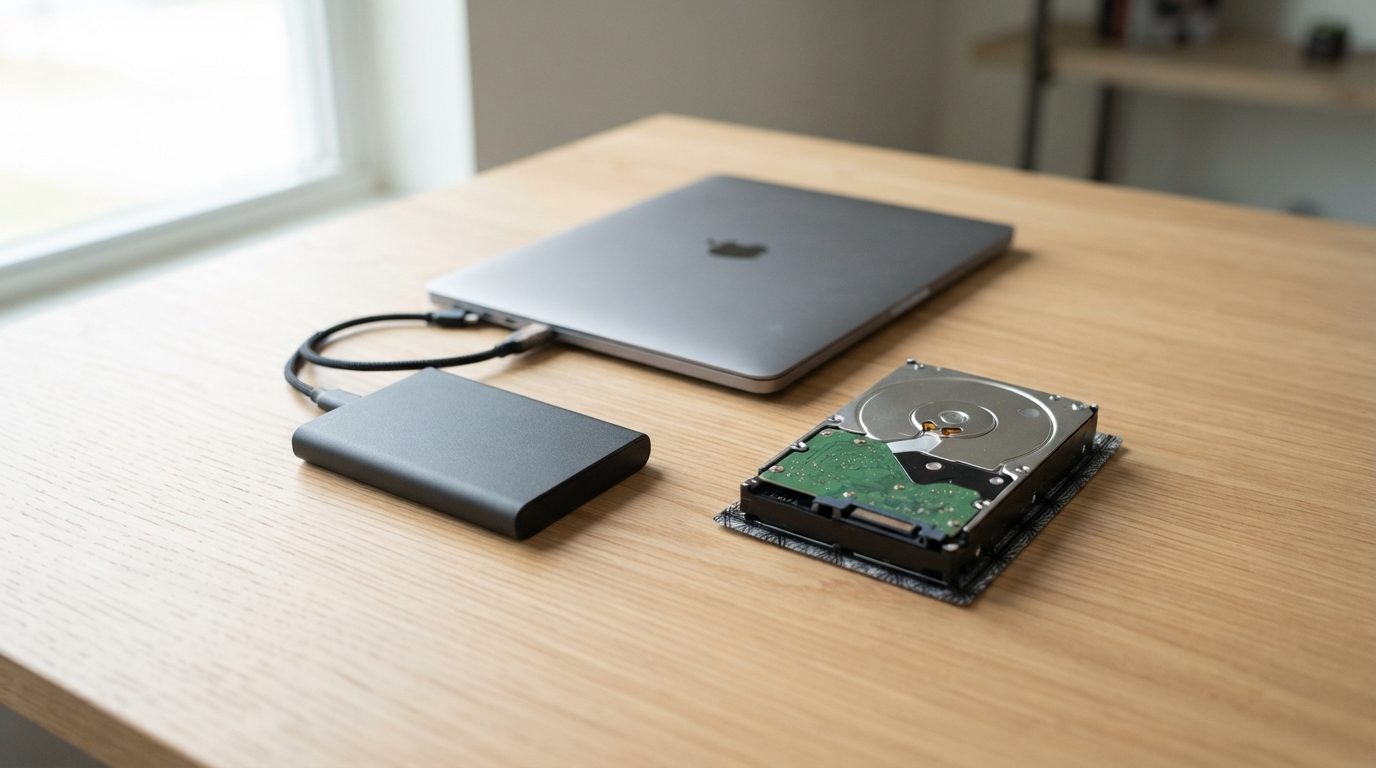
- External hard drives: add a USB bridge board between the drive and your computer. A faulty cable, USB port or bridge can create interface errors on an otherwise healthy disk.
- SSDs: store data in NAND flash cells managed by a controller chip. Worn cells or controller firmware problems cause uncorrectable reads.
- USB sticks and memory cards: use simpler flash and controllers. Heavy use, cheap media and removing them during a write are common triggers.
How can you tell a connection problem from a failing drive?
The pattern of the errors usually points to the cause: random errors that move around suggest the connection, while errors that always hit the same files suggest damaged media. Use this table to read your symptoms.
| What you notice | Likely cause | What to do | What not to do |
|---|---|---|---|
| Error appears on different files each time; works on another cable | Cable, port or USB adapter | Try one known-good cable and a rear USB port or another computer | Don’t keep copying through the faulty connection |
| The same files always fail; others copy fine | Bad sectors on the drive or card | Stop and copy only your most important files once, if the drive behaves normally | Don’t retry the failing files again and again |
| Copying slows to a crawl, File Explorer freezes | Drive struggling to read weak areas | Power off and get a professional evaluation | Don’t leave it running “to see if it finishes” |
| Clicking, buzzing, grinding or beeping | Physical fault, often heads or motor | Power off immediately | Don’t restart it, tap it or open it |
| Disk Management shows “Not initialized”, RAW or “Unknown” | Damaged file system or a failing drive | Leave it as it is and seek help | Don’t initialize, format or run CHKDSK |
| Error after a drop, power surge or liquid exposure | Physical or electrical damage | Don’t power it on again; seek evaluation | Don’t charge, dry with heat or swap parts |
| Error on an SD card or USB stick removed during a write | Interrupted write, damaged file system | Stop using the card; don’t take new photos on it | Don’t format it in the camera or computer |
If you can read your drive’s health data, look for a value often called “UDMA CRC error count” (attribute 199). If that number keeps going up, it points to the cable or connection. A growing count of reallocated or pending sectors points to the drive itself. Reading these values is safe; running repair or “surface scan” options is not.
What can you safely try yourself?
You can safely rule out connection problems, as long as the device makes no unusual noises and has not been dropped, flooded or hit by a power surge. Keep these checks short and limit how many times you power the drive on.
- Listen first. If you hear clicking, buzzing, grinding or repeated spin-up sounds, stop here and power off.
- Swap the cable once. Use a known-good USB or SATA cable. Short, original cables work best.
- Change the port. On a desktop, use a USB port at the back connected directly to the motherboard, not a hub or front panel.
- Try another computer. If the error disappears there, the problem was likely your original port, driver or adapter.
- Check visibility, not repair. Look in Disk Management or BIOS to see whether the drive appears with its correct size. Close any prompt that asks you to initialize or format.
- Copy the essentials first. If the drive now reads normally, copy your most important folders to a different healthy drive right away, before anything else.
For purely logical problems, such as a card pulled out mid-write, read-only recovery software exists. It should only ever save recovered files to a different drive. If the data matters to you, or the drive shows any physical symptom, skip trial-and-error and get help. Every failed attempt adds wear and can lower the chance of a full recovery.
What should you avoid when you see a CRC error?
The most damaging response to a cyclic redundancy check error is trying to “repair” the drive, because repair tools write to a device that is already struggling to read. These are the mistakes we see people make most often:
- Running CHKDSK, fsck or Disk Utility First Aid. Windows often suggests CHKDSK. On a drive with bad sectors, it can delete or rewrite file records and push a weak drive harder.
- Formatting or initializing. If Windows or diskpart offers to format, or shows a CRC error while you try to clean the disk, stop. Formatting replaces the file structure your files depend on.
- Copying the same failing file over and over. Each retry makes the heads or controller read the weakest area again.
- Repeated power cycling. Turning a failing drive on and off to “wake it up” can turn a few bad sectors into a head failure.
- Installing software on the affected drive. Any new data can overwrite what you’re trying to save.
- Opening the drive. A hard drive must only be opened in a cleanroom. Dust alone can scratch the platters for good.
- Trusting a backup made from the failing drive. Files copied after the errors began may already be damaged. Open a few of them before you rely on that copy.
On SSDs, stop using the drive as soon as you notice problems. If files were also deleted, TRIM (a feature that tells the SSD which blocks are free so it can erase them) may clear them quickly.
When should you stop and get professional help?
You should stop and get a professional evaluation when the error keeps coming back after a cable and port change, when it affects important files, or when the drive shows any physical symptom. At that point, more home attempts mostly add risk.
Clear signs it’s time to stop:
- The drive disconnects, disappears or makes File Explorer hang.
- Many files or whole folders fail, not just one.
- Copy speeds drop sharply or the drive gets unusually hot.
- You hear any new sound from the device.
- The device was dropped, exposed to liquid or affected by a power surge.
- The data is irreplaceable: family photos, business records or the only copy of a project.
How do professionals recover data from a drive with CRC errors?
Professionals recover data from drives with CRC errors by first making a careful copy of the whole device, called an image, and then working only from that copy. The original drive is never written to. At Prime Data Recovery in North York, the work follows the same order every time:
- Free evaluation and diagnosis. We find out whether the errors come from the connection, bad sectors, firmware or a physical fault.
- Findings and quote. You get a clear explanation and a quote. Nothing goes ahead without your approval.
- Physical repair if needed. If the read/write heads have failed, a head stack replacement with matching parts from a donor drive is done in our ISO certified Class 10 cleanroom.
- Controlled imaging. Hardware such as the DeepSpar Disk Imager and PC-3000 reads the healthy areas first. It then returns to weak sectors with gentle, controlled retries, so a fragile drive isn’t worn out on one bad spot.
- Recovery and file verification. The file system (NTFS, exFAT, APFS and others) is rebuilt from the image, for example with ACE Lab Data Extractor. You then check your recovered files in a file verification session.
- Delivery on a new storage device. Your data comes back on a healthy drive.
For SSDs, the focus shifts to the controller and NAND, using tools such as PC-3000 SSD. For flash drives and memory cards, PC-3000 Flash can read the memory chips directly when the controller has failed. You can read more about each stage on our page on how the data recovery process works, or see our dedicated hard drive data recovery and SSD data recovery services.
No lab can promise every file. Results depend on the type and extent of the damage, which is why an honest diagnosis comes before any quote.
How can you prevent CRC errors in the future?
You can’t stop every drive from failing, but good habits make CRC errors rarer and much less harmful when they happen.
- Keep at least two backups, one of them off-site or in the cloud, and test them now and then.
- Use good-quality, undamaged cables and avoid unpowered hubs for external drives.
- Always eject drives and cards before unplugging them.
- Plug computers and external drives into a surge protector or UPS.
- Keep devices away from heat, moisture and knocks, especially portable hard drives while they’re running.
- Replace drives that start showing growing bad sector counts, before they fail completely.
Key takeaways
- A cyclic redundancy check error means data failed an integrity check on the way from the device to your computer.
- Errors that move around point to a cable or port; errors on the same files point to bad sectors.
- Swapping the cable and port once, and testing on another computer, are safe checks.
- Don’t run CHKDSK, format, initialize or keep retrying failing files.
- Any noise, drop, liquid or surge means power off and seek a professional evaluation.
Need help with a drive showing CRC errors?
If your files matter, the safest move is to stop using the device and let a lab assess it. Prime Data Recovery offers a free evaluation and quote at our North York laboratory. Customers across Canada can ship their devices, and our “No Data, No Fee” policy applies. All data is handled confidentially. Request a free data recovery quote to get started.
Frequently Asked Questions
Can CHKDSK fix a cyclic redundancy check error?
CHKDSK can fix some file system mistakes, but it can't repair damaged sectors. On a drive that is already struggling to read, it may rewrite or remove file records and add more strain to the hardware. If the files on the drive matter, copy what you can or get a professional evaluation before running any repair tool.
Does a CRC error mean my hard drive is dying?
Not always. If the error goes away after you change the cable or USB port, the drive itself is probably fine. If the same files keep failing, copying becomes very slow, or the drive makes new noises, it is likely developing bad sectors or a mechanical fault. Treat it as a warning sign and back up important data right away.
Can I recover photos from an SD card with a cyclic redundancy check error?
Often, yes, as long as the card isn't written to again. Stop using it in your camera or phone, don't format it, and keep it somewhere safe. If the card was pulled out during a write, the damage may be logical. If the card isn't detected or its controller has failed, a lab can sometimes read the memory chips directly.
Can a virus cause a data error cyclic redundancy check message?
It's unlikely. CRC errors almost always come from hardware or connection problems, or from data that was physically damaged on the media. Malware can corrupt files, but it usually doesn't trigger read integrity failures at the drive level. If you get CRC errors, look at cables, ports and drive health first, not antivirus scans that read the whole failing drive.
Why do I get a CRC error only when copying large files?
Large files cover more sectors, so they are more likely to hit a damaged area. A long transfer also puts sustained load on a weak cable, USB bridge or drive. If small files copy fine but large ones fail at the same point every time, a bad sector is the likely cause. If the failure point moves, suspect the connection.
Will my files be readable after professional CRC error recovery?
Many files can be recovered complete, but some may be partly damaged if they sat on sectors that could no longer be read. The outcome depends on how many areas are affected and why. A file verification session lets you open and check your recovered files before they are delivered, so you know exactly what you are getting.
