
Understanding and Resolving Clicking Hard Drive Issues
Experiencing a clicking sound from your hard drive can be one of the most concerning issues for computer users. This noise often indicates a mechanical or software-related failure, and ignoring it can lead to severe consequences. Whether you’re dealing with personal files or crucial business data, it’s essential to address a clicking hard drive promptly. In this guide, we’ll explore the common causes of hard drive clicking sounds, the risks associated, the dangers of DIY attempts, and how Prime Data Recovery Services can assist you in safely retrieving lost data.
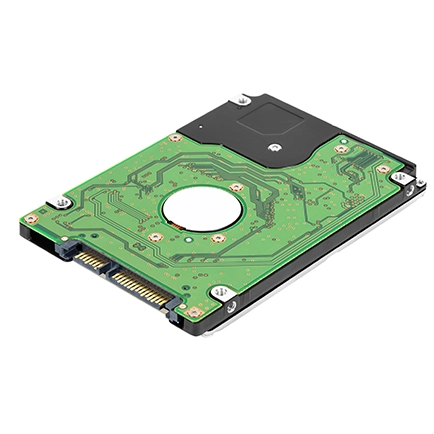
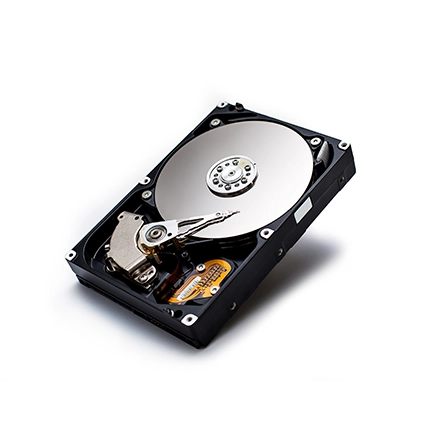
What Causes a Hard Drive to Click?
The clicking sound from a hard drive—often referred to as the “click of death”—can stem from several underlying issues:
- Physical Damage
- Physical impacts, such as accidental drops or bumps, can misalign or damage the read/write heads, actuator arm, or spindle motor.
- Transporting the drive improperly may expose it to shocks that lead to internal misalignment.
- Excessive vibration on unstable surfaces can cause the internal components to malfunction, resulting in clicking noises as the drive struggles to locate data.
- Manufacturing Defects
- Though rare, manufacturing defects can lead to premature failures. Issues may arise from:
- Faulty components, including weak read/write heads or flawed platters.
- Insufficient quality control during production.
- Damage during shipping, particularly if the packaging does not adequately protect the device.
- Though rare, manufacturing defects can lead to premature failures. Issues may arise from:
- Software Issues and Power Failures
- While mechanical failures are more common, software-related problems can also contribute to clicking sounds:
- Malware infections or corrupted operating systems can prevent the drive from functioning correctly.
- Damaged system files can cause failures during read/write operations.
- Inconsistent power supply from faulty adapters or power surges may disrupt normal drive operations.
- While mechanical failures are more common, software-related problems can also contribute to clicking sounds:
- Wear and Tear from Heavy Use
- Hard drives have a limited lifespan, and over time, they may naturally degrade due to:
- Continuous read/write cycles that place significant strain on mechanical components.
- Fragmentation resulting from insufficient free space, forcing the heads to work harder.
- High operating temperatures, which can accelerate wear and reduce the drive’s durability.
- Hard drives have a limited lifespan, and over time, they may naturally degrade due to:
Preventing the Click of Death
While it’s impossible to eliminate all risks, proper maintenance can significantly reduce the chances of a clicking hard drive:
- Regular Backups: Frequently back up your data and store copies in multiple locations, such as cloud storage and external drives.
- Keep it Clean: Regularly clean your system to prevent dust and debris from damaging internal components.
- Monitor Environment: Avoid exposing your drive to extreme heat or humidity, which can damage its internal structure.
- Use Surge Protectors: Employ surge protectors or UPS systems to safeguard against power surges and unexpected outages.
- Maintain Free Space: Ensure at least 10-20% of your hard drive is free to optimize performance.
- Proactive Replacement: Consider replacing drives every 3-5 years if they are heavily used to prevent unexpected failures.
- Consider SSDs: For intensive workloads, switching to solid-state drives (SSDs) can enhance resilience and performance.
- Choose Quality Brands: Invest in high-quality drives from reputable manufacturers to minimize the likelihood of early failures.
Consequences of a Clicking Hard Drive
Ignoring a clicking hard drive can lead to several serious consequences:
- Permanent Data Loss: A complete failure of the drive can render critical files—like documents, photos, and business data—inaccessible.
- Business Downtime: For organizations, data loss can disrupt operations, delay projects, and incur financial losses.
- Additional Hardware Damage: A malfunctioning hard drive can lead to overheating or damage to other system components.
- Psychological Stress: The emotional toll of losing irreplaceable data can be significant for individuals and detrimental to a business’s reputation.
Dangers of DIY Attempts
When faced with a clicking hard drive, many users attempt DIY repairs, which can worsen the situation. Here are some actions to avoid:
- Do Not Open the Drive: Opening a hard drive in a non-cleanroom environment can expose it to dust and static, causing permanent damage.
- Avoid DIY Recovery Software: While software may work for logically corrupted drives, it can exacerbate mechanical issues and further damage the platters.
- Stop Using the Drive: Continued use of a clicking drive can worsen the damage and lead to complete data loss.
- Refrain from Freezing or Hitting the Drive: Myths suggest these actions may work, but they often result in irreparable damage.
What to Do Instead
If your hard drive begins clicking, follow these steps:
- Turn Off the Device: Immediately power down the hard drive to prevent further damage.
- Contact Professionals: Reach out to Prime Data Recovery Services for experienced help with your clicking hard drive.
How to Fix a Clicking Hard Drive with Professional Help
When faced with a clicking hard drive, many users attempt DIY repairs, which can worsen the situation. Here are some actions to avoid:
- Do Not Open the Drive: Opening a hard drive in a non-cleanroom environment can expose it to dust and static, causing permanent damage.
- Avoid DIY Recovery Software: While software may work for logically corrupted drives, it can exacerbate mechanical issues and further damage the platters.
- Stop Using the Drive: Continued use of a clicking drive can worsen the damage and lead to complete data loss.
- Refrain from Freezing or Hitting the Drive: Myths suggest these actions may work, but they often result in irreparable damage.
If you’re unable to access data stored on secondary storage, removable media, or files due to hardware failure, accidental deletion, virus or malware attacks, physical damage, or other unforeseen issues, data recovery can help. It involves retrieving inaccessible, lost, corrupted, damaged, or formatted data. Data recovery is essential if you’ve lost important data and need it restored.
Data recovery services can retrieve various types of data, including documents, photos, videos, audio files, emails, and more. They can also recover data from applications or databases. However, the success of the recovery process depends on the severity of the data loss.
The ability to recover lost data depends on the type and scope of the data loss. While some cases can recover almost all data, severe damage may prevent any meaningful data recovery. Although data recovery services cannot promise 100% recovery, skilled technicians who use advanced tools and techniques have a higher success rate.
The duration of the data recovery process depends on the complexity of the situation and the volume of data to be recovered. Simple cases may take a few hours or days, while more complex cases can take up to several weeks. Your service provider will offer an estimated timeline after evaluating your case.
The cost of data recovery services varies based on factors such as the severity of the data loss, the type of storage device, and the urgency of the recovery. Some providers may offer a free evaluation to give you an estimate of the price. It is important to inquire about all associated fees and charges before committing to a service.
Once your data has been successfully recovered, it is typically transferred to a new storage device, such as a USB drive or external hard drive, and then returned to you. For smaller amounts of data, it may be delivered electronically.
To prevent future data loss, consider taking several proactive steps: regularly back up your data, use reliable antivirus software, keep your operating system and applications updated, and handle your devices with care to avoid physical damage. Additionally, if you suspect any issues, promptly turn off your device to prevent further damage.