
Common HDD Issues and Recovery Solutions
Few things induce panic quite like a hard drive failure. Whether it contains a decade’s worth of irreplaceable family memories, critical business tax documents, or your entire music collection, suddenly losing access to your files is a digital nightmare. But before you write off your hard drive as a lost cause, take a deep breath. The field of HDD Data Recovery is highly advanced, and with the right approach and a calm mindset, successful hard drive recovery is often entirely possible.
The secret to saving your files lies in accurately identifying the problem and knowing exactly what steps to take next. Here is a comprehensive guide to diagnosing common hard drive issues and implementing the best recovery solutions.
Identifying the Problem: Software vs Hardware Failures
The first and most crucial step in any recovery process is accurate diagnosis. Knowing how to spot software vs hardware failure symptoms will save you time, money, and potentially prevent permanent data loss.
- Software (Logical) Failures: The hard drive is physically healthy, but the data cannot be accessed. Symptoms include missing files, accidental formats, corrupted operating systems, or virus infections.
- Hardware (Physical) Failures: The mechanical components or electronic boards of the drive are failing or have died completely. Symptoms include strange grinding noises, the drive failing to spin up, extreme heat, or a burning electronic smell.
A very common early warning sign of a degrading drive requires understanding bad sectors and read errors. If your computer frequently freezes when opening specific folders, files take an unusually long time to copy, or you encounter Cyclic Redundancy Check (CRC) errors, the magnetic surface of your drive’s platters is likely starting to fail.

Common HDD Issues and How to Address Them
The Dreaded Clicking Sound
If you are desperately searching online for how to fix a clicking hard drive, you need to stop and power down your computer immediately. The infamous “click of death” usually indicates a failing read/write head assembly. The head is trying to read the data, failing, and swinging back to its starting position, creating a rhythmic clicking noise.
Continued operation in this state is incredibly dangerous. It can quickly lead to signs of physical platter damage, where the microscopic read/write heads crash down and literally scrape the magnetic coating (and your data) right off the spinning disks. There is no software fix for this; it requires professional mechanical intervention.
Unrecognized Drives
Another frustrating scenario is dealing with an external drive not showing up in Disk Management or Finder. Before assuming the worst, troubleshoot the basics: swap the USB cable, try a different port, or plug the drive into another computer.
If the drive still fails to initialize, it could be a burnt-out printed circuit board (PCB) or corrupted microcode. In complex cases, restoring access requires advanced damaged firmware repair techniques. Data recovery specialists use specialized diagnostic tools to bypass or rewrite the drive’s internal operating code just to get the device to communicate with a computer again.
Accidental Formatting and File Corruption
Sometimes the hardware is perfectly fine, but human error strikes. If you accidentally wiped the wrong drive, recovering files from a formatted partition is highly successful—provided you stop using the drive immediately so new data doesn’t overwrite the old files.
Similarly, if you are tasked with retrieving lost photos from corrupted drive volumes due to a sudden power outage or OS crash, software can be your best friend. There are several of the best free file restoration tools available today, such as PhotoRec, TestDisk, or Recuva. These programs dive past the corrupted file system to locate and recover orphaned file fragments based on their file signatures.
DIY Recovery vs. Professional Intervention
When (and How) to Try It Yourself
If your drive is suffering from logical corruption or early-stage bad sectors but is still recognized by your computer, you can attempt recovery at home. However, running an intense, multi-hour file scan on a dying drive will often push it over the edge.
Instead, one of the most vital emergency disk repair procedures is to image the drive first. You should familiarize yourself with the steps to clone a failing disk:
- Connect a healthy, empty destination drive to your computer.
- Download a dedicated cloning tool like ddrescue or Macrium Reflect.
- Configure the software to perform a “sector-by-sector” or “raw” clone.
- Let the software copy everything from the failing drive to the healthy drive.
Once the clone is complete, put the failing drive safely in a drawer. You can now run your file restoration software on the healthy clone without fear of hardware failure.
The Dangers of Going It Alone
You must always weigh the DIY data retrieval risks before proceeding. If your data is mission-critical, DIY attempts can sometimes do more harm than good.
For instance, reclaiming data after a head crash or severe mechanical failure is literally impossible with downloadable software. Attempting to force a physically broken drive to run will permanently destroy whatever data remains. Furthermore, never open a hard drive enclosure yourself. Hard drives are assembled in highly regulated environments; opening one on your kitchen table exposes the platters to dust particles that act like boulders against the read/write heads, causing instant, catastrophic damage.

When to Call the Experts
When a drive suffers extreme physical trauma, water damage, electrical surges, or internal mechanical failure, it’s time to seek out professional data recovery services. These experts possess the proprietary tools, vast libraries of donor parts, and specialized environments necessary to safely extract your files.
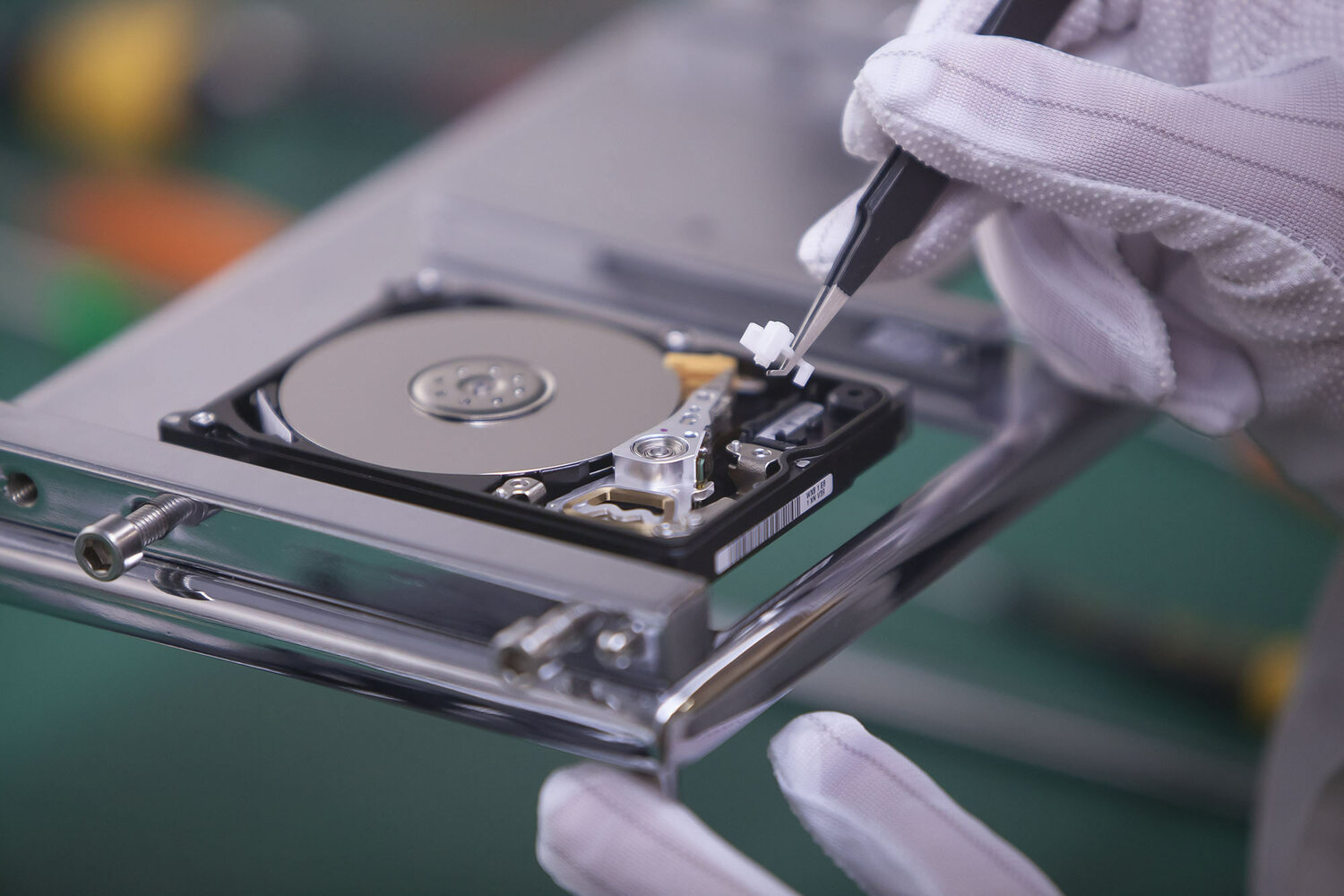
One of the most critical benefits of ISO-certified cleanroom labs is their heavily filtered air systems. In these environments, engineers can safely open your drive, replace a seized spindle motor, or swap out broken read/write heads without microscopic dust contaminating the platters.
Naturally, a primary concern for most users is the professional data recovery service cost. Depending on the severity of the damage, the necessity of donor parts, and the required turnaround time, costs can range from a few hundred to over a thousand dollars. While this may seem like a steep investment, reputable labs usually offer a free evaluation and a “no data, no fee” guarantee, ensuring you only pay if your critical files are successfully recovered.
Final Thoughts
Hard drive failures are an unfortunate inevitability of the digital age. By recognizing the warning signs early and understanding the difference between logical glitches and severe mechanical breakdowns, you can drastically improve your chances of getting your files back.
Remember, the best HDD Data Recovery strategy is the one you never have to use. Always maintain a robust 3-2-1 backup strategy: three copies of your data, on two different media types, with one stored offsite or in the cloud. But if disaster does strike, stay calm, power down the drive, and use this guide to navigate your way back to your precious data.